WebLink Designer
The WebLink Designer lets you configure WebLink to connect to your repositories, choose how you want users to authenticate to the repository, and customize various options in WebLink, both in appearance and in behavior. The WebLink Designer can be accessed at https://ServerName/Designer, where ServerName is the name of your WebLink web server.
Virtual Directories
You can manage your WebLink virtual directories in the top left corner of the WebLink Designer. By default, the original WebLink virtual directory will be listed here. If you have configured WebLink to use another virtual directory, or want to work with multiple WebLink virtual directories, you can add them by selecting Register and choosing from the list of available virtual directories on your web server. (See Changing the Default Virtual Directory for more information.) You can also remove virtual directories by clicking Manage. When configuring or customizing WebLink, ensure you have the appropriate virtual directory selected.
Configuration Options
The following sections of the WebLink Designer allow you to customize various aspects of WebLink.
Connection
The Connection section lets you add repositories to WebLink. You can add multiple repositories to a single WebLink installation. In that case, each repository will have an individual DBID, which will specify which repository a given link will connect to. If no DBID has been specified, the repository marked as Default will be used.
Adding Repositories to WebLink
To add a repository to WebLink, click the Add repository button. You will need to specify the Server name of the Laserfiche server that hosts the repository, and the Repository name. A DBID will automatically be assigned.
You will then need to provide Log in information:
- Prompt for Laserfiche credentials: No users will be automatically logged in. Instead, users will be prompted to type a user name and password. This can be a Laserfiche directory user, a Laserfiche repository user, a Windows account, or an LDAP account. In the latter cases, the Windows or LDAP user name and password must be manually specified.
- Prompt for Windows credentials: No users will be automatically logged in. Users will instead be prompted to log in using their Windows credentials.
- Auto-login with Laserfiche credentials: Users will be automatically logged in as the specified Laserfiche account when they access the repository using WebLink. They will then use the rights and settings configured for that user, and will be audited as that user. This configuration is the most commonly used scenario for anonymous public access. See Public User for more information.
- Auto-login with Windows credentials: Users will be automatically logged in as a Windows account. If you select Use the accessing user's account, they will be logged in using their own Windows credentials. If you select Use the anonymous access account, they will then automatically be logged in as the Windows user you specify; they will use the rights and settings configured for that user, and will be audited as that user. See Public User for more information.
If you want to secure your connection between WebLink and your repository using TLS, which is recommended, select TLS. Once you have configured your repository, select Save to add it to WebLink. You can also use the Edit button to modify existing repositories, or the Remove button to remove a repository from WebLink.
Note: You can add the same repository to WebLink more than one time. This can be useful if you want to configure an anonymous public user for a repository, but also allow internal users to connect using a user name and password.
WebLink Connection Settings
Additional connection settings are available below the repository list. These settings apply to all repositories in the specified virtual directory.
- Laserfiche WebLink Host URL: Specify the URL of your WebLink installation. In most cases, this will be https://ServerName/WebLink, where ServerName is the name of your WebLink web server.
- Require TLS: Select this option to require all repositories to connect using TLS.
- Directory Server: Select this URL to use Laserfiche Directory Server to provide single sign-on capability with WebLink. Once you have selected this option, provide the Laserfiche Directory Server STS URL. In most cases, this will be https://ServerName/LFDSSTS, where ServerName is the name of your Laserfiche Directory Server instance. Note that you must have SSL configured for both Laserfiche Directory Server and the WebLink web server to use this option.
- Logging Level: Specify the level of detail you want to include in your WebLink logs. You can choose Critical, Important, Informational, or Debug. Note that Debug can create extremely large log files and is recommended only for immediate troubleshooting.
- Session Timeout (In Minutes): Specify the length of time you want idle sessions in WebLink to remain active before they are disconnected.
Theme
The Theme section lets you modify the colors and images of your WebLink site.
Colors
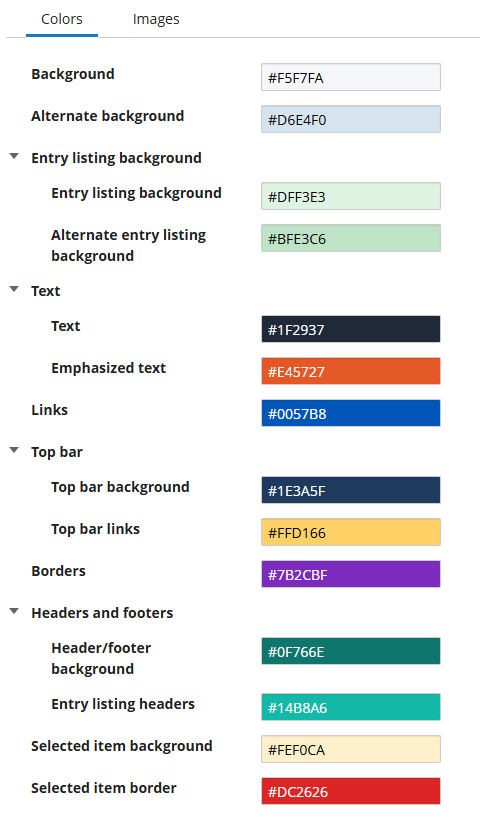
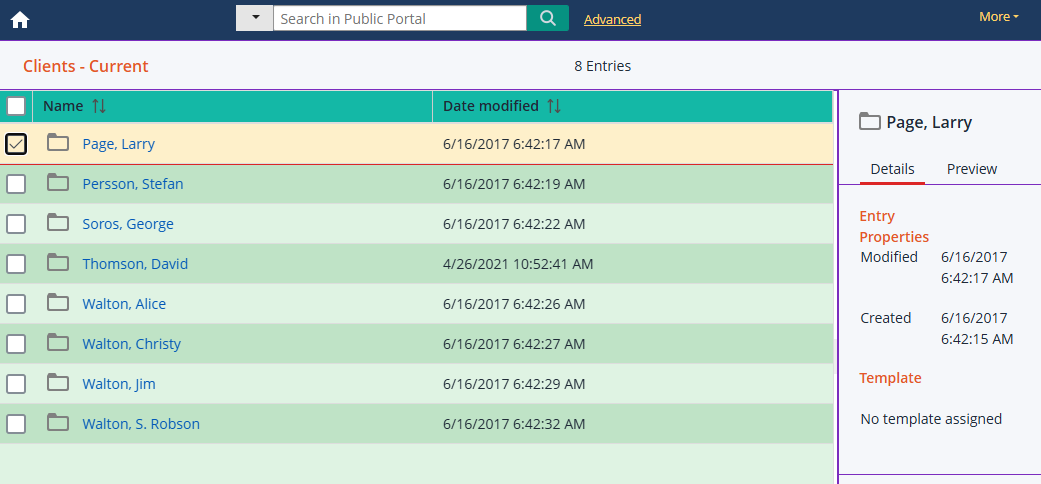
In the Colors tab, you can provide custom colors for your WebLink website, allowing you to customize it to your own color scheme. For example, a university's website could be configured to match the school's colors. Most elements on the page can be customized in this way, including the page background, text and links, the top bar, borders, headers, and footers. To customize a color, select the option box next to the element you want to change. You can then use the color picker to select a color, or provide a hexadecimal color code. The background of the option box will change to the selected color, allowing you to see at a glance what colors have been configured. You can preview the selected colors on the website by selecting the Preview link at the bottom. You can also select Reset to default colors to restore the WebLink defaults.
Images
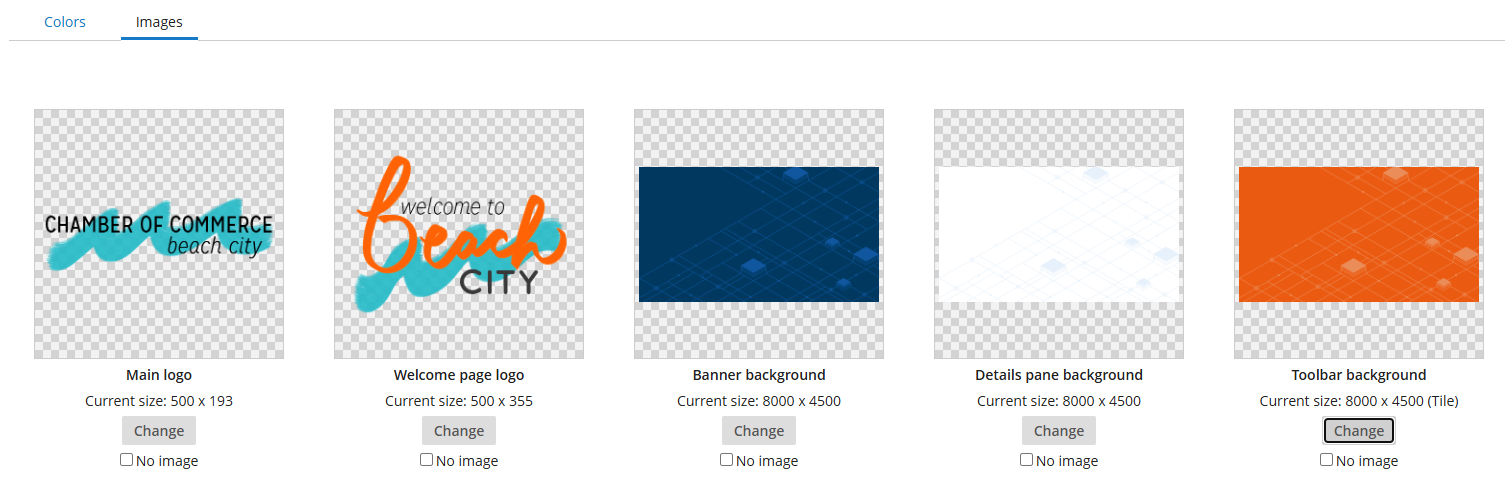
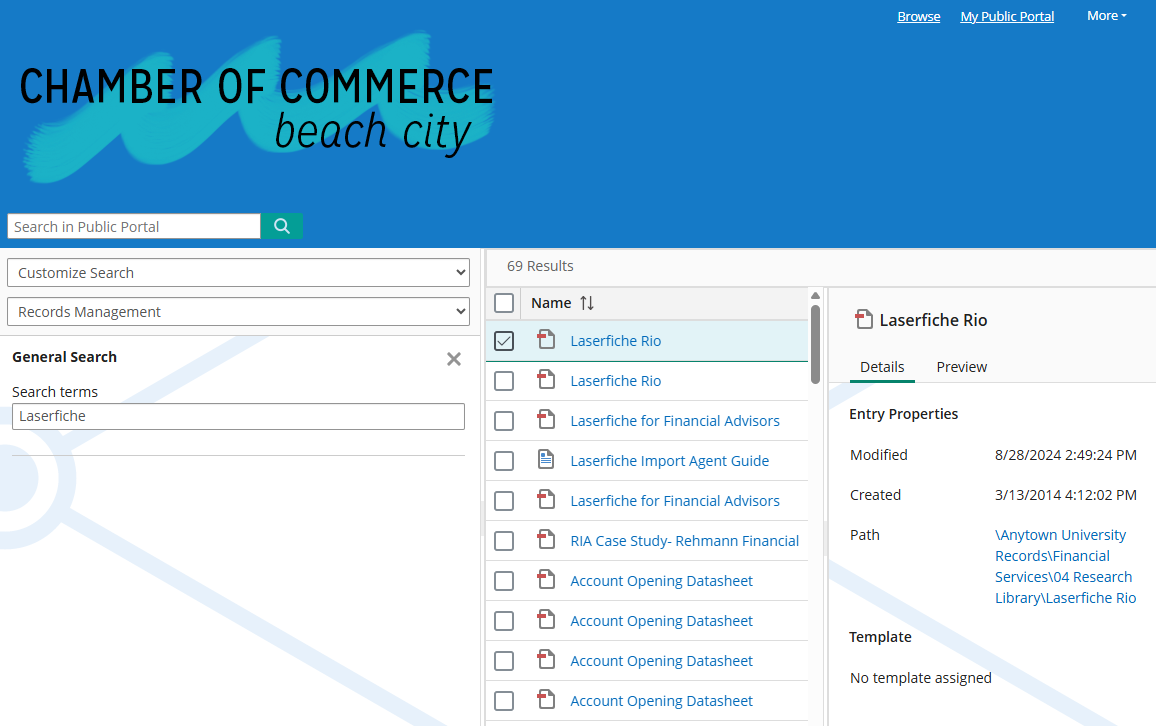
In the Images tab, you can add custom images to your WebLink website, including logos and backgrounds. For example, a city government's website could include the city seal. To add an image to your site, select the Change button corresponding to the element you want to change: main logo, welcome page logo, banner background, details pane background, or toolbar background. You can then browse to the image on your computer. If you don't want to include an image for a specific element, you can select No image.
You can preview your images on the website by selecting the Preview link at the bottom. You can also select Reset to default images to restore the defaults.
 See example color selections and how they appear in the preview
See example image selections and how they appear in the preview
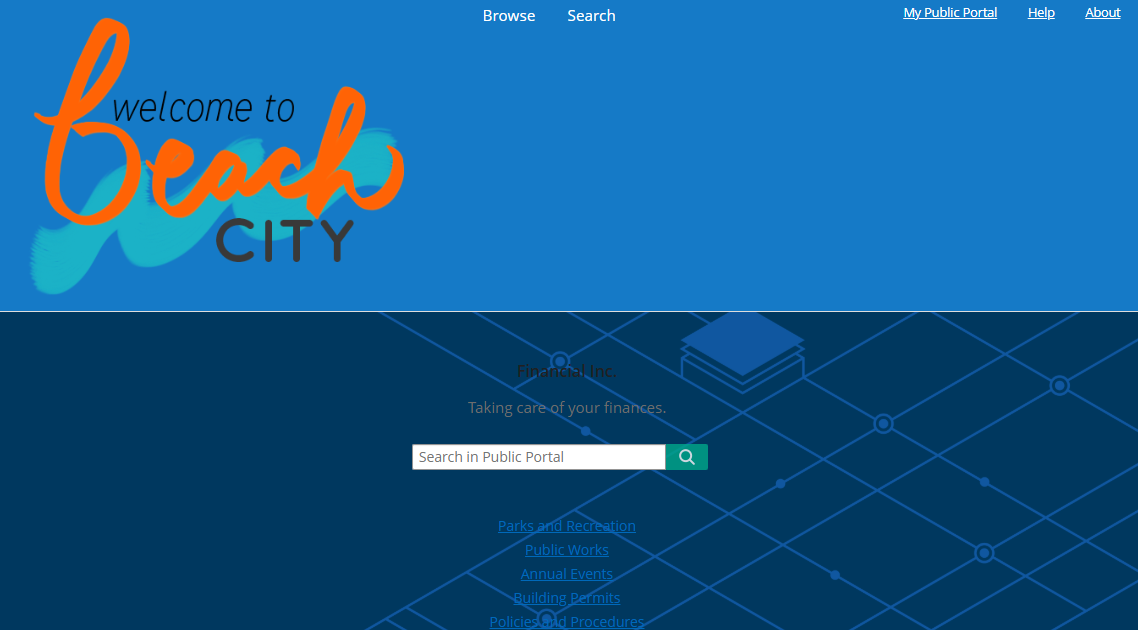
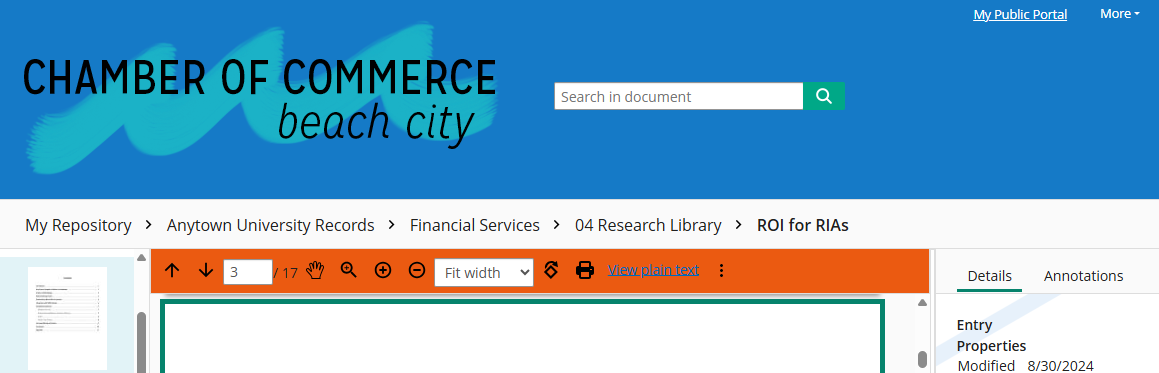
Theme Settings
When uninstalling and reinstalling WebLink, the Theme settings will be reverted to the default installation settings. To save your Theme settings before uninstalling, back up the following files:
- SearchResults.xsl located at C:\Program Files\Laserfiche\WebLink\WebLink\Web Files\xsl.
- WebLinkStyles.css located at C:\Program Files\Laserfiche\WebLink\WebLink\Web Files.
- LfWLLogo.gif, WelcomeSideBanner.gif, WatermarkLogin.gif, WatermarkSideNav.gif, and docTBbg.gif located at C:\Program Files\Laserfiche\WebLink\WebLink\Web Files\images.
- CustomWebLinkStyles.css located at C:\Program Files\Laserfiche\WebLink\WebLink\Web Files\Custom.
To back up your WebLink Designer configuration settings, use the WebLink Settings Bundler.
Welcome Page
In the Title option, you can specify a title for your website, and you can optionally include additional text about the site in the Text option. The Search Box option determines whether a search bar will be displayed by default on the Welcome page.
When customizing custom links and search forms, you will first need to select a repository in the Repository option, as these elements are repository-specific.
Custom Links
Custom links let you provide easy access to parts of your repository, search forms, or external URLs. For example, you might want to provide links to a commonly-accessed folder, to a specific search you have configured for users, or to your organization's main website.
To create a custom link, select the Custom Links tab, click the New Custom Link button, and then choose one of the following options:
- Folder or document: Link directly to a specific folder or document in your repository. Specify a title for the link in the Title option, and then navigate to the document or folder to which you want to create the link. Note that while all users will see the link, only users who have appropriate rights to the folder or document will be able to open it; other users will receive an access denied message.
- Search form: Open a specific search form. Specify a title for the link in the Title option, and then select the search form to which you want to create the link. Note that the search form must be created before it can be added as a link; see Search Forms, below, for more information.
- External URL: Link to an external website. Specify a title for the link in the Title option, and then provide the URL to the website to which you want to link.
You can edit custom links by selecting them and then selecting the Edit button, or remove custom links by selecting them and the selecting the Remove button. To rearrange the order in which they will be displayed, use the up or down arrow buttons.
Search Forms
Search forms let you create custom searches based on the information your users are looking for. The search box on the Welcome Page can search text, entry names, fields, and annotation text. This may not be specific enough for your needs, however, or you may want to provide easy access to another search type.
You can create a search form, for example, that only searches for documents in a specific folder or documents assigned to a specific template. You can also create a search form that lets users quickly perform a search for documents created during a particular time frame.
You can control how many search types you want to include and how you want the form to look. Users will not have to configure the searches in the Search Pane. As an administrator, you decide the most useful searches and create them for the users.
Once you have created a search form, you will need to add it to the Welcome page as a custom link. See Custom Links, above, for more information.
Creating a Search Form
To create a search form, select the Search Forms tab and then select the New Search Form button. You will be prompted to provide a title and an optional description, which will be displayed to the user when they open the search form. Click Create. The custom search form configuration page will open.
On the configuration page, you can select which search types you want to add to the search form by double-clicking or dragging and dropping the search type name. You can also add the same type more than once (for instance, to add multiple fields, or to add both creation and modification date search). They will be displayed to the user in the order in which they are added to the form. Each search type has options that you can configure to suit your users' needs.
Quick Search
Quick Search lets users search across multiple elements of a document from one search box. You can configure the following options for quick search:
- Field Label: The label that will be displayed to users next to the search box. By default, this is "Quick Search."
- Required: Whether or not the field is required. If a field is required, users cannot perform the search until they have specified a value.
- Search Options: Which search types will be included. You can choose any or all of Name, Any Text, Any Field, and Annotation Text.
- Input Type: Whether you want the user to be able to type any text they want into the search box, or be constrained to a list that you have provided.
- If you select Text, you can optionally provide a default value that will be pre-populated for the user.
- If you select List, you will need to define your list. Select the Define List button, and then specify Text and a Value for the list item. The text option controls what text will be displayed to the user in the list, and the value option is the actual search term that will be used when the search is performed; these can be the same, or different. For example, if your documents are organized by a report type code, you could provide the name of the report type as the text that will be presented to the user, and the code as the actual value that will be searched. You can also determine whether you want the options to be displayed as a dropdown, as a group of radio buttons, or as a set of checkboxes. Dropdowns and radio buttons allow only one option to be selected at a time, while checkboxes allow users to select multiple options from the list.
- Advanced: If you selected Text as Input Type, you can specify a custom width in pixels or length in characters for the input box. You can also specify whether to use the Match whole word or Use wildcards search options for this search. If you selected Text or List under Input Type, and are familiar with CSS and have customized the style sheet, you can apply custom classes and styles under Show advanced.
Date
The Date option lets users easily search by creation or modification date. You can configure the following options for date searches:
- Field Label: The label that will be displayed to users next to the search box. By default, this is "Creation Date" or "Modification Date," depending on the search option selected.
- Required: Whether or not the field is required. If a field is required, users cannot perform the search until they have specified a value.
- Search Options: Whether the search is a Modification Date search, or a Creation Date search.
- Input Type: Whether the user will be prompted to provide a Date or a Date Range.
- Advanced: If you are familiar with CSS and have customized the style sheet, you can apply custom classes and styles under Show advanced.
Custom Input
The Custom Input lets users search using custom variables. For a custom input search, you must configure the syntax for the search in the Search Results section; see Search Query, below. You can configure the following options for custom input searches:
- Field Label: The label that will be displayed to users next to the search box. By default, this is "Custom Input."
- Variable Name: The name of the variable that will represent the user input in your custom search.
- Required: Whether or not the field is required. If a field is required, users cannot perform the search until they have specified a value.
- Input Type: Whether you want the user to be able to type any text they want into the search box, or be constrained to a list that you have provided.
- If you select Text, you can optionally provide a default value that will be pre-populated for the user.
- If you select List, you will need to define your list. Select the Define List button, and then specify Text and a Value for the list item. The text option controls what text will be displayed to the user in the list, and the value option is the actual search term that will be used when the search is performed; these can be the same, or different. For example, if your documents are organized by a report type code, you could provide the name of the report type as the text that will be presented to the user, and the code as the actual value that will be searched. You can also determine whether you want the options to be displayed as a dropdown, as a group of radio buttons, or as a set of checkboxes. Dropdowns and radio buttons allow only one option to be selected at a time, while checkboxes allow users to select multiple options from the list.
- Advanced: If you selected Textas Input Type, you can specify a custom width in pixels or length in characters for the input box. You can also specify whether to use the Match whole word or Use wildcards search options for this search. If you selected Text or List under Input Type, and are familiar with CSS and have customized the style sheet, you can apply custom classes and styles under Show advanced.
Text
The Text option lets users provide custom text that lets you specify text that will be displayed to the user on the search form. You can use this option to explain the various search options on the search form. This option does not perform a search.
- Advanced: If you are familiar with CSS and have customized the style sheet, you can apply custom classes and styles under Advanced.
Template and Field
The Template and Field options lets users search specific fields in the repository, as opposed to searching across all fields using a Quick Search.
To add a Field search to the search form, either select the template to which it belongs, or search for it using the Search fields option. If you select a template, you can drag and drop individual fields into the search form, or click Add All to add all the fields at once. Once you have added a field to your search form, you can configure the following options:
- Field Label: The label that will be displayed to users next to the search box. By default, this is the name of the field.
- Required: Whether or not the field is required. If a field is required, users cannot perform the search until they have specified a value.
- Input Type: The Input Type options depend on the type of field added:
- Text, List, or Number: You can specify whether you want the user to be able to type any text they want into the search box or be constrained to a list that you have provided.
- If you select Text, you can optionally provide a default value that will be pre-populated for the user.
- If you select List, you will need to define your list. Select the Define List button, and then specify Text and a Value for the list item. The text option controls what text will be displayed to the user in the list, and the value option is the actual search term that will be used when the search is performed; these can be the same, or different. For example, if your documents are organized by a report type code, you could provide the name of the report type as the text that will be presented to the user, and the code as the actual value that will be searched. You can also determine whether you want the options to be displayed as a dropdown, as a group of radio buttons, or as a set of checkboxes. Dropdowns and radio buttons allow only one option to be selected at a time, while checkboxes allow users to select multiple options from the list.
- Date: Whether the user will be prompted to provide a Date or a Date range.
- Text, List, or Number: You can specify whether you want the user to be able to type any text they want into the search box or be constrained to a list that you have provided.
Customizing Search Results Display
In the Search Results tab, you can specify how the searches are run, and how the results will be displayed to the user.
Search Query
The Search Query option lets you configure the logic used for performing the search. By default, searches will return documents containing entries that meet the criteria of any of the searches performed by the user. For example, if a search form contains both a creation date search and a field search, and a document only matches on the field search, it will be returned. However, you can modify your search constraints to perform the searches differently.
Search query groups allow you to specify whether a specific set of search options will be combined with "any" or with "all." You can change the option from Search for entries that meet any constraint to Search for entries that meet all constraints to restrict your searches; in that case, in the example above, the document would need to match on both the field and the date search to be returned. You can also combine these options, requiring some search criteria to be matched as "any" and others to be matched as "all." To add a new group, select Add Group, and then specify how you want entries to be constrained.
Search queries themselves can also be modified. You can select the search query and specify whether you want it to return results if it Matches the specified value, or if it Does Not Match the value. For Date fields that contain a specific date range, you can also specify that results should be returned Before or After that date.
Custom Input
If you are using a custom input search (see Custom Input, above), you can specify the search syntax here. Select Add to add the custom input search to your search results, and then select enter search syntax to specify the search syntax for your search. The variable you specified in the custom input search type will be replaced in this search with the user input. For example, if you named your variable CustomID, you could create an entry ID search with the syntax {LF:ID=%(CustomID)}.
Sort Option
You can specify the sort order that will be used when search options are displayed. You can select document properties (such as name, creation date, last modified date, and so on) or individual fields to sort by. If you specify more than one sort option, the resulting documents will be sorted first by the first option, then by the next, and so on. To set a custom sort, select Add Sort Option and then double-click or drag and drop the property or properties you want to use for sorting.
Summary
In the Summary option, you can provide summary text that will be displayed with your search results.
Navigation
The Navigation section tab enables you to decide which links you want displayed in the Navigation control under the WebLink logo.
Show Welcome Page Link
When selected, a Home link will be visible below the logo. Clicking it will take you to the Welcome Page.
Show Folder Browser Link
When selected, a Browse link will be visible below the logo. Clicking it will take you to the last state of the Folder Browser to browse through folders.
Show Search Pane Link
When selected, a Search link will be visible below the logo. Clicking it will open the Search Pane.
Show My WebLink Link
When selected, a My WebLink link will be visible below the logo. Clicking it will open My WebLink .
Document Viewer
The Document Viewer tab lets you set a default cursor mode and zoom level when viewing a document in WebLink.
Default Cursor Mode
Pan
Pan mode lets you use the cursor to drag the image in the desired direction. You can double-click to zoom in to an image and press CTRL+ click to zoom out of an image. If your mouse has a scroll wheel, scroll down to move through the document and scroll up to move backward through the document.
Zoom
Zoom mode lets you double-click on an image to zoom into it. Press CTRL+ click to zoom out of an image. If you have a mouse wheel, scroll down to zoom out of an image and scroll up to zoom into an image.
Default Zoom Level
Fit to width
Fit to width lets you view a document whose image widths matches the width of the Image Pane. Scrolling left and right to see the contents of the page will not be necessary.
Fit to page
Fit to page ensures you see the entire page in the image pane when opening a document in the Document Viewer.
Display Breadcrumb
Showing the breadcrumb lets you see a breadcrumb above the image pane. The breadcrumb displays the folder structure leading to the open document.
Highlight Internet Search Results
You can search for documents using the Google search engine. If this option is selected, the term you search for will be highlighted in the document when you open it from the search results.
Note: This highlight feature will only work if a custom link to a folder is added to the Welcome Page or if the browse.aspx page is added to the sitemap.
Show Annotations By Default
This option will display annotations by default when opening a document. You can turn the annotation display off.
Note: The user accessing WebLink must have the See Annotations entry access right for the document in order to see the annotations.
Watermark
Enabling a watermark will display a watermark on all image pages accessed through WebLink . When you select this option, you can specify your watermark text.
Click Save to save your default document view settings.
Search Results
When performing searches, users will be presented with search results. The Search Results tab lets you configure how you want users to see these search results. For example, some users benefit from seeing the context hits or thumbnails of the search results while others might want to see the metadata of the search results. For each element, you can specify whether you want to Show, Show minimized, or Hide it in the search results. You can also use the up and down arrows to reorder the elements. A preview of your search results configuration is available at the bottom of the page.
The Entry Properties, User-Selected Fields, and Metadata can be further edited. To edit them, double-click them or select the one you want to edit and click the Edit button.
Entry Properties
Select if you want to display the entry's template, creation date, last modification date, page count, and/or electronic file size.
User-Selected Fields
Users can add specific fields to be displayed when viewing search results. These are configured by each user through the MyWebLink Page. Double-click the option to configure additional settings; you can select if you want the fields users add to be displayed on the same or different lines, and whether you want fields with empty values displayed.
Context Hits
Select whether you want to display context hits for text searches.
Thumbnails
Select whether you want to display thumbnails for imaged documents and PDFs.
Metadata
Select whether you want to display document metadata. Double-click the option to configure additional settings; you can select if you want the fields users add to be displayed on the same or different lines, and whether you want fields with empty values displayed.
Enable Search Grid View
Select whether you want the search results displayed in a grid, and on which page you want to view the search results as a grid: Welcome Page, Search Page, or Search Form Search Page.
Preview
View a preview of your search results configuration. This preview will not show grid view.
Search Options
The Search Options tab lets you configure the Quick Search on the Welcome Page and in the Folder Browser to search text, entry names, fields, annotations, or a combination of these. In addition, you can enable fuzzy search options for text searches. By default, the Quick Search will search text and entry names and the fuzzy search will be disabled.
Quick Search Options
Enable Search Types
Select the check box(es) next to the types of searches you want the Quick Search to perform.
Fuzzy Search
The fuzzy search lets you find all words or phrases that are similar to the word or phrase you typed, even if they contain misspellings.
When using fuzzy search, the degree of accuracy is determined by the percentage of each word or by the number of letters in the phrase. If you select Percentage of word, type the percentage of each word in the phrase that can differ from the search criteria and still be considered a good result. If you select Number of letters, type the maximum number of letters that each word in the phrase can differ from the specified criteria and still be considered a good result.
Note: Fuzzy searches take significantly more time and should only be used when you can't find the documents you want and are not sure of the exact content in the desired documents. Fuzzy search options are for text searches only.
Note: Partial matches will be returned for entry names, fields, and annotations. This means the asterisk (*) wildcard (representing missing or no missing characters) is automatically implied. You do not have to know the exact name of the entry to search for it. For instance, performing a search for the document named "laser" will return documents named "laser," "laserfiche," "lasers," etc. Partial matches are not returned for text searches unless you add an asterisk (*).
Resolve Shortcuts
Resolve Shortcuts controls whether shortcuts will inherit the traits of their parent documents for search purposes. For example, if you select this option and perform a search for documents containing the word "Agenda" that are in the "MyDocument" folder, the text search will also be performed on documents that have shortcuts in the "MyDocuments" folder. This option is most commonly used in conjunction with folder tunneling.
Note: Resolve shortcuts can significantly slow search performance, because a larger section of the repository must be searched. Only select this option if it is necessary for the way you handle shortcuts in your repository.
Search Fields
You can specify the number of fields a user must input when performing a template search. This forces users to make searches more specific. For example, this would be useful for repositories containing documents that are all assigned the same template. In that case, performing a template search with no field values will not only make the search slow, but will also return every document in your repository.
Note: The default value is zero.
Sort Search Results By
You can specify which column will be sorted on, and whether the search will be ascending or descending.
Public User
When you have selected one of the auto-login options in the Connection section, you can customize the properties of the specified auto-login user in the Public User section.
Note: The Public Portal Administrator right is required to see the Public User tab.
Repository
Specifies the repository for which you are configuring the public user.
Public User
Lists the current public user. You can change the user in the Connection section.
Open in WebLink Document Viewer
Whether electronic files will be opened in the document viewer or downloaded to be opened in their native application. You can choose to open PDFs this way, or other electronic files, or both.
Search
You can specify the highlight color for search hits. You can also choose to Include variants of root words in indexed searches. For instance, if you select this option and then search for the word "swim," the search results will also include the words "swam" and "swimming." Finally, you can choose to automatically open documents from search if there is only one valid search result.
Entry Listing
If you want the user to enter the repository at a different location than the root folder, you can choose a new root folder that will be displayed when they browse the repository. To do so, select Choose Root Folder and navigate to the folder you want to use. You can also choose whether to Group entries by folders and documents, or present a flat list of entries.
Column Display
You can specify a set of columns to be displayed in the folder browser by importing them from another user. To do so, select Import Columns From User and select the user whose columns you want to copy.