Installing Quick Fields and Quick Fields Agent
Quick Fields is an automated data capture and storage solution that extracts information from documents, organizes them, and stores them in a Laserfiche repository. Quick Fields Agent lets you schedule Quick Fields sessions and run them unattended.
This Quick Fields package will install Quick Fields and Quick Fields Agent.
To install Quick Fields and Quick Fields Agent
- Open the Laserfiche installer.
- Locate Quick Fields and click Install.
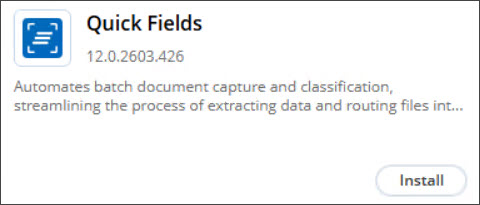
- If not already installed, OCR with OmniPage and Webtools Agent are related to and will be installed along with Quick Fields and Quick Fields Agent.
- You can view the available activation keys by clicking the link on the right or select one from the drop-down before beginning the installation. If you choose to proceed without activating or applying a license, you’ll be asked to confirm that activation will be required after installation. Then click Install.
- Read and accept the End User License Agreement.
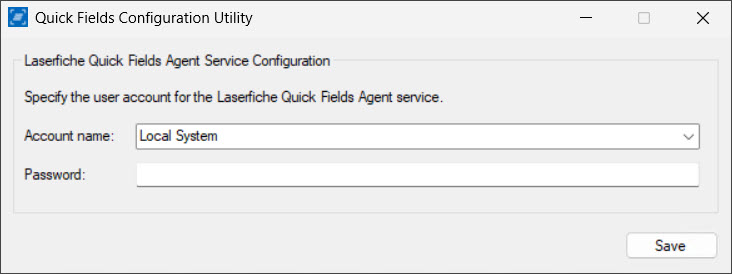
- After successfully extracting and installing, the installer will open the Quick Fields Configuration Utility. If the installer does not open the utility, the utility can be located at the following default location: C:\Program Files (x86)\Laserfiche\Quick Fields\Legacy\Laserfiche.QuickFields.QuickFieldsUtility.exe.
- In the Quick Fields Configuration Utility, specify the user account the Quick Fields Agent service will use to run Quick Fields sessions.
- If you have not activated Quick Fields, open Quick Fields and click Activate Now and provide a license file or register using an activation key.
Adding or Removing Quick Fields Add-Ons
To add or remove add-ons, you will need to reactivate Quick Fields.
To add or remove an add-on
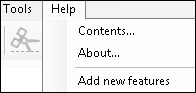
- Click Add new features from the Help menu.
- Click Yes when the Are you sure you want to reactivate? dialog box appears.
- Provide the license file or activation key that contains the license information to add or remove add-ons and click Activate.
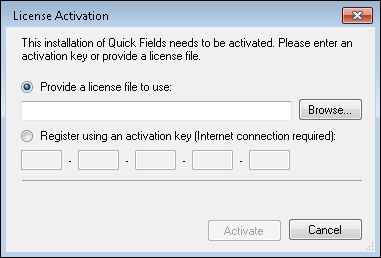
Note: If you originally activated Quick Fields with a key, that key will be automatically populated for you when reactivating Quick Fields.
- You will be prompted to restart Quick Fields. Once restarted, the add-ons you are licensed for will be displayed appropriately.
Quick Fields Access
In order to access Quick Fields, users do not need to be administrators on the machine on which Quick Fields is installed. They do, however, need access to the following Quick Fields folder and everything inside it:
C:\ProgramData\Laserfiche\Quick Fields