Signing Documents with DocuSign
You can select documents from the folder browser and then choose to send these documents to DocuSign to get signatures. The Laserfiche web client will export the selected documents to DocuSign. Designated recipients will receive an email message notifying them that documents are awaiting their signature. When appropriate, DocuSign can send information regarding the status of the DocuSign envelope. The Laserfiche web client can then modify field metadata on the sent documents to reflect the status of the sent documents.
Note: The DocuSign integration is only used with the Laserfiche web client. It is not supported with the Laserfiche Windows client.
Configuring DocuSign Connect Service Settings
The DocuSign website allows you to configure DocuSign to publish information to an external web service. This section covers configuring DocuSign to publish information to the Laserfiche DocuSign import web service.
To configure a DocuSign Connect service follow the steps below:
- In DocuSign, view your DocuSign Settings.
- Under Integrations, click Connect.
- Under Add Configuration, click Custom.
-
In the URL to publish to option, specify the URL to the Laserfiche web client DocuSign import web service. By default, the URL will look similar to:
https://WebServer/DocuSignConnectService/receivepdf
Note: Your web server must be able to connect to services outside your network (for example, via a DMZ).
- In the Name option, specify a display name for this DocuSign Connect service.
- Enable the Legacy data format option.
- Enable the Aggregate event message delivery mode.
-
Enable the following general options:
- Enable Log (maximum 100)
- Require Acknowledgment
-
In the Envelope and Recipients section, enable the following options:
- Document PDFs.
- Time Zone Information
- Include Sender Account as Custom Field
-
In the Trigger Events for Envelope and Recipients section, configure when DocuSign will send information to the Laserfiche web client. The Laserfiche web client supports the following event types:
- Envelope Completed/Signed
- Envelope Declined
- Envelope Voided
- In the Associated Users/Groups section, specify which DocuSign users will be affected by the Laserfiche web client integration.
- Click Add Configuration.
Configuring the DocuSign Web Import Service
You must configure the DocuSign import web service before DocuSign Connect can successfully save documents in your Laserfiche repository.
-
Browse to C:\Program Files\Laserfiche\Web Import Services\DocuSignConnectService\Config and open Config.xml with a text editor.
Tip: With an XML editor, you can point to the Config.xsd schema file for name suggestions to aid in editing Config.xml.
- Next to <LaserficheServer>, specify your Laserfiche server host name.
- Next to <LaserficheRepository>, specify your Laserfiche repository name.
- Next to <LaserficheUserName> and <LaserfichePassword>, specify authentication information. The DocuSign import web service logs in to the repository using this Laserfiche account and password. Leave these values blank to log in with Windows authentication using the identity of the DocuSignConnectServiceAppPool application pool in IIS.
-
Configure the <Events> section to map DocuSign information to Laserfiche fields. The <Events> section contains 3 subsections which correspond to the events on the DocuSign Connect Settings page. The import web service supports the following event types:
- <OnSignedEvent>: When a DocuSign envelope is completed.
- <OnDeclinedEvent>: When a DocuSign envelope is declined.
- <OnVoidedEvent>: When a DocuSign envelope is voided.
In each subsection, add <FieldValue> elements to map DocuSign event values to specific Laserfiche fields. For example, if under <OnSignedEvent>, <FieldValue name="DocuSign Envelope Status">Envelope Signed</FieldValue> configures the integration to assign the DocuSign Envelope Status field to the document and sets the value to "Envelope Signed." In this example, the value is a static value, but you can use DocuSign tokens for dynamic information associated with the signed document. For a quick reference on available tokens,see DocuSign Tokens.
Note: The import web service will not automatically create field definitions. Please make sure that any specified Laserfiche fields are already created in the Laserfiche repository.
You can also configure a default Laserfiche folder to store received DocuSign documents. Next to<DefaultFolder>,specify the desired Laserfiche folder. You can specify a static folder, or use tokens to specify a dynamic path. For example, <DefaultFolder>\*Signing Completed\%(UserName)</DefaultFolder> configures the integration to retrieve user name that sent the signing request and creates a subfolder in the *Signing Completed folder.
Note: The default folder only affects documents that did not originate from within the Laserfiche web client (e.g., using the Send option on the DocuSign website).
-
Optional: In the <Features> section, next to <EnableApplicationLogging>, specify true if you want to log information in the Windows Event Log. <NotificationLevel> controls the amount of information you want logged in the Windows Event Log; valid options are:
- Error: Only log major errors.
- Warning: In addition to major errors, the integration also logs minor issues (e.g., field mismatch errors).
- Information: Verbose logging.
- None: No information is logged.
- Optional: In the <Features> section, next to <EnableAutomaticRetry>, specify true if you want the integration to automatically retry saving to Laserfiche if the initial attempt is unsuccessful. If the integration is unable to save to Laserfiche, the received DocuSign data is saved to disk in the FailedRequests subfolder of the DocuSign import web service installation folder.
-
Optional: In the <ErrorNotifications> section, you can configure an email server. The import web service can send out email notifications when it is unable to complete importing DocuSign documents into Laserfiche. Set Enabled to true to enable email notifications.
-
Similar to the <EnableApplicationLogging> element, you can control which level of errors will trigger an email notification. Modify the <NotificationLevel> element to one of the following options:
- Error: Only notify on major errors.
- Warning: In addition to major errors, the integration also sends email notifications on minor issues (e.g., field mismatch errors).
- Information: In addition to errors and warnings, the integration also sends email notifications on retry attempts.
- Next to <EmailHost>, specify the name of your email server.
- By default, the integration can send a summary of errors every 15 minutes. Modify the <EmailInterval> value (in seconds) to control how often you want to receive error notifications.
- Next to <EmailUserName> and <EmailPassword>, specify how to log in to your email server. Leave the values blank to log in using the identity of the DocuSignConnectServiceAppPool application pool.
- In the <Recipients> section, add email addresses for error notifications.
-
Similar to the <EnableApplicationLogging> element, you can control which level of errors will trigger an email notification. Modify the <NotificationLevel> element to one of the following options:
- Optional: You can choose to encrypt the <LaserfichePassword> and <EmailPassword> values using the DocuSignConfigEncryptionToggle utility. This utility is installed in the same location as the Config.xml file. Run the utility from an administrator command prompt. Run the utility again to decrypt the value in order to modify the password values.
- Save your changes and close Config.xml.
Enabling the Request Signature with DocuSign Option in the Laserfiche Web Client
The Laserfiche web client includes an integration that allows you to directly request a DocuSign signature on existing documents in your Laserfiche repository. Enabling this option in the Laserfiche web client requires additional configuration:
-
An administrator must configure DocuSign account information in the Web Client configuration page.
-
Each web client user who wants to send a document to DocuSign must provide their DocuSign account information.
Configuring WebAccessConfig.xml
- Log in to the DocuSign website with an administrator account and view Settings.
- Under the Users and Groups section, click Users.
- Open the user that you want the Laserfiche web client to use to connect to DocuSign.
- Ensure that the Allow send on behalf of other users through API permission has been enabled for this user.
- Note the email address, application password, and API Account ID for this user (they will be used in later steps).
- Enable the Send on Behalf Of Rights option for this account.
- Browse to the web client configuration page. By default, the configuration page is available at https://webclienthostname/laserfiche/Configuration, where webclienthostname is the name of the server where the web client is installed.
- Click the Services page and view the General Services tab.
- Turn on the DocuSign Integration option and fill in the API Account ID, email address, and password you noted in step 5.
- Save your changes.
Associating your DocuSign account with your Laserfiche user account
Each user in the Laserfiche web client who wants to send documents to DocuSign must associate their Laserfiche user account with a DocuSign account. The Laserfiche web client uses this account to retrieve DocuSign templates and address book information.
- Sign in to the Laserfiche web client with your account.
- Click the Options link under your name in the upper right corner of the site.
- In the Options page, view the Advanced tab.
- In the DocuSign Account section, type in your DocuSign credentials (as noted in the Configuring WebAccessConfig.xml section, above) and click Validate.
Sending Documents to Docusign
You can select documents from the folder browser and then choose to send these documents to DocuSign to get signatures. The Laserfiche web client will export the selected documents to DocuSign. Designated recipients will receive an email message notifying them that documents are awaiting their signature. When appropriate, DocuSign can send information regarding the status of the DocuSign envelope. The Laserfiche web client can then modify field metadata on the sent documents to reflect the status of the sent documents.
To send documents to DocuSign
- Select one or more documents in the folder browser.
- Click the Request Signature toolbar button
 or use the Request Signature with DocuSign option in the Tasks menu to load the
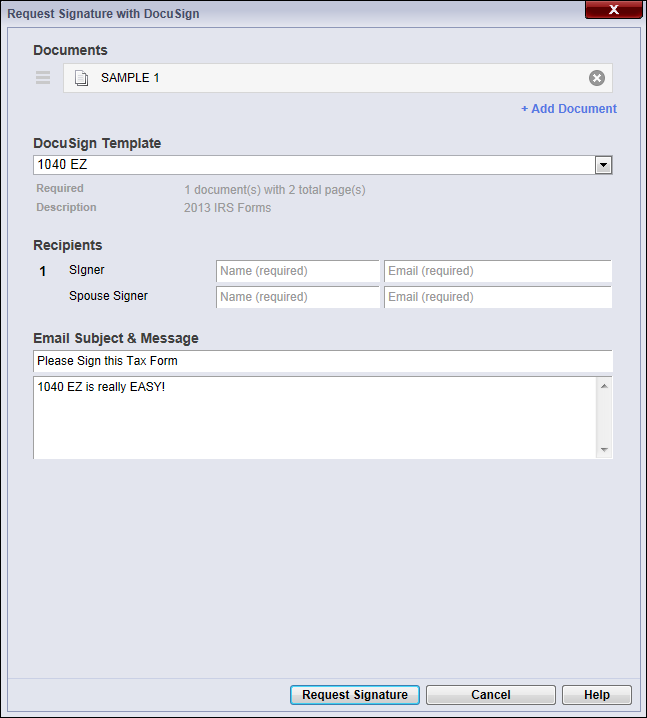
  Request Signature with DocuSign dialog box.
 - In the Documents section, you will see a list of the documents you want to send to DocuSign. Click + Add Document to append additional documents to the DocuSign envelope. When you have multiple documents, reorder documents by dragging and dropping the (
 ) icon.
 - To remove documents from the envelope, hover over a document and click the red x.
- In the DocuSign Template drop-down list, select the appropriate DocuSign template. DocuSign templates define signing instructions for specific sets of documents.
- The Recipients section will contain one or more rows. Specify the name and email address of each person from whom you want to request a signature. The Laserfiche web client can access your DocuSign Address book to facilitate auto-completion of names and email addresses.
- Customize the contents of the email notification. A default subject and message may be associated with the template.
- Click Request Signature to send the selected documents to DocuSign. Designated recipients will receive an email message from DocuSign asking them to review and sign the submitted documents.
Note: You can multi-select documents within the same folder in the Select Document dialog box.
Note: Make sure that the number of selected documents and document order is compatible with the desired DocuSign template.
Note: Depending on the selected DocuSign template, some recipients can be left blank. Required recipients are marked and must be filled in before sending to DocuSign.
DocuSign Integration Tokens
You can use tokens in the configuration page for the Laserfiche web client integration with DocuSign to dynamically populate Laserfiche fields or construct a dynamic folder location. In addition to the standard Laserfiche tokens, the integration also supports DocuSign tokens. See the following tables for a list of the supported DocuSign tokens.
Note: The DocuSign integration is only used with the Laserfiche web client. It is not supported with the Laserfiche Windows client.
DocuSign Envelope Status Tokens
| Token | Type | Description |
| %(ACHolder) | String | User name of the authoritative copy holder. |
| %(ACHolderEmail) | String | Email address of the authoritative copy holder. |
| %(ACHolderLocation) | String | Location of the authoritative copy holder. |
| %(ACStatus) | String | Authoritative copy status: DepositPending, Deposited, DepositedEO, or DepositFailed |
| %(ACStatusDate) | DateTime | Creation date of the authoritative copy. |
| %(AuthoritativeCopy) | Boolean | Specifies whether the authoritative copy is created. |
| %(Completed) | DateTime | When the envelope was competed. |
| %(Declined) | DateTime | When the envelope was declined by a recipient. |
| %(DeclinedbyUserName) | String | User name of the recipient that declined the envelope. |
| %(DeclinedByEmail) | String | Email address of the recipient that declined the envelope. |
| %(DeclinedByReason) | String | Reason why the recipient declined the envelope. |
| %(Deleted) | DateTime | When the envelope was deleted. |
| %(Delivered) | String | When an envelope was last viewed by a signer. |
| %(Email) | String | Email address of the person who created the envelope. |
| %(EnvelopeID) | String | Envelope ID. |
| %(EnvelopeIdStamping) | Boolean | Specifies whether the envelope stamping feature is enabled. |
| %(EnvelopePDFHash) | String | Hash value of the document. |
| %(SenderIPAddress) | String | IP address of the user who sent the envelope. |
| %(Sent) | DateTime | When the envelope was sent. |
| %(Signed) | DateTime | When the document was last signed. |
| %(SigningLocation) | DocuSignAPI.EnvelopeStatusCode | Location of the signer. |
| %(Status) | DocuSignAPI.EnvelopeStatusCode | Status of the envelope. |
| %(Subject) | String | Envelope subject. |
| %(TimedOut) | DateTime | When the envelope timed out. |
| %(TimeGenerated) | DateTime | Creation time of the envelope. |
| %(UserName) | String | User name of the envelope creator. |
DocuSign Recipient Status Tokens
The 0 in each recipient status token name represents the index of each recipient. 0 represents the first recipient in the envelope. You can replace the integer with All to get data for all recipients (e.g., RecipientStatuses.All.UserName). If the associated Laserfiche field is a multi-value field, each value will be appended as an additional value in the multi-value field. If the Laserfiche field is not a multi-value field, the integration saves the data as a comma-separated value in the field.
| Token | Type | Description |
| %(RecipientStatuses.0.AccountStatus) | String | Status of the recipient's account. |
| %(RecipientStatuses.0.ClientUserId) | String | Specifies if the recipient is a captive recipient. |
| %(RecipientStatuses.0.Declined) | DateTime | When the envelope was declined. |
| %(RecipientStatuses.0.DeclineReason) | String | Reason why the recipient declined the envelope. |
| %(RecipientStatuses.0.Delivered) | DateTime | When the envelope was seen by the recipient. |
| %(RecipientStatuses.0.DeliveryMethod) | DocuSignAPI.DeliveryMethod | Specifies whether the envelope was delivered by email or fax. |
| %(RecipientStatuses.0.Email) | String | Email address of the recipient. |
| %(RecipientStatuses.0.EsignAgreementInformation) | DocuSignAPI.RecipientStatusEsignAgreementInformation | Agreement information of the recipient. |
| %(RecipientStatuses.0.FaxNumber) | String | Fax number of the recipient. |
| %(RecipientStatuses.0.IDCheckInformation) | DocuSignAPI.IDCheckInInformation | Personal information about the recipient. |
| %(RecipientStatuses.0.RecipientId) | String | DocuSign recipient ID for the recipient. |
| %(RecipientStatuses.0.RecipientIPAddress) | String | IP address of the recipient's most recent access of the envelope. |
| %(RecipientStatuses.0.RoutingOrder) | Unsigned Short | Routing order of the recipient in the envelope. |
| %(RecipientStatuses.0.Sent) | DateTime | When the envelope was sent. |
| %(RecipientStatuses.0.Signed) | DateTime | When the envelope was signed. |
| %(RecipientStatuses.0.Status) | DocuSignAPI.RecipientStatusCode | Status of the recipient. |
| %(RecipientStatuses.0.TabStatuses.CustomTabLabel.TabValue) | String | Value the recipient specified in the custom field. (Note that this custom field is distinct from an envelope custom field.) |
| %(RecipientStatuses.0.Type) | DocuSignAPI.RecipientTypeCode | Role of the recipient. |
| %(RecipientStatuses.0.UserName) | String | User name of the recipient. |
Custom Field Tokens
The integration also supports retrieving the values of any envelope custom fields that you have configured for your DocuSign account.
| Token | Type | Description |
| %(CustomFields.YourCustomFieldName) | String | Corresponds to the name a custom field. |
| %(Customfields.TemplateName) | String | Corresponds to a DocuSign template name. |
Document Status Tokens
If you chose to send a Laserfiche document to DocuSign, the following tokens contain information about the documents in the envelope.
| Token | Type | Description |
| %(DocumentStatuses.0.ID) | String | ID of the document. |
| %(DocumentStatuses.0.Name) | String | Name of the document as specified in the DocuSign template. |
| %(DocumentStatuses.0.Sequence) | String | Order of the document in the envelope. |
Related Links
The DocuSign Envelope Status and DocuSign Recipient Status tokens correspond with classes in the DocuSign API. Please see the following DocuSign documentation for more information.