Adding a Schedule
You can create schedules in Quick Fields Agent to define which sessions run and when they run.
To add a schedule
- In the left pane, expand the node for the computer running the Quick Fields Agent service.
- Right-click the Schedules node and select Add a schedule.
- The Add Schedule dialog box opens.
- Configure the schedule settings using the available tabs.
General Tab
Use the General tab to select a session to run and to define the start time and recurrence pattern.
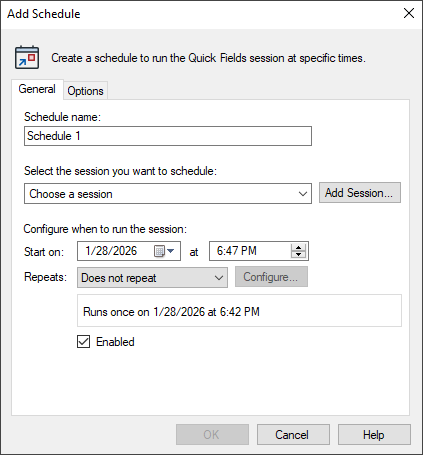
Schedule Name
Under Schedule name, enter a descriptive name that clearly identifies the purpose of the schedule.
Session Selection
Under Select the session you want to schedule, choose a session from the drop-down list. This list includes sessions that already have references in Quick Fields Agent.
-
To add a new session, click Add Session to open the Add Session Reference dialog box.
When to Run the Session
Specify the date and time at which the session should begin. You can use the calendar and time controls to make your selection.
Select one of the following repetition options:
- Does not repeat: The session runs once at the specified date and time.
- Daily: Click Configure to choose one of the following options:
- Every Day
- Weekdays
- Every __ days (specify a whole number).
- Weekly: Click Configure to set a schedule based on weeks:
- Specify days of the week
- Every __ weeks (Specify a whole number).
- Monthly: Click Configure to set a schedule based on months:
- Specify a day of the month by numeric date or by day of the week
- Select months.
The dialog box displays a summary of the selected repetition pattern (for example, “Monthly on the second Friday”).
Enabling the Schedule
By default, the Enabled check box is selected, and the session will run at the scheduled times. To save the schedule without activating it, clear the Enabled check box.
Options Tab
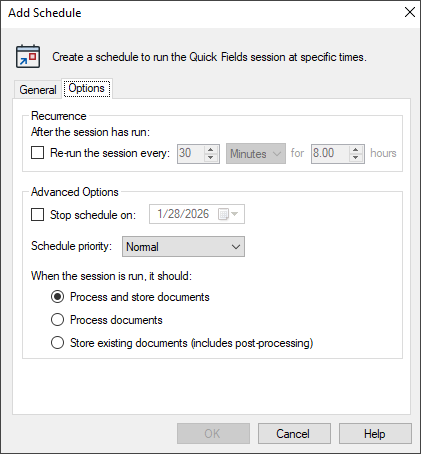
Use the Options tab to configure additional behaviors for the scheduled session
.
Recurrence
Select Re-run session every and specify an interval to have the session run repeatedly within the scheduled time window. This can help ensure that newly added documents in the retrieval source are captured.
Advanced Options
You can override the default Quick Fields Agent settings by configuring advanced options in this section.
Stop Schedule On
By default, schedules recur indefinitely unless disabled. To stop a schedule after a specific date, select Stop schedule on and specify an end date.
Schedule Priority
Schedule priority determines how sessions are queued when multiple sessions are delayed past their scheduled start times.
Normally, Quick Fields Agent runs one session at a time in order of scheduled start time. If a session runs longer than expected, subsequent sessions are queued and run as soon as the agent becomes available.
By setting a priority, you can control how delayed sessions are reordered in the queue.
Priority options
- Normal: Sessions run in order of their scheduled start times.
- High: If multiple sessions are delayed, a session with High priority moves ahead of lower-priority sessions.
- Low: If multiple sessions are delayed, a session with Low priority moves behind higher-priority sessions.
Example
The Wonderland School Board has three nightly schedules:
- Schedule A at 7:00 pm.
- Schedule B at 8:15 pm.
- Schedule C at 10:00 pm.
- If Schedule A finishes before 10:00 pm., the sessions run in the order A, B, C.
- If Schedule A is still running at 10:00 pm., the sessions run in the order A, C, B.
Action
The Action setting determines what Quick Fields Agent does when the session runs. By default, it processes and stores documents, but you can limit the action to processing or storage only.
Note: If the Quick Fields session has scheduled storage enabled (configured in Quick Fields under Tools > Options > Current Session > Send Documents), both the session settings and the Quick Fields Agent schedule settings apply. Documents are stored at whichever scheduled time occurs first.
Under When the session is run, it should, select one of the following:
-
Process and store documents: Quick Fields Agent scans documents and stores them in the specified Laserfiche repository locations.
-
Process documents: Quick Fields Agent scans documents but leaves them in Quick Fields for review before storage.
-
Store existing documents (includes storage processing): Quick Fields Agent stores documents that have already been processed in Quick Fields. This option is useful when documents are reviewed during the day and automatically stored later, triggering any configured post-processing actions.