Session Files
In the Session Files node of the Quick Fields Agent Administration Console, you can view all Quick Fields sessions for which references have been created. These sessions may be included in one or more schedules or may not be associated with any schedules.
Adding a Session Reference
A session reference is a link from Quick Fields Agent to a Quick Fields session. You can add a session reference directly from the Session Files node and then create a schedule to run it, or you can add the session reference while creating a schedule.
Note: By default, Quick Fields Agent runs under the Local System Account on the computer where it is installed. Its access to network resources depends on the permissions assigned to that account. You can change the Windows user associated with the Quick Fields Agent service in the Services settings in the Windows Control Panel.
To add a Session Reference
Note: If you accessed this option from the Schedules node, begin at step 5.
- In the left pane, expand the node for the computer running the Quick Fields Agent service.
- Expand the Schedules node.
- Select the Session Files node.
- Right-click and select Add session reference.
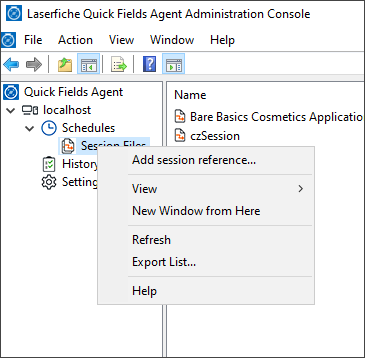
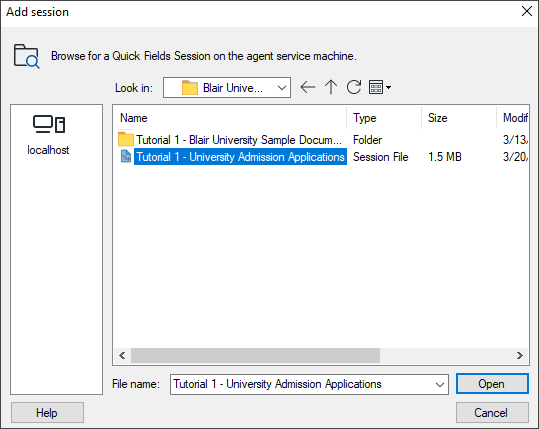
- In the Add Session dialog box, browse to the session file.
- Select the session and click Open.
- Quick Fields Agent automatically runs the session validation utility.
- Review any warnings that appear.
-
If warnings are generated, open the session in Quick Fields and make the necessary adjustments.
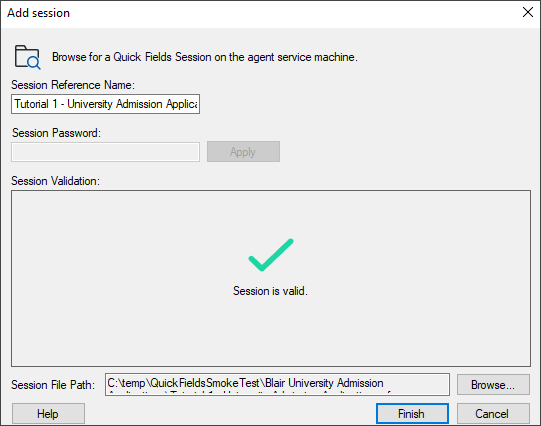
- Click Finish.
Note: Steps 8 and 9 can be reversed.
- If you make changes, you can run the session validation utility again to confirm that the issues have been resolved.
Deleting Session References
If a listed session is not referred to by any schedules, you can delete the session reference from the Session Files node. Otherwise, you will first need to remove it from each schedule that includes it.
To delete session references
- Select the session or sessions to delete.
- Right-click and select Delete.
Exporting a List of Session References
You can export a list of all session references associated with a selected instance of Quick Fields Agent.
To export a list of session references
- Right-click the Session Files node.
-
Select Export List.
- Choose a location, specify a file name and file type, and save the list.
Session Validation
When you add a session reference, the session validation utility automatically checks the session for configurations that could prevent it from running unattended (for example, requiring user input or missing configuration values).
Based on the warnings generated, you can update the session before scheduling it. You can also run the validation utility manually after making changes or at any time to confirm the session will run correctly with Quick Fields Agent.
Note: Although the validation utility identifies common issues, it is still recommended that you manually test each session.
To run the session validation utility
- In the Session Files node, select a session.
-
Right-click and select Validate session.
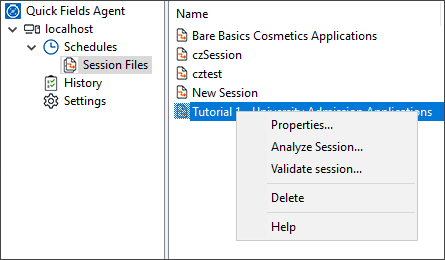
- Review any warnings.
- If necessary, open the session in Quick Fields and make the required changes.
-
Click OK.
Note: Steps 3 and 4 may be performed in reverse order.
- Run the validation utility again to confirm that any changes were successful.
The Quick Fields Agent session validation utility identifies configurations that may cause problems during unattended processing. Some issues prevent the session from running entirely (such as prompts requiring user input), while others allow the session to run but produce undesirable results.
For example, a session with a required field that is not populated may scan documents successfully but fail to store them, resulting in rework.
Common Validation Warnings
| Warning | Explanation and Suggested Action |
|---|---|
| The session file could not be read. | The session file may be corrupted. Repair or rebuild the session. |
| There is a blank required field. | A required field is not populated during processing. Either remove the requirement or configure the field with text or a token. |
| One or more document classes are set to require a login. | A login dialog will appear during processing. Store the username and password in the session (passwords are encrypted by Quick Fields). |
| One or more document classes are set to use Windows Authentication. |
Windows Authentication will not work if the Quick Fields Agent service runs as a system account. Change the authentication method or update the service account. |
| Laserfiche Capture Engine is set to require login. | A login dialog will appear. Store the credentials in the session (the password will be encrypted by Quick Fields). |
| Laserfiche Capture Engine is set to use Windows Authentication. |
Windows Authentication will not work if the Quick Fields Agent service runs as a system account. Change the authentication method or update the service account. |
| Unidentified documents do not have storage information. |
With the Quick Fields Agent license, you acquire the ability to set default properties for unidentified documents in each session, including a repository and folder path. It is good practice to do so for sessions that will be run with Quick Fields Agent so unidentified documents will not build up in the session. |
| The session is set to use a scanner. |
Physical scanners are not generally used with unattended processing, since without a scanner operator present, a glitch such as a paper jam could hold up entire sessions. For Quick Fields Agent, most organizations either scan into a network drive and use the Universal Capture scan source or scan into Laserfiche repository and use the Laserfiche Capture Engine to retrieve the documents for processing, after which they will be sorted and sent back to Laserfiche. |
| The session contains scripts. |
Sessions that contain scripts may have difficulty running unattended, depending on the contents of the scripts. For example, if the script causes a dialog box to pop up, the session will not finish running unattended. Carefully review any sessions containing scripts to make sure they will not cause problems when run with Quick Fields Agent. |
| Unidentified document storage is set to require a login. | A login dialog will appear. Store the credentials in the session (the password will be encrypted by Quick Fields). |
| An unknown validation message was received. | received. The utility detected a potential issue not covered above. Open and review the session configuration. |