Schedules
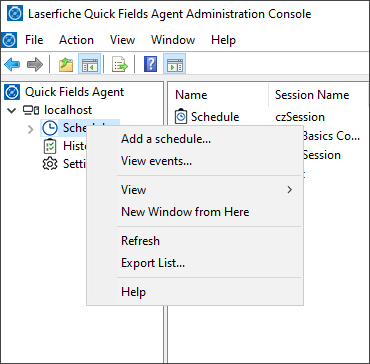
The Schedules node in the Quick Fields Agent Administration Console displays all configured schedules and their associated details. From this node, you can create new schedules and modify existing ones. The Session Files node appears under the Schedules node. You can add session references in advance or add a session reference while creating a schedule.
Note: If an associated session is open by another user at the scheduled time, the schedule will not run in Quick Fields Agent.
| Task | Action |
|---|---|
| Add a schedule |
|
| View a list of errors that have occurred |
|
| Disable a schedule |
|
| Enable a schedule |
|
| Run a scheduled session immediately |
|
| Modify a schedule |
|
| View the properties of a scheduled session |
|
| Analyze run instances of a scheduled session |
|
| Display additional information or hide information |
|
| Refresh the information |
|
| Export the list of schedules |
|