Session Analysis
For any schedule, you can open the Session Analysis dialog box to view a summary of each time a session ran, including results, informational messages, and errors.
To open the Session Analysis dialog box
- Select the Session Files, Schedules, or History node.
- Select a schedule or a session that is associated with the schedule you want to analyze.
- Right-click and select Analyze.
- In the Session Analysis dialog box:
- Under Schedule, select one of the schedules associated with the session.
- Under Instance, select a date and time representing a specific run of the session.
- The dialog box displays detailed information for the selected instance.
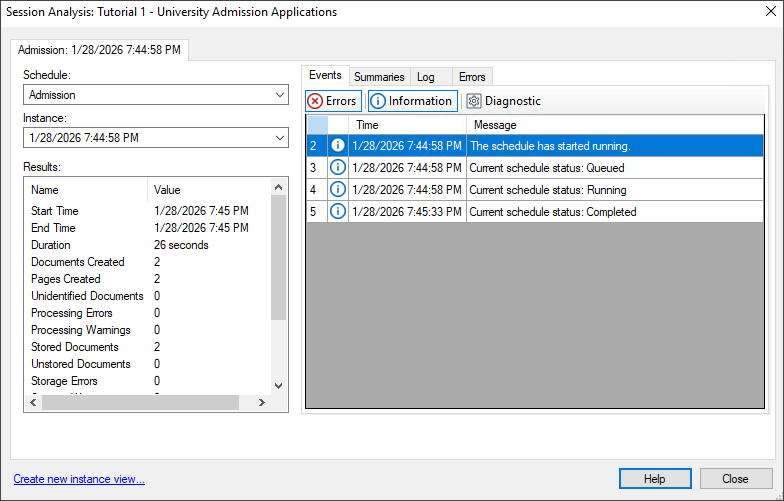
Results
The Results section provides a summary of the selected session run, including:
- Start and end times
- Total run duration
- Pages processed per minute
- Number of documents created and stored
- Number of pages created and stored
Events
The Events tab displays key events that occurred during the session run, such as when the schedule started and any errors encountered.
Use the buttons at the top of the tab to filter event types:
- Errors: Error messages generated by the Quick Fields session
- Information: Status and informational messages related to scheduled processing
- Diagnostic: Detailed information used for troubleshooting
Summaries
The Summaries tab displays document storage summaries for the selected session run, including:
- Documents processed and stored during the session run
- Documents that already existed in the session and were stored during this run
You can copy and paste this information into another application (such as Notepad or Microsoft Word).
Log
The Log tab displays a detailed text record of the session run, including:
- Documents identified and processed
- Unidentified documents
- Errors and informational messages encountered during processing
The level of detail recorded in the log depends on the logging settings configured for Quick Fields Agent. Log contents can be copied and pasted into another application.
Errors
The Errors tab displays session error information in XML format for advanced troubleshooting.
Viewing Multiple Session Instances
You can open multiple instance tabs to compare results across different runs of the same session. To compare multiple runs of the same session within the same dialog box:
- Click Create new instance view link at the bottom of the dialog box.
- A new instance tab opens, allowing you to select a schedule and instance independently.
- Use the Instance drop-down list to select another session run.