Event Viewer
The Event Viewer displays a list of errors and informational messages generated by all schedules within a specified time period.
Note: The data available in the Event Viewer depends on the Log Retention settings for Quick Fields Agent. For example, if session logs are configured to be deleted after five days, the Event Viewer will display only events from the past five days.
To open the Event Viewer
- Select the Schedules node.
- Right-click and select View events.
- The Event Viewer dialog box opens.
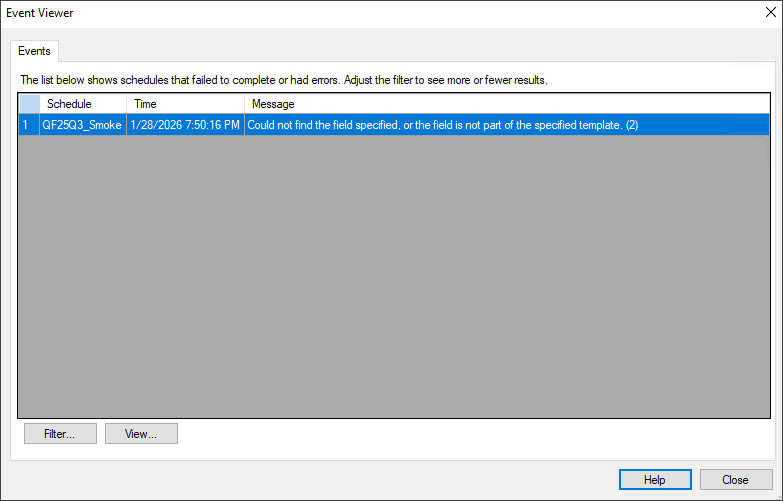
Filter Settings
By default, the Event Viewer displays events from all schedules for the past 24 hours. You can refine the results by filtering events by date range and schedule.
Filter settings are retained when you close the dialog box and remain in effect until you change them.
To change the filter settings
- In the Event Viewer dialog box, click Filter.
- The Filter Properties dialog box opens.
- Under Filter properties, select one of the following options:
- Do not filter by date: Displays all available events for the selected schedules, based on the current log retention settings.
- Last: Displays a specified number of session instances or a specified duration.
- Between these dates and times: Displays events between two selected dates and times, including different times on the same date.
- Under Include these schedules,do one or both of the following:
- Select the top check box to include or exclude all schedules.
- Select individual check boxes to include or exclude specific schedules.
- Click OK to apply the filter and close the Filter Properties dialog box.
Viewing Details
From the Event Viewer dialog box, you can also view details about each session instance listed.
To view details
- In the Event Viewer dialog box, select a session instance.
- Click View.
- Detailed information for the selected instance opens. This information is the same as that displayed in the Session Analysis dialog box.