Offline Forms in the Forms App
Copies of forms that start a process can be saved offline. This lets users view and fill out forms when they are not connected to cellular service or Wi-Fi.
Example: Aaron is on a business trip and needs to fill out his expense report form while he's on the road. He has the Expense Report form downloaded in his app due to limited Wi-Fi connection when he travels. This allows Aaron to access this form offline and fill in each expense with its corresponding receipt as his trip progresses without worrying about being connected to Wi-Fi. When he returns home, he can connect to Wi-Fi and his expense report will upload automatically.
Note: Offline forms do not support lookup tables, offline tasks (forms other than starting forms cannot be saved offline), and referencing external JavaScript files in custom scripting. Lookup tables and offline tasks will be supported soon!
Note: To use this Forms app, you must have the Forms server version 2026 H1 or later.
Note: Saving copies of forms offline does not remove them from your Forms server.
To save a form offline
The Forms app supports two distinct methods for working with forms when a network connection is unavailable. These modes differ in how users authenticate, how the app reconnects, and when pending submissions are uploaded.
Temporarily Offline
This applies when a user is already signed in to the app and then loses network connectivity. In this scenario:
- The user remains authenticated in the app.
- Only offline forms are available until connectivity is restored.
- The app automatically attempts to reconnect to the Forms server in the background.
- Any pending offline submissions are uploaded as soon as the connection is re‑established.
- An “offline” indicator appears in applicable areas of the app.
This option provides the smoothest experience for users who expect intermittent or unstable connectivity.
Offline Mode
Offline Mode is intended for situations where the user expects to be without network access for an extended period. In this scenario:
- The user explicitly signs in using Offline Mode from the main page.
- The app allows access to offline forms without requiring a live connection to the Forms server.
- To submit completed forms, the user must re‑authenticate with the server once connectivity is available.
- Reconnection does not occur automatically; the user must manually sign in to the server.
This mode is best suited for planned offline work where no connection will be available for a significant duration.
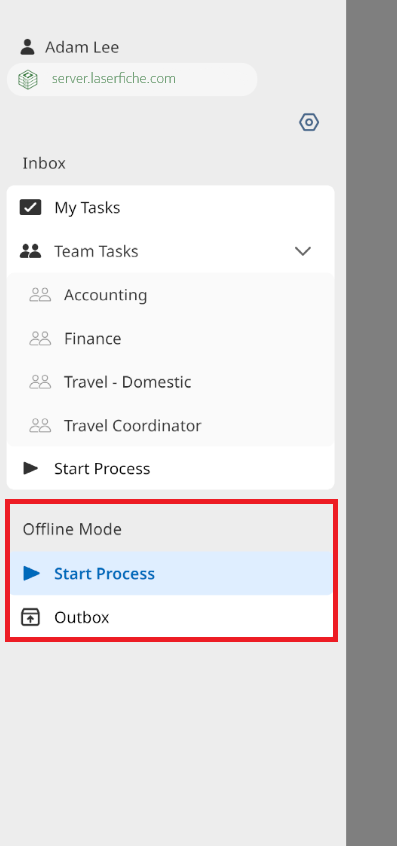
In general, pending submissions are uploaded when the app next connects to the Forms server. In temporarily offline scenarios, reconnection happens automatically in the background. In Offline Mode, reconnection requires the user to explicitly sign in to the server.
- Tap Start Process from the Forms inbox.
- Long‑press any form—or tap Select at the top—to choose one or more forms. Once selected, tap the Make Available Offline option at the bottom of the screen.
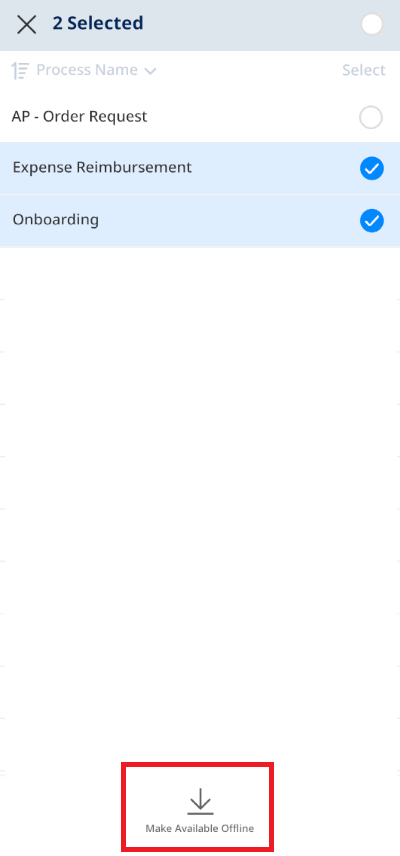
Note: If the Make Available Offline option is not displayed, ensure the form(s) selected have the Allow user to save form offline in the Laserfiche app option selected in Laserfiche Forms.
Note: To keep the offline form up-to-date with its online counterpart, ensure Auto-Sync Forms is enabled under Offline in the app's settings.
To fill out offline forms
- Tap Start Process under Offline Mode.
- The offline forms will be listed by Forms server. Tap the desired form, fill it out, and tap Save as Draft to complete it later or Submit to send it to the Outbox in preparation for upload. Once you connect the device to Wi-Fi or cellular data, and re-sign into the Forms server via the app, the submitted forms will be uploaded automatically.
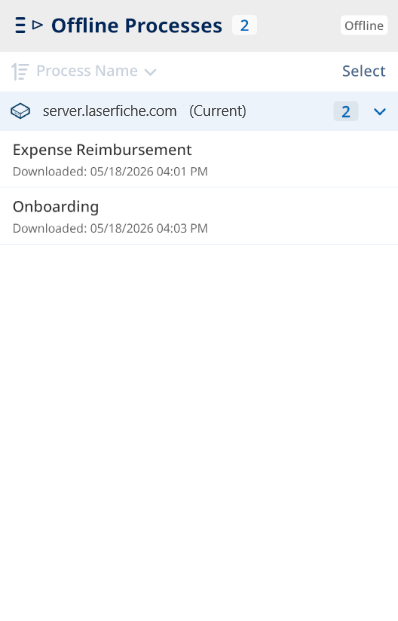
Note: If the forms are not uploaded automatically once you sign into Forms, ensure the Auto-Resume Upload option is enabled under Settings.
Example: Amy travels to Colorado for a business conference. She needs to keep track of all expenses incurred while on the trip. Instead of waiting until she gets home to fill out her expense report, she decides to fill it out at the end of each day throughout the trip. She has the Expense Report form downloaded in her app due to limited Wi-Fi connection when she travels. After her first day, she enters all her expenses and presses Save as Draft to save the forms as a draft. She continues to do this each day of her trip. When she gets home, she looks over all the expenses and presses Submit to complete the form and send it to the outbox. Once she is connected to reliable internet (or cellular data), and signs in to the Forms server via the Laserfiche app, the expense report will automatically be uploaded.
Note: Field validation will only occur when submitting a form, not when saving it as a draft. For example, a form with empty required fields can be saved successfully as a draft, but the required fields have to be populated before the form can be submitted to the queue.
To view and submit offline forms
- Tap Outbox under Offline Mode.
- Tap the column header to sort the submissions by their submission date, name, or in ascending or descending order.
- Tap a form submission to view it. Once you connect the device to Wi-Fi or cellular data, and re-sign into the Forms server via the app, the submitted forms will be uploaded automatically.
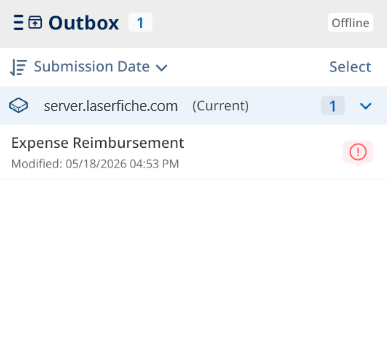
- Tap Select at the top right, then select the checkbox(es) next to the submissions you want to upload.
- Tap Upload at the bottom.
Note: You will only be able to upload a form to the Laserfiche Forms Server it was saved offline from.
Note: Some modifications to online forms that have previously been saved offline will cause the offline form submission to fail when the app connects to the Forms server. For example, if a field in the online form is removed, or the online form is completely erased, the offline form submission will fail. A new offline copy will be automatically downloaded when the app connects to the Forms server. The original offline form will be outdated and cannot be opened, but the submission that failed can still be opened and viewed. However, in some cases, the modification to the form does not affect the offline form submission. For example, if the online form's theme is changed, the offline form submission will submit successfully when the app connects to the Forms server.
Note: If the forms are not uploaded automatically once you sign into Forms, ensure the Auto-Resume Upload option is enabled under Settings.
To view and submit offline form drafts
- Tap Outbox under Offline Mode.
- Forms that have been saved as drafts will have the Draft
 icon next to them. The other items listed are offline form submissions.
 - Tap the column header to sort the submissions by their submission date, name, or in ascending or descending order.
- Tap a draft to view it or finish filling it out. Tap the appropriate button to submit the finished form. Once you connect the device to Wi-Fi or cellular data, and re-sign into the Laserfiche Forms server via the app, the submitted forms will be uploaded automatically.
Note: If the forms are not uploaded automatically once you sign into Forms, ensure the Auto-Resume Upload option is enabled under Settings.
To remove an offline form
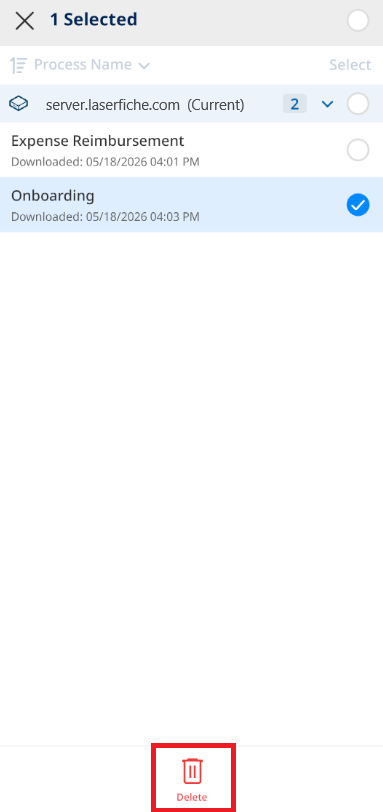
- Press Start Process under Offline Mode.
- Long‑press any form—or tap Select at the top—to choose one or more items.
- Tap Delete at the bottom.
To remove an offline form submission or draft
- Press Outbox under Offline Mode.
- Long‑press any form submission or draft—or tap Select at the top—to choose one or more items.
- Tap Delete at the bottom.