Laserfiche Mobile
Laserfiche offers two distinct mobile app experiences:
- The legacy Laserfiche app, which provides access to your repository and forms functionality.
- The new Laserfiche Forms app built for working with forms only.
Note: A second app for working with the repository only is coming soon!
This separation allows for an improved experience for users who primarily work with forms. Both apps work with self-hosted installations and Laserfiche Cloud.
Laserfiche Forms App
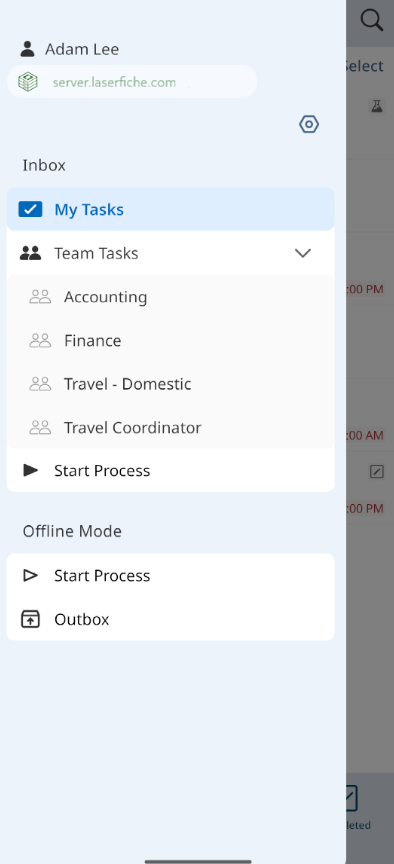
The Laserfiche Forms app is a dedicated mobile app that lets users interact with Laserfiche Forms directly on their iOS and Android devices. With this app, users can access their Forms inbox, complete assigned tasks, find and fill out forms, submit new form processes, and attach images from their mobile device — all while on the go. If your administrator has configured a Forms server, selecting it during sign-in gives you access to every form available on that server and a streamlined workflow experience optimized for mobile use.
Platform
The Laserfiche Forms app currently supports iOS and Android devices.
iOS
- iOS 15.1 or later
- Any device compatible with iOS 15.1 or later
Android
- Android 9.0 or later
- Any device compatible with Google Play
Note: To use this Forms app, you must have the Forms server version 2026 H1 or later.
Administration
By default, the Forms server blocks connections from the Forms app. To allow the Laserfiche Forms app to connect to a specific Forms server, enable the Allow the Laserfiche Forms app to access this Forms server option on the Forms Server Configuration page.
Installation
- To install the Laserfiche Forms app, open the App Store on an iOS device or Google Play on an Android device.
- Search for Laserfiche Forms and locate the app.
- Tap Get on an Apple device or Install on an Android device, and install the app to your device.
Once installed, launch the app and sign in using your organization’s credentials.
Settings
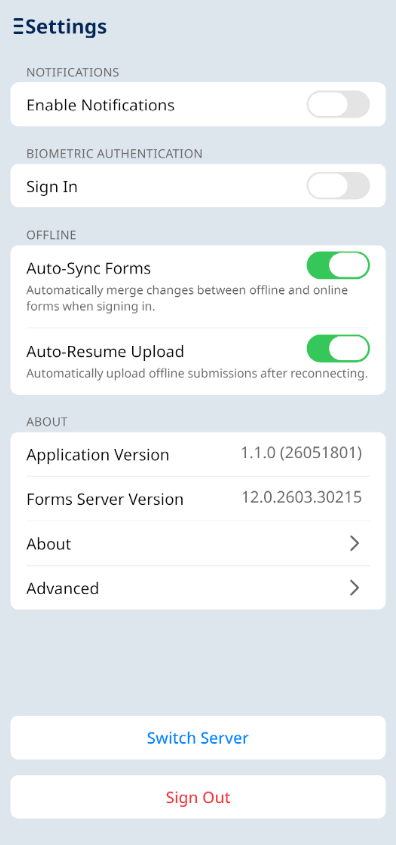
To access settings, help, and other app information, tap the menu button at the top left, and then tap the Settings  icon.
icon.
Notifications
Enabling notifications ensures you receive alerts when a task is assigned to you, canceled, updated with a new due date, or given a different priority. This helps you stay aware of changes that may affect your workload or deadlines. The notification is a system notification that will appear when the app is not actively being used.
Biometric Authentication
To make signing in faster and more secure, you can enable biometric authentication on supported devices. Enabling biometrics improves security and streamlines access to your forms processes, especially if you access content frequently on the go. Once enabled, the next time you sign in, you will be prompted to authenticate using biometrics.
Offline
Auto-Sync Forms: When enabled, this setting updates the copy of the offline form.
Auto-Resume Upload: When enabled, this setting automatically uploads any forms you submitted while offline as soon as the app reconnects to Forms.
Both of these options are enabled by default.
About
This section displays the application version, the Forms server version, additional app details, and some advanced app actions. It also provides options to switch the Forms server you are connected to and to sign out of the application.
About
- Help: Opens the help files for the Laserfiche app.
- Community: Leaves the Forms app and takes you to the Laserfiche Answers website.
- Support Site: Leaves the Forms app and takes you to the Laserfiche Support Site.
- Privacy Policy: Opens the Laserfiche Privacy Policy.
Advanced
- Clear Cache: This option will remove temporary files to free up space in the app, including attachments no longer referenced by a form. It will not remove drafts, forms downloaded for offline use, or pending offline submissions.
- Export Log File: This option lets you export the application runtime log file and share it with support when needed. Logs will be kept for one day.
Switch Server: Tap Switch Server to navigate to the sign‑in page and specify another Forms server.
Sign Out: Tap Sign Out to sign out of the app.
Working in the App
Topics on general Forms use include a section on how to work with forms within the mobile app:
Signing In
Learn how to sign into Laserfiche using the Forms App.
Getting Started with Inbox
Learn how to access and manage your personal and team form tasks.
Starting a Process
Learn how to select and submit forms to initiate new business processes.
Offline Forms
Learn how to save and work with forms offline.
Creating URLs for the Forms App
Learn how to create URLs to a starting form, draft, or task in the Laserfiche Forms App.
Troubleshooting the Laserfiche Apps
Legacy Laserfiche App
The legacy Laserfiche app, for iOS and Android, lets you browse your repository, add new entries from your phone and camera, edit metadata, submit and approve forms, start business processes, and much more. For more information, see Laserfiche App for iOS, Laserfiche App for Android, or Laserfiche App Administration.
Note: The existing documentation and links for working with forms in the legacy Laserfiche app apply to the integrated app that supports both repository and forms. Some procedures and screens described there may not match the experience in the Forms-only app — ensure you’re referencing the correct documentation for the app you’re using.