Laserfiche Cloud 2015 - 2018 Updates
October 2018
The October 2018 update of Laserfiche Cloud includes new process automation features and the introduction of a new user type.
Watch an overview of the new features here:
Process Automation
Workflow Activities
Workflow has two new activities:
- The Read Barcode activity allows you to capture barcodes positioned on a page of an image document.
- The Apply Text Annotation activity allows you to redact, highlight, underline, and strikethrough text.
Account Administration
Participant User Type
The Participant user type allows individuals inside your organization to view documents in your Laserfiche repository and participate in Forms processes. To facilitate that, participant users can take advantage of single sign-on through Active Directory Federation Services (AD FS).
August 2018
The August 2018 update for Laserfiche Cloud introduces process automation functionality that features workflow capabilities focused on document routing and repository organization. This article highlights the process automation tools new to Laserfiche Cloud.
Workflow
Build processes to extract data, route documents, and more. Create workflows to automate your business processes using pre-built activities in a drag-and-drop designer. Take advantage of reporting capabilities to interpret the performance of processes.
Starting Events
Starting events allow you to start your processes based on a set of conditions. Defined separately from individual processes, starting events can be attached to as many processes as you like.
Rules
Rules allow you to separate your business logic from your processes. Place your policies and decision logic in standalone rules that can reused across multiple workflows. Define your policies once and apply them to as many processes as you like. When you want to update the business logic, there is no need to redesign the individual processes where the logic is used. And with rule versioning, you can keep track of your changes.
Entities
Entities provide a mechanism for storing external data that may be required by your business processes. Use entities to define data models and then import your data to Laserfiche Cloud to perform lookups from your processes, without exposing your line-of-business applications to the outside world. Data can be synchronized from your existing systems on a schedule using a SDK.
Settings
Process automation also introduces the concept of work schedules. Now, you can specify your business hours, holidays, and time zone. When calculating deadlines or reviewing data, your processes can assign work when users are present.
Notifications
Process automation includes in-app notifications located in the navigation bar. Without leaving the site, you can stay up-to-date on when a process starts, completes, and more. You can also set up digests that are regularly sent to your email.
July 2018
The July 2018 update for Laserfiche Cloud includes many new features, as well as updates to existing features.
Watch an overview of the new features here:
Document Updates
Locations
You can now associate location information with documents. Locations allow you to add a map location to a document or folder in Laserfiche. When an entry has a location set, users can view the location on a map within the folder browser or document viewer using Google Maps, and can perform searches for documents near a specific location. For example, maintenance requests might be stored with locations indicating the property that needs maintenance; when a worker goes to perform the maintenance, they could search for all properties in a particular vicinity that have open maintenance requests.
Location information can be automatically generated from the EXIF data of a JPG file if that file has location data associated with it. It can also be manually assigned. A location consists of both the actual map location data and an optional text description; you can search for either proximity to the location, the location description, or a combination of both.
Multiple Holds
Holds (formerly known as freezes) prevent modification to entries, and halts their records management life cycle if they are records. You can now apply holds to entries that are not records, easily apply the same hold to multiple entries, and apply multiple holds to a single entry; an entry will only become modifiable again and continue its life cycle once all the holds have been removed. In addition, you can now add and search for due dates on holds.
New Features for Microsoft Office Documents
When the Office Integration is installed, users can now open Microsoft Office documents seamlessly with a single click, without needing to specify 'view' or 'edit,' or to manually check out the document.
Users can also choose to create blank Microsoft Word, Excel, and PowerPoint documents within the folder browser. This allows you to quickly create a document and begin work on it, without needing to create it outside the repository and then import it.
EML Email Format Support
Laserfiche now includes native support for EML email messages. This allows you to take advantage of email features in Laserfiche previously only available to MSG email messages.
Performance Improvement
The July 2018 release of Laserfiche Cloud includes numerous bug fixes and performance enhancements.
Laserfiche App Updates
Location
A location can now be added to a newly uploaded photo or electronic document. This location can be extracted from a photo's EXIF data, retrieved from the device's current location, or selected on a map. You can search by location description and the location can be modified, deleted, and edited in the Metadata pane.
Sync
Users no longer have to press the sync button to sign out and back in to sync their offline and online information. Offline documents and folders will be automatically synced when the Laserfiche app is minimized and then maximized on Android and iOS.
Recycle Bin
When deleting documents, pages, electronic files, or folders, the items can now be sent to a recycle bin instead of immediately deleted. This intermediary hold area can help prevent accidental deletion while using the app.
Public Portal Updates
Search within a Document
When users have documents open in Public Portal, they can now easily search within that document's contents.
Hyperlinks in Document Text and Fields
When a document's text or fields contain hyperlinks, those hyperlinks will now automatically be rendered as clickable links. This makes it easy for users to locate related documents or other information.
Document Preview
The details pane now features the ability to preview the pages of a document before opening it, allowing users to easily see if a document is the one they need.
March 2018
The March 2018 update for Laserfiche Cloud includes many new features, as well as updates to existing features.
Watch an overview of the new features here:
Document Updates
Folder Browser Filtering
You can now filter a list of entries in the folder browser when viewing folder contents. This allows you to quickly find relevant documents from a large folder or set of search results. Most columns can be filtered, and the filter options are tailored to the column type. For example, you could filter a folder's contents to display only documents with a particular word or phrase in the name, or only documents created during a certain date range, or with a specific template assigned to them. You can also filter on field values, and apply multiple filters to more precisely pinpoint the documents you need.
Group-Based Settings
Administrators can now create saved searches, quick searches, column profiles, and import profiles and share them with specific groups, or with the Everyone group. These settings will be available to all members of the group. These shared settings will not override a user's individual settings; instead, users will see both their own settings and the settings for all the groups that they belong to.
Drag and Drop Between Browser Windows
You can now drag and drop entries in Laserfiche from one browser window to another. This allows you to easily move documents between folders, even if the folders are in different parts of the repository.
Multi-Value Field Group Names
Multi-value field groups allow administrators to group multi-value fields that are related to each other. You can now give names to your multi-value field groups. For instance, you might want to store contact information for multiple people in a template, with each person having a name, email address, and phone number. You could group all three multi-value fields together so that you can easily see which phone number and email address is associated with each user, and then provide the multi-value field group name "Contacts." Each set of name, phone number, and email address will be collected under the "Contacts" header, and numbered as "1 of 3," "2 of 3," and so on.
Localized Field, Templates, and Tag Names
Administrators can use the new Language tab when viewing template, field, and tag properties to configure translated display names for template names, field names, and tags. When a user views Laserfiche in a particular language, Laserfiche will display the configured display names within the metadata pane instead of the original template name, field name, or tag.
Effective Entry Access Rights Calculation
The Effective Rights tab of the Access Rights dialog box now includes detailed rights inheritance information for specific rights. This allows you to easily troubleshoot security by providing information on why a particular right has been allowed or denied.
Document Viewer and Preview Pane Enhancements
The document viewer and the folder browser preview pane have been updated with several new enhancements to make working with and navigating documents easier.
- Improved navigation in the document viewer. For example, next and previous document, and next and previous page have been placed on the toolbar to make it easier for users to quickly move within and between documents.
- Document viewer toolbar customization. All document actions are available in the toolbar and can be customized.
- Reorderable metadata tabs. Users can now customize the order of tabs in the details pane. For instance, by default the processes tab is listed before the records tab, but a records manager could rearrange the tabs to display the records tab first. Their settings will apply to tabs in the details pane of both the document viewer and the folder browser.
- Email content view. Laserfiche now provides an easy way to view the text of emails in MSG or EML format, without needing to open the email file in its native application. This view is available in both the preview tab of the details pane, and in the document viewer.
- Search in the preview pane. Within-document searches can now be performed in the preview tab of the folder browser's details pane.
Redaction Reasons
Repository Administration now allows administrators to define a set of redaction reasons. When applying a redaction, users can choose from the list of predefined reasons. The selected reason will be visible to all users when viewing the document.
Other Enhancements
- Support for emails in EML format. Email-specific features, previously only supported for emails in MSG format, are now available for emails in EML format as well.
Copy Document and Folder URLs
Laserfiche now allows you to easily copy the URL of a document or folder from within the folder browser.
Laserfiche App Updates
Face and Touch ID on iOS
When using an iOS device, users can choose to use Face ID or Touch ID to sign in to the Laserfiche app. This offers a quick and convenient way to sign into Laserfiche without entering a username or password.
Offline Drafts
Users can start a task or form online, save it as a draft, then save the draft offline to continue working while on the go, without internet or cellular service. Offline task drafts can also be renamed to prevent overwriting information on task drafts previously saved offline. Additionally, a new Sync option allows changes to online and offline repository documents and folders, as well as changes to task and form drafts, to be automatically or manually synced.
Search Features
The search pane has been updated to be more intuitive and uniform across multiple platforms. Users can now search on specific field values as well as set up and save search criteria. iOS users can use Spotlight search, Windows users can use Cortana search, and Android users can use the Personal Content search to search for offline documents by name or document text; offline forms, drafts, and tasks by name; and offline drafts and submissions by name and field values.
Metadata, Versions, and Document Links
Users can now access and work with a document or folder's metadata in a single pane. Additionally, documents can be linked and users can now view, revert, and delete document versions all within the Metadata pane in the app.
Annotations
There have been a variety of updates to annotations in the Laserfiche app. The way in which annotations are applied to documents has been redesigned for a better user experience. In addition to adding sticky notes, stamps, and freehand annotations to documents, you can now also add highlights, redactions, underlines, and strikethrough annotations to documents and text.
Drag and Drop on iOS
You can now drag files to and from Laserfiche using the new drag and drop feature on the iPad Pro. For example, you can open the iOS email app and drag a Laserfiche document from the Laserfiche app to the email app. Alternatively, you can drag and drop photos, emails, email attachments, or documents from third party apps into the Laserfiche app.
Real-Time Auto Cropping on iOS and Android
When taking a picture to add as a new document, a new Document mode automatically detects the document and will auto-crop it before you snap and upload the picture to Laserfiche. This minimizes time spent manually cropping the document in preparation for upload.
Share iOS Notes
Notes written in the Notes app on iOS devices can be shared to Laserfiche. The text, images, and sketches inside the note will be uploaded as separate electronic files.
Public Portal Updates
Improved Public Portal Website
The public portal website has been updated, providing a more responsive design and a more modern feel. For example, document thumbnails can now be viewed when browsing documents.
Search Forms
The Public Portal Designer includes a new search form designer. Create search forms to create custom searches based on the information your public portal users are looking for. The search box on the Welcome Page can search text, entry names, fields, and/or annotation text. For example, create a search form that only searches for documents in a specific folder or documents assigned to a specific template. You could also create a search form that allowed users to quickly perform a search for documents created during a particular timeframe.
November 2017
The November 2017 update of Laserfiche Cloud includes a variety of updates to multiple apps in Laserfiche Cloud.
You can watch an overview of the new features here:
Account Administration Site Updates
Email Notifications
The account administration site can now send email notifications when an account approaches storage limits. Subscribe to receive notifications when storage usage meets the following thresholds: 75%, 90%, 95%, and 100%. Solution Providers can also subscribe to alerts for customer accounts.
Account Management Updates
Laserfiche Cloud has streamlined the process of managing users and assigning them rights. A new context menu and toolbar lets you quickly access options for managing users and groups. Additionally, administrators can now choose from preset profiles to quickly assign access rights.
Skip the Trial Stage
Previously, new customers had to go through a Demo stage and then a Trial stage before activating their customer account. For customers that are immediately ready for production use, Solution Providers can now go straight to activation from a Demo account and skip the Trial stage altogether.
May 2017
The May 2017 update of Laserfiche Cloud includes a variety of updates to multiple apps in Laserfiche Cloud.
You can watch an overview of the new features here:
Web Client Updates
Multi-Value Field Groups
In some cases, values across multiple fields on a single document may be related to one another. For example, on an invoice, you might have multiple items, each with its own name, product code, price, and amount purchased. On a report, you may have multiple authors, each of whom has an email address associated with them. While multi-value fields allow you to store multiple values, it can be difficult to tell at a glance which price corresponds to which item, or which author has which email address.
Multi-value field groups solve this problem by allowing you to specify that multiple multi-value fields are related. You could associate the "Product Name," "Product Code," "Price," and "Amount Purchased" multi-value fields as all belonging to the same group within the "Invoice" template. Then, when a user opens a document with that template, they will be able to see which name, code, price, and amount purchased values go together, and to add or modify more invoice items appropriately.
Repository Administration
The Repository Administration page has been updated with a streamlined and responsive design. Use the updated page to work with repository settings, users and groups, repository activity, metadata definitions, and records management definitions.
Forms Updates
Updated Site Navigation
The Forms site header now links to all major pages in Forms. This includes moving the Start Process button out of the Tasks page into the header. There are now two views for starting a process: you can choose between viewing a list of processes and a grid view that displays thumbnails of the form. Choosing to view reports now guides you to select a process first. When working with the process designer and forms designer, you now have the option of always displaying a sidebar that allows you to quickly navigate between process options, the process designer, and forms designer.
Landing Page
New landing pages make finding and viewing processes easier. The new Landing Pages are configurable pages that list processes relevant to different users. For example, you could create a landing page for all Human Resources processes or for all Public processes. Each landing page has a custom URL for users to access it directly.
Process Designer Updates
- Error Events: The Error Start Event, Error Catch Event, and Error End Events will start processes or interrupt processes based on a generated custom error.
- Email Attachments: Email service tasks and email notifications in user tasks now support attachments. Choose to attach a file from a file upload field or attach a form from the process.
- Assign Tasks to a Team Based on a Variable: User task assignment to a team can now be based on variable values.
- Documentation View: a summary document is now automatically generated for each process that includes the process's configuration details. You can configure how this information is displayed, providing a clear outline of the process. This view is available by clicking the Documentation View option on the canvas toolbar. Canvas objects now include a Documentation properties tab where you can write additional comments that are shown in the Documentation View.
Forms Designer Updates
- Form Pagination: Insert page breaks in a form to split it into multiple pages or tabs. Pagination options include displaying pages as tabs, displaying pages in a configuration wizard-like manner with a progress bar, or displaying a drop-down list of available pages.
- Date and Time Fields: Date fields now support a time component and you can also choose to insert a Time-only field.
- Persistent Hidden Fields: Field rules now include an option to always hide a field.
- Custom Error Messages: The forms designer now has an Error Messaging tab for creating custom error messages in specific situations. In addition, administrators can configure process-level custom error message rules.
- Form Input Validation: There are now additional input validation options for forms. The Form Settings dialog box includes a backend validation level option for form submission. Choose between validating user inputs or all inputs. In addition to user inputs, the All option will validate read-only fields and fields with formula.
Reporting Updates
- Column Labels: You now have the option to configure the column header labels on reports.
- Summary Report Type: Use the Summarize report type to display a summary on select data with additional options to visualize the summary data as a chart.
- Search Reports Based on Variable Values: Configure a report's columns to show instance variables and search on those values in the report search box.
- Data Filters Based on Variable Values: Configure filters using variable data when creating reports.
Additional Updates
- Expanded Notification Options: In addition to task assignment notifications, the administration page now includes options for aggregated task notifications and terminated notifications. Aggregated notifications allow you to collect assigned tasks into a list and only send a notification email at a specified time. Terminated notifications allow you to receive an email when a process is terminated.
Laserfiche App Updates
Single-line and number fields in Forms now include an option to allow Laserfiche app devices to insert values from a scanned barcode.
Annotations
The Laserfiche app has expanded annotation support. You can now add and edit stamps, freehand annotations, and sticky notes, as well as view a list of the annotations applied to the document with links to their history and metadata.
Briefcases
You can now download documents and folders as a Laserfiche Briefcase using the app. You can also upload briefcases from an external application (like Google Drive) into Laserfiche. If you are using the Windows app on a computer, you can upload a briefcase from the machine or a network location.
Digital Signatures
In addition to adding electronic signatures to new documents, existing repository documents can now be signed securely with digital signatures. The signature can be manually drawn, typed, or an uploaded image.
Public Portal
With Laserfiche Public Portal, you can now share documents with people outside the organization, providing read-only access to specific documents without signing in.
Select between billing plan options with different monthly document view limits.
Laserfiche Cloud Account Administration Updates
Forms Portal
Laserfiche Cloud now offers additional billing plan options for Forms that allow for non-authenticated users to view and submit public starting forms. Select between different monthly submission limits for public forms. Forms Portal is not available for Demo or Trial accounts.
Cloud Account Administration Rights Updates
The rights assignment section on the user property page has been redesigned to more smoothly accommodate viewing and assigning rights. You can now expand and collapse different sections while navigating rights.
New Account Control System rights allow user accounts to access Laserfiche Cloud Account Administration.
Automatic configuration lookup for AD FS configuration
To ease administration burden, the single sign-on configuration page now includes a Look up configuration button that will automatically try to retrieve configuration information from the specified Active Directory host.
December 2016
The December 2016 update of Laserfiche Cloud includes a variety of updates to multiple apps in Laserfiche Cloud.
You can watch an overview of the new features here:
Laserfiche Forms Updates
Laserfiche Forms introduces several exciting new features to make it easier to create and monitor processes.
- Business Process Library: When creating new processes, you now have the option of selecting from an online library of common business processes that are pre-built for you. This provides a jump-start to automating processes and reduces the overhead of initial configuration and process creation. Processes in the business process library include process diagrams, forms, and briefcase files with template and field definitions that you can import into your Laserfiche repository. You can also configure these processes yourself to tailor them to your organization's needs. As new processes are added to the business process library, you will continue to be able to import them and incorporate them into your Laserfiche Forms installation.
- Performance Dashboard: There is now a performance dashboard to supplement the operational dashboard. The performance dashboard allows you to view metrics on process instances started or finished over a specific time period. You can also break down instance duration by stages and view average duration of tasks within each stage, and drill down on task durations to see user completion times for specific tasks.
- Operational Dashboard Updates: The operational dashboard now includes more detailed information on user task distributions. View information like the top five users with the most assigned tasks for a process, and quickly view a list of all tasks assigned to one of the users. You can also now click on tasks in the list of all tasks in the process to view all instances of that task.
- Process Diagram Updates
- Signal Catch Event: Process designers can now insert Signal Catch Event objects anywhere in the process flow. Previously, the catch event could only be attached directly to user tasks or sub-processes.
- Repeat Timer: There is now a "repeat" option for timer events that are attached to user tasks and sub-processes.
- Split stage: Process diagram stage headers now include a Split stage option to facilitate creating new stages from existing stages.
- Forms Designer Updates
- There is now a drop-down menu that lists out all available formulas when editing a field. On the Advanced tab, click fx to see the list of supported formulas.
- Forms now supports same row calculations in Tables and Collections. There are 3 new functions to support this feature. Use the INDEX, ROW, and TableName.ColumnName functions to retrieve values from specific cells in the table or collection. These new functions are also compatible with existing formulas like the SUM formula. For example, in a 3-column table, use the following formula in the third column to automatically sum the contents of first 2 columns:
=SUM(INDEX(Table_VariableName.Column_VarName1,ROW()),INDEX(Table_VariableName.Column_VarName2,ROW()))
- Editing Tasks
- When working with your Forms tasks, there are now more options for updating and viewing tasks.
- You can reassign and modify the due dates of multiple tasks all at once on the Tasks page. You can also edit the priority of tasks from this page.
- Additionally, Forms now features improved responsive designs when viewing your task list on mobile devices. There are also new column options for the tasks list which let you display the information most important to your workflow.
Web Client Updates
- Toolbar Configuration: Users can now configure toolbars in the web client, displaying exactly the actions they need in both the folder browser and document viewer. In addition, administrators can configure the default toolbars for users and can lock down toolbars if they do not want individual users to modify their toolbar buttons.
- Custom Actions and Tabs: You can also now create custom tabs and custom actions within Laserfiche. A custom tab allows an administrator to create a new tab in the details pane, dynamically displaying a Laserfiche Forms website or an external website in the folder browser or document viewer. A custom action is a customization or integration script added to the web client. These options allow you to extend Laserfiche for use with other line-of-business applications.
- Web Client Reporting: There are two new options for reporting. The Laserfiche security report options have been expanded to include a User Security Properties Report, which provides information about an individual user's group membership, feature rights, privileges, security tags, and audit settings. In addition, when generating a metadata report, you can now automatically have Laserfiche calculate the sum, average, minimum and maximum value for numerical properties.
- General Enhancements: Laserfiche has also added some quality-of-life features to this new release. You can also now email entire folders as ZIP files, and you can adjust the opacity of watermarks.
Laserfiche Cloud Account Administration Updates
Account Administrators can now provide single sign-on to Laserfiche Cloud through Active Directory Federation Services (AD FS). Configure Laserfiche Cloud to connect to an Active Directory Federation Services identity provider and create Laserfiche Cloud federated user accounts that map to appropriate Active Directory user principal names. Properly mapped user accounts can click a Sign in with AD FS button on the sign-in page to sign in to Laserfiche Cloud without specifying an additional user name and password.
August 2016
The August 2016 update of Laserfiche Cloud includes many new features, as well as updates to existing features. These include configurable toolbars, improvements to security including the ability to generate security reports, and various usability and performance enhancements. Other updates include Forms support in the Laserfiche App and expanding direct approval support in Forms. For Solution Providers, the update includes changes to the trial account creation process and time frames.
You can watch an overview of the new features here:
Toolbar Configuration
You can now configure the buttons that will appear on the toolbar when working in your repository. This allows you to remove actions that are not relevant to your work from the toolbar or add actions that you need to access frequently. You can display frequently-used actions On toolbar or hide infrequently-used actions Under More Actions button. The actions that you choose to hide will still be available as options under the More Actions button ( ). Toolbar configuration options are available in the Tools section of the Options page. Toolbars are customized based on their location in Laserfiche, allowing you to set different buttons for the Folder Browser and Document Viewer.
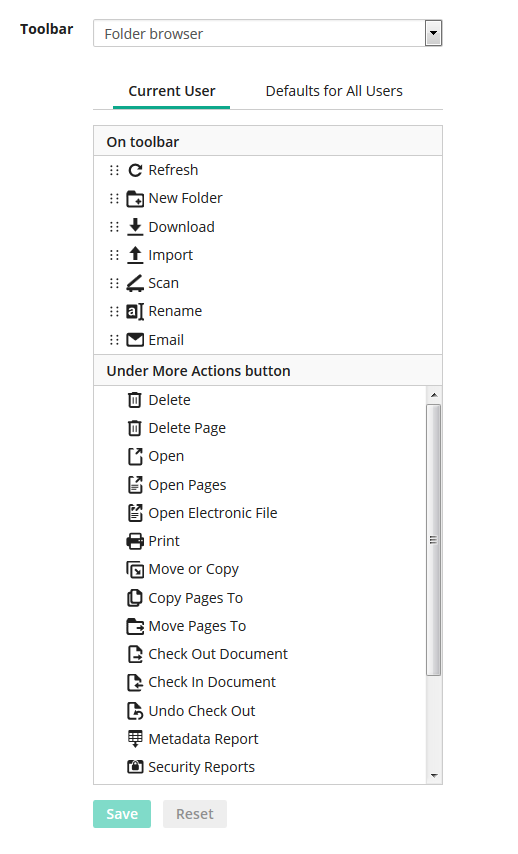
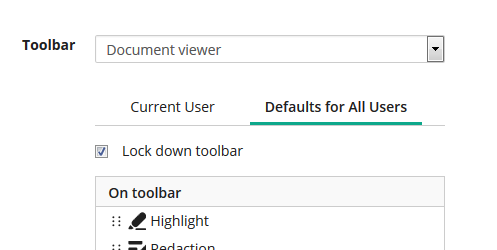
Users who have been granted the Manage Repository Configuration privilege can also set defaults for the entire repository. These defaults will be used instead of the generic repository defaults for any user who has not customized their toolbar. Administrators can also replace user-specific toolbars with their own defaults using the Lock down toolbar option.
Security Enhancements
Several security enhancements have been included in Laserfiche to allow you to more easily secure your documents.
Security Reports
Users with the Manage Entry Access privilege can now run security reports on users and entries to quickly determine what rights have been applied. Security reports allow you to generate printable HTML lists and tables, text files, or Microsoft Excel spreadsheets that contain information about your security configuration, for troubleshooting or compliance purposes.
There are two types of security reports:
- Entry Effective Rights Reports allow you to view the effective rights on the specified entry. You can generate a report for all users, or only for specific users and groups, and you can specify which rights to include in the report.
- User Effective Rights Reports allow you to view the effective rights for a specified user or group on selected entries. If you select a folder, the report will include all child entries. You can specify which rights to include in the report.
Improved Security Configuration
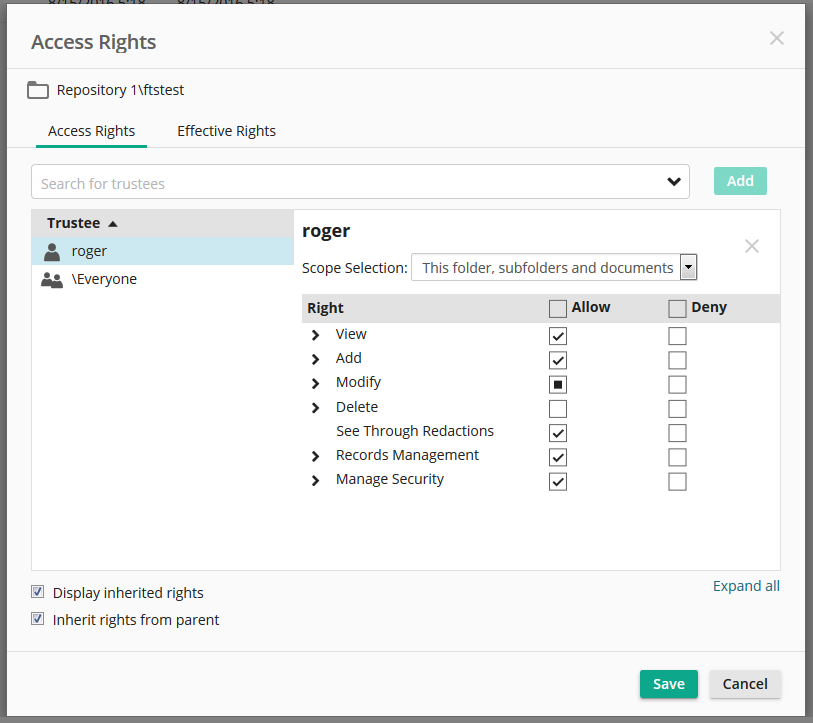
To simplify security configuration, the Access Rights dialog box now groups similar rights, allowing you to quickly grant access to users. (You can still expand the groupings to fine-tune your security.) This allows you to streamline security while still ensuring that documents are only available for viewing or modification for specific users or groups.
Usability Enhancements
In addition to various performance enhancements, the August 2016 release includes a number of usability and user experience improvements.
- Streaming for Attachment Annotations: Audio and video attachment annotations can now be streamed in the browser, just as audio and video electronic documents can be streamed.
- Refresh Button: A refresh button allows users to refresh the folder browser without refreshing the entire window.
Laserfiche Cloud Forms Support in the Laserfiche App
The Laserfiche App has been expanded to include Laserfiche Forms. You can now fill out and submit Forms directly from the App. Additionally, all your form tasks and history are available from the app’s main menu.
Direct Approval Email Support in Forms
You can now directly approve Forms tasks from your email inbox. Reply to the task notification email and the task will be automatically approved, rejected, or submitted.
Trial Account Updates
The August update streamlines the trial account period. Trial Accounts stay active for 45 days starting from the date of creation. Solution Providers have the option of extending the trial period by 30 days for a total of 75 active days.
Authorized Laserfiche staff can potentially reactivate an expired trial account that has exceeded the 75-day trial period. Solution Providers can contact their Territory Manager to start the approval process.
June 2016
The June 2016 update of Laserfiche Cloud introduces Laserfiche Forms for Cloud as well as a variety of new features to make it easier to work with documents in your repository, including new ways of viewing information about your documents and folders.
You can watch an overview of the new features here:
Forms
Laserfiche Forms is a significant addition to Laserfiche Cloud that lets you easily create online forms for users to fill out and submit. These forms can be incorporated into larger approval or routing processes. Users can complete, assign, and prioritize process-related tasks from a centralized task list. With Forms, it's easy to capture the information you need, route it appropriately, and process it efficiently.
View PDF Documents in the Document Viewer
You can now open PDF documents directly in the document viewer, without needing to download and open them locally. With this feature, you can view these document types in the same way you would an imaged document. Metadata and other information about the document is immediately available right in the details pane of the document viewer.
Preview Documents During Import
When importing images or a PDF file into Laserfiche, you will now be provided with a preview of the images or PDF directly in the import dialog. This allows you to refer to the document if you need additional information to help you file the document or provide its metadata.
Open Audit Reports Directly from Entries
Authorized users can now directly open an audit report for information on that entry. For instance, you might want to be able to see the history of who accessed or modified the document. Once you have configured the relevant audit reports in Audit Trail Reporter, you can launch them for a specific entry directly from the document.
Compare Versions for Microsoft Office Documents
You can now compare changes when viewing version information for Microsoft Office documents stored in Laserfiche. When comparing changes, differences between the versions will be displayed using the native Microsoft Office revision markup, allowing you to quickly locate what was changed between two versions. This functionality is supported with Word documents, Excel spreadsheets, and PowerPoint presentations.
Apply Column Profiles to Search Results
Column profiles allow you to save sets of folder browser columns and then quickly apply them to view different information about entries. You can apply column profiles to search results as well as to regular folders.
Copy Text from Document Images
You can now copy text directly from the images in Laserfiche documents, allowing you to quickly populate metadata with copy and paste. Using the new Select Text command will retrieve the OCRed text from the selected portion of the document and copy it to the clipboard, allowing you to easily paste it anywhere you choose.
Import Agent
Import Agent has been optimized for use with Laserfiche Cloud. It now imports documents significantly faster, supports multiple threads on multi-core machines, has a new look, and more.
May 2016
The May 2016 update of Laserfiche Cloud focuses primarily on internal updates to the account administration site for Solution Providers and branding updates to the account registration email notifications.
Updated Account Activation Emails
The account activation email notifications now include expanded text with links to various parts of your Laserfiche Cloud services.
General Account Administration Site Updates
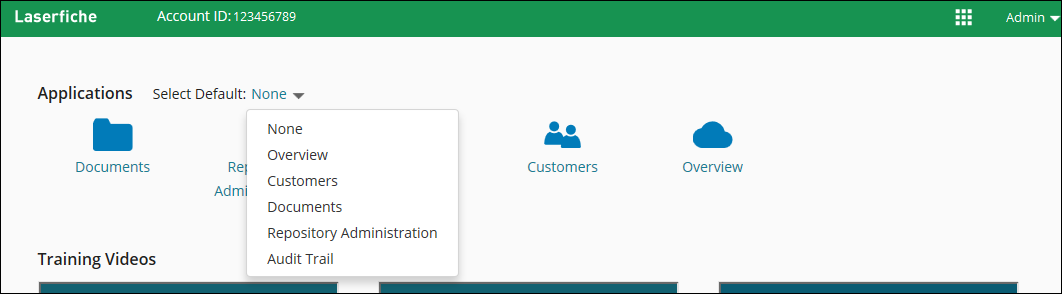
You can now choose a default Laserfiche Cloud application from the Overview page. When next signing in to Laserfiche Cloud, you will be automatically redirected to the chosen default application. If you do not select a default application, signing in will take you to an overview page allowing you to select the Laserfiche Cloud application that you want to view. In addition, Solution Providers can now view the Overview page. Previously, this page was only accessible to customer accounts upon a user's first sign-in.
Solution Provider Account Administration Site Updates
Solution Providers now see a color-coded title bar for the Account Administration site based on the account type, in addition to seeing a text label of the account type.
Solution Providers now have an option to hide deactivated customer accounts on the customer list.

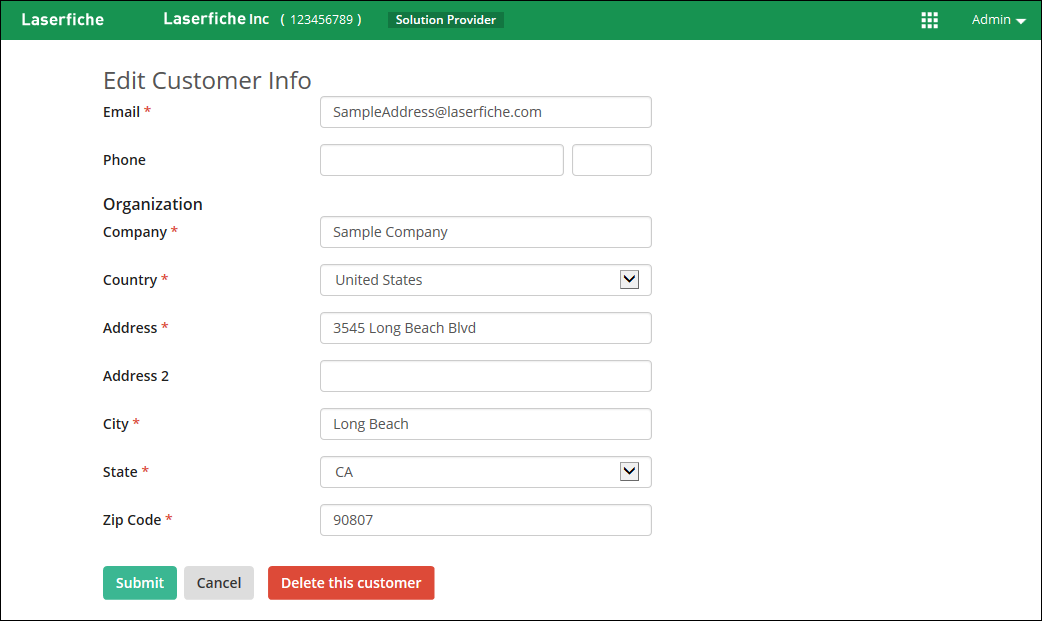
Solution Providers can now delete Provisional Accounts from the customer information page. From the customer list, click Account details to view the customer information page.
The April 2016 update of Laserfiche Cloud adds expanded options when creating and downloading documents, additional search options, and more ways to customize window pane layout.
You can watch an overview of the new features here:
Import Profiles
In many cases, users need to frequently import documents of consistent types. For example, a user in the HR department might need to frequently import resumes and applications for prospective employees, as well as tax or insurance information for existing employees. With the April 2016 update, users can streamline this process by setting up import profiles for commonly-imported document types.
An import profile allows you to configure a default name, folder path, and template for imported documents of a particular type. Then, when importing a document, you can select the import profile from the list, rather than manually selecting the appropriate path, template, and so forth. The HR employee in the example above might set up one import profile for "Applications and Resumes" and another for "Tax Information." You can also extract information from the file name and use it to dynamically create the document name or path. For instance, if application file names always contain the applicant's name, you could extract that section of the file name and use it to automatically store the document in a folder named for the applicant.
Improved Microsoft OutlookImport
You can now drag and drop emails directly from Microsoft Outlook into Laserfiche. You can also use the Save to Open Folder button in the Laserfiche ribbon to save emails to the folder you currently have open in Laserfiche, or the Save to Default Folder button to save them to the default folder you have configured in Repository Administration.
Download Documents in a ZIP File
You now have the option to download multiple documents as a ZIP file. The option to download a Laserfiche briefcase (LFB) file is still available.
Template-Specific Required Fields
Previously, required fields existed solely as an attribute of the field: if a field was marked as required, then it would be required in all templates to which it belonged. However, in some cases, users wanted to be able to mark a field as required in one template, but not in another. For example, an "Employee Name" field might be required on an "HR" template, where it is a critical piece of information, but optional on a "Reports" template, where there might or might not be an employee associated with the report. You can now mark fields as required on a template-by-template basis, in addition to the already-present global required field property.
Recycle Bin Search
You can now perform searches for documents in the recycle bin, allowing you to easily locate deleted documents. You can search on many of the properties of the deleted document, including document name, fields, and tags. All users can search for documents they themselves deleted, and users with the Manage Entry Access privilege can search across all documents in the recycle bin. This is especially useful for administrators, who may need to locate an accidentally-deleted document, or identify which documents contain a particular metadata type.
Additional Display Options
Configure the details pane to show only the tabs that you are interested in. In addition, you can now resize both the folder pane and details pane.
The August 2015 update of Laserfiche Cloud includes many new features, as well as updates to existing features. These include the ability to import directly from Google Drive, Microsoft One Drive, or Microsoft One Drive for Business, several new enhancements to columns, and a new document preview pane in the Folder Browser.
You can watch an overview of the new features here:
Import from Google Drive, Microsoft One Drive, or Microsoft One Drivefor Business
You can now import documents from Google Drive, Microsoft One Drive, or Microsoft One Drive for Business directly into Laserfiche. This allows you to quickly capture and centrally store all your content, without needing to first export it first. Administrators can choose to enable import from any or all of these services by opening Repository Administration, selecting Integrations, and then selecting the Import Services tab. Once they have done so, users will be provided with the option to import from the relevant cloud import service when they click the Import button ( ).
).
Enhancements to Columns
Columns allow you to quickly view information about documents and locate the correct document within the Folder Browser. You can now use columns in two new ways: saving column profiles to quickly modify the information you want to display, and sorting by multiple columns.
Column Profiles
A column profile is a collection of columns that you can save and then quickly apply to the Folder Browser. For instance, in some situations, you may want to view the user who created the document, the creation date, and the last modified date, while in other situations you might want to view template field information about the document. Displaying all this information at once may make it difficult to view, as you would have to scroll to see all the columns. With column profiles, you can easily switch between these two views.
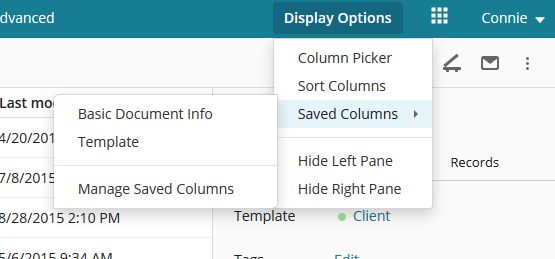
To create a column profile, click Display Options in the Folder Browser and select Column Picker, then select the columns you want to include in this column profile. You can also drag and drop to reorder them. Once you have the columns selected, click Save Profile. You will be prompted to specify a name for this profile. Repeat to create as many column profiles as you want. You can then right-click the column bar and point to Saved Columns to select the column profile you want to use. The columns will immediately be applied.
Multi-Column Sort
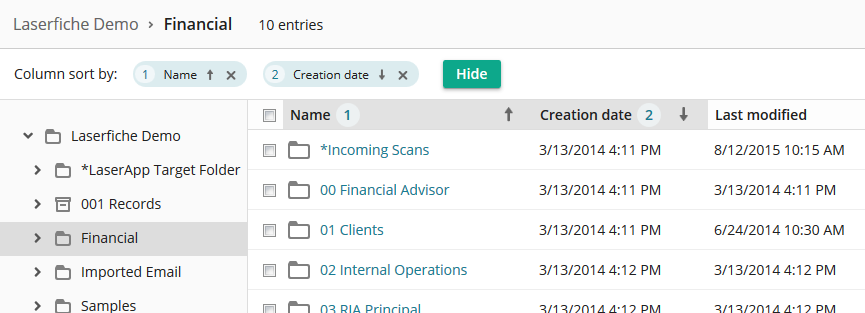
In some cases, you may want to sort by multiple columns at once. For instance, you might want to sort first by a "Company Name" field, and then by the document's creation date. You can now do so using multi-column sort. To sort by multiple columns, click Display Options in the Folder Browser and select Sort Columns. You can then select which column you want to sort by first, which second, and so on. In the column sort bar, you can also drag and drop to reorder the columns, and determine whether to sort them in ascending or descending order.
Automatic Server-Side OCR
In addition to generating text while scanning and when importing electronic files such as Microsoft Word documents, Laserfiche Cloud now generates text from images when they are imported into your repository. When an image file is imported into Laserfiche, a document will be created in the repository, and then the images will be OCRed by the Laserfiche Server in the background. This makes these documents full-text searchable without having to import the documents through Import Agent or the desktop Client.
Document Preview Pane
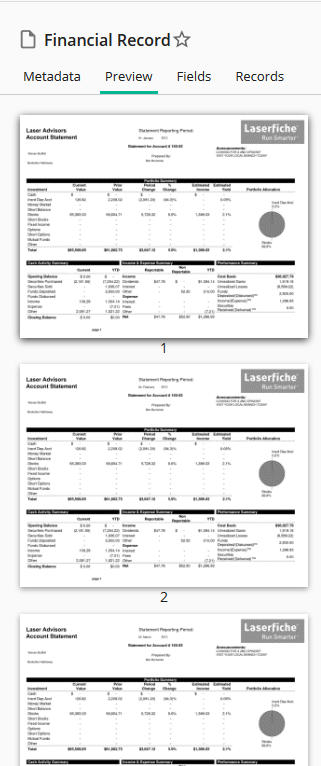
You can now view a preview of documents with image pages directly from the Folder Browser. This allows you to quickly locate the document you're looking for without having to open each one. You can zoom in or out, and switch from preview mode to thumbnail mode (allowing you to see more pages at once). In addition, any annotations on the page will also be displayed, allowing you to view them without leaving the Folder Browser.
June 2015
The June 2015 update of Laserfiche Cloud includes many new features, as well as updates to existing features. These include a suite of records management features designed to make it easy for you to manage records throughout their life cycle, a native integration with DocuSign, and the ability to temporarily grant access to your repository for support purposes.
You can watch an overview of the new features here:
Records Management
Laserfiche Cloud now includes support for records management features, which allow you to process records and record folders according to a life cycle, through creation, retrieval, storage, and disposition. Records Management information and actions have been incorporated into the main document viewer and folder browser, and are available in desktop, tablet, and mobile views.
Records managers can define file plans and configure retention rules specific to their organization, and then view properties and status information for individual records and record folders in the new Records tab of the Metadata Pane. You can access this information in the Folder Browser or when viewing a record in the Document Viewer. The life-cycle timeline displays the record's history and disposition eligibility, and eligible actions such as cutoff, transfer, accession, and destruction can be performed directly on the timeline. Records managers can quickly generate reports of records currently eligible for cutoff, disposition, and vital record review through the Records Management quick access list. Disposition actions can then be performed directly from the report.
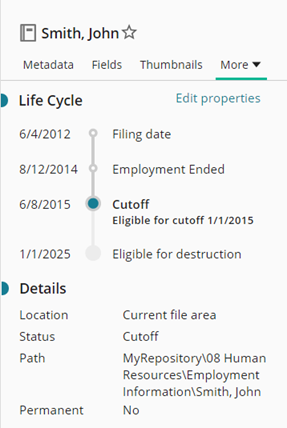
Administrators can configure records management retention schedules, cutoff instructions, cycle definitions, locations, and events in the Records Management section of Repository Administration. In the repository, records managers can view record information in the Records tab of the Metadata Pane from either the Folder Browser or the Document Viewer, can perform record searches in the Advanced Search dialog box, and can run reports to locate eligible records in the Records Management quick access list.
DocuSign
Laserfiche's DocuSign integration allows users to request DocuSign signatures on existing documents in Laserfiche, or store documents directly in Laserfiche once they have been signed. In addition, administrators can configure settings such as field mapping and storage location to automatically capture information about signed documents.
Administrators can configure DocuSign settings in the Integrations section of Repository Administration, and users can request signatures by selecting any document in the repository and choosing Request Signature with DocuSign from the More menu.
Audit Trail
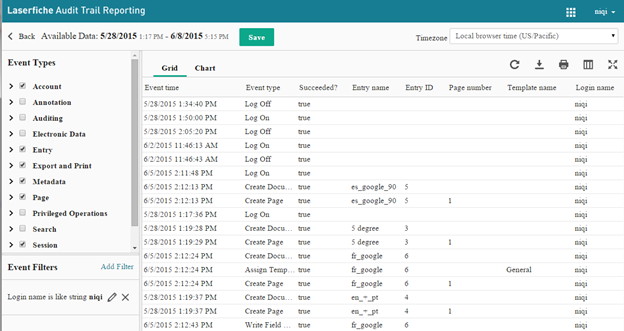
Laserfiche Audit Trail Reporting has had a significant look-and-feel update, providing a more modern user interface and streamlining the process of creating and viewing reports.
You can view the new Audit Trail Reporting interface by opening Audit Reports.
Security Tags
The support for metadata tags has been expanded to include security tags. When creating a tag, an administrator can designate it as a security tag, which can then be both applied to documents and granted to users. Once a security tag has been applied to a document, only those users who have been granted that tag will be able to see that document in Laserfiche.
You can specify that a tag should be a security tag in the Tags section of Repository Administration, and grant a tag to a user in the Users/Groups section. To apply a tag to a document, select or open the document; tags can be applied in the main tab of the Metadata Pane.
Exporting Folders and Exporting Folder List Contents
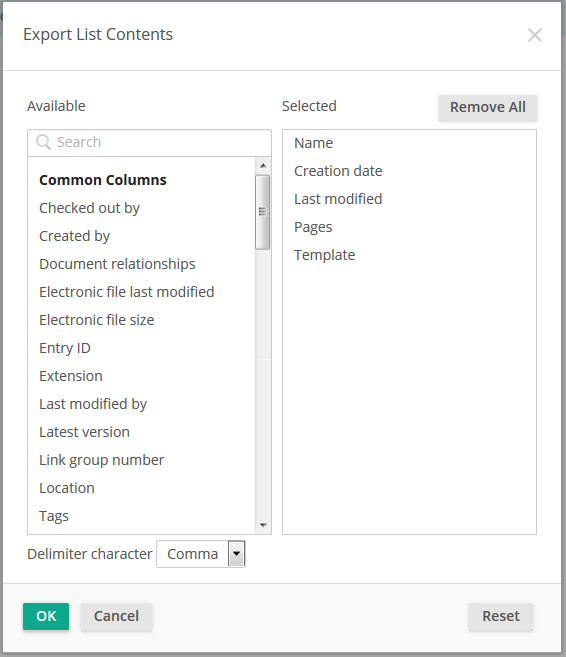
Laserfiche Cloud now includes additional options for exporting the contents of your repository. You can now export a folder, which will also export the contents of the folder and its subfolders. You can also export a folder's list contents, which will generate a report of the contents of that folder but not export the contents themselves. If you export a folder's list contents, you can choose which metadata and document properties you want to include in the report.
To export a folder or a folder's list contents, select the folder and open the More menu, then point to Export and select the export type you want.
Grant Support Personnel Temporary Access To Your Account
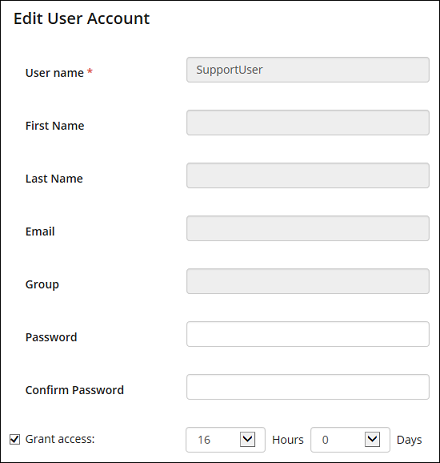
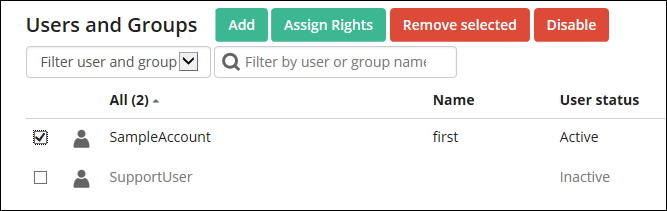
During certain troubleshooting scenarios, it may become necessary to grant a support engineer access to your Laserfiche Cloud resources. Laserfiche Cloud customer accounts include a built-in system account named SupportUser. This system account is designed to allow your Solution Provider temporary access to your Laserfiche Cloud resources.
The SupportUser account differs from standard users in that:
- There is a time limit associated with the account. Grant access to your Laserfiche resources only for the duration that you specify. You can disable the account at any time before the time limit is up.
- There is an Allow administrative access option that grants the ability to sign in to Laserfiche Account Administration and create additional administrative accounts and modify user properties.
- Standard user properties like Email and Group are permanently disabled. You can still assign a password to the account.
- You cannot delete the account.
Provide your Solution Provider's support contact with the SupportUser password to allow them access to your Laserfiche Cloud account.
When viewing the properties of SupportUser, look for the Grant access check box.
Marking Users As Inactive
Administrators can now mark users as inactive in Account Administration. Inactive users cannot sign in to Laserfiche and do not count against the user limit.
Additional Updates and Enhancements
The June release of Laserfiche Cloud includes several additional updates and enhancements to functionality and to the user interface.
- Accessibility support has been improved to make it easier for users who rely on screen readers and other accessibility tools to work in Laserfiche.
- When performing a quick search, users can restrict the search to the current folder and its subfolders, allowing them to find a document even more quickly if they know what part of the repository it's in. To do so, select the dropdown to the left of the Quick Search bar and select Within current folder.
- You can now email documents directly from Laserfiche and Laserfiche Mobile using Amazon Simple Email Service.