Administering Groups in Laserfiche
This page explores how to create a group, add users to a group, and edit a group.
Creating a Group
Groups facilitate assigning access rights to users in a group.
- From the Laserfiche Account Administration page, click Groups.
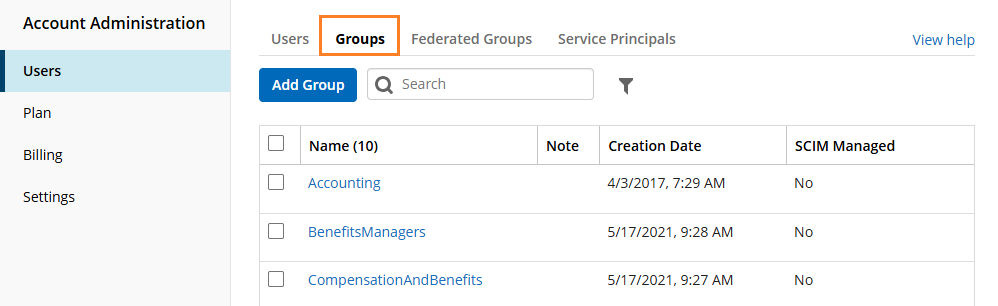
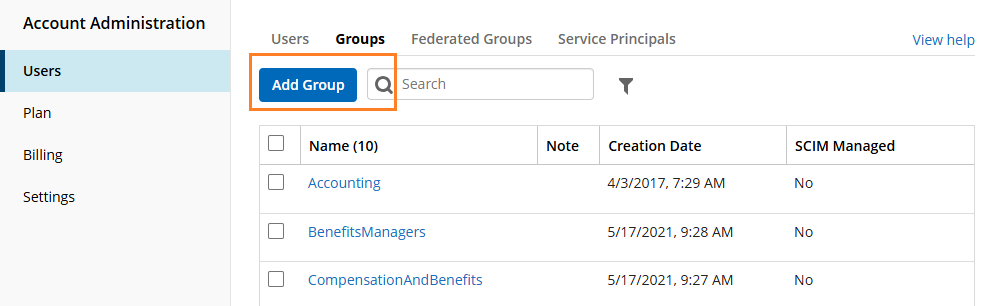
- Click Add Group button.
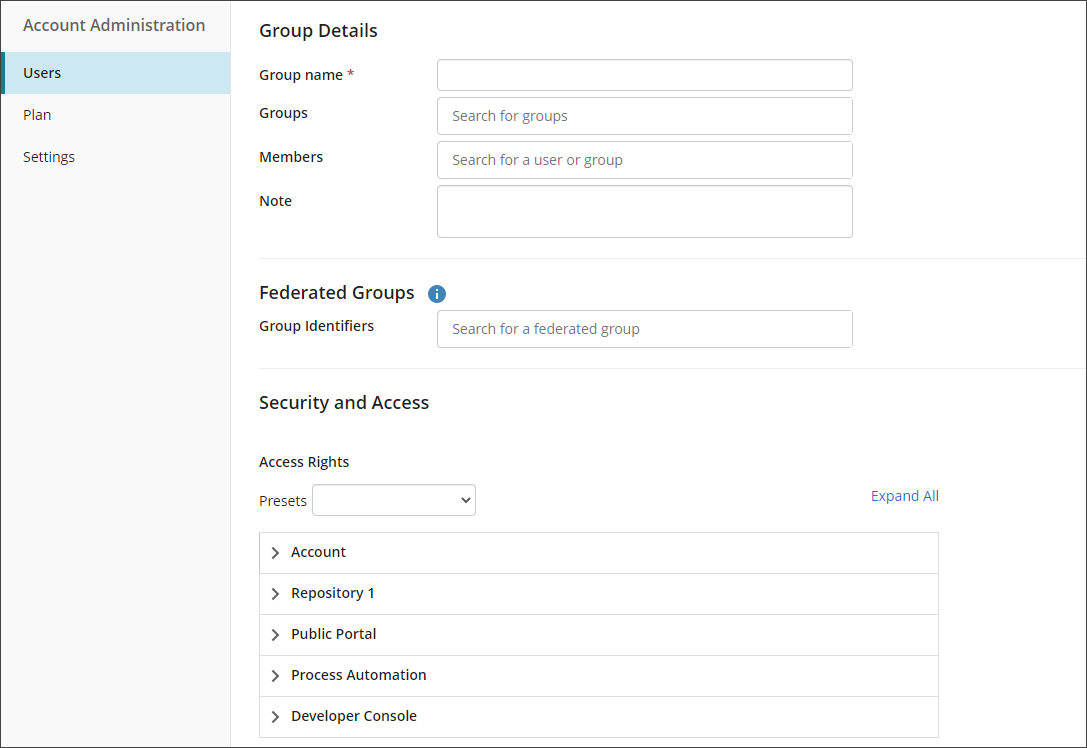
- On the Group Details page, enter a Group name.
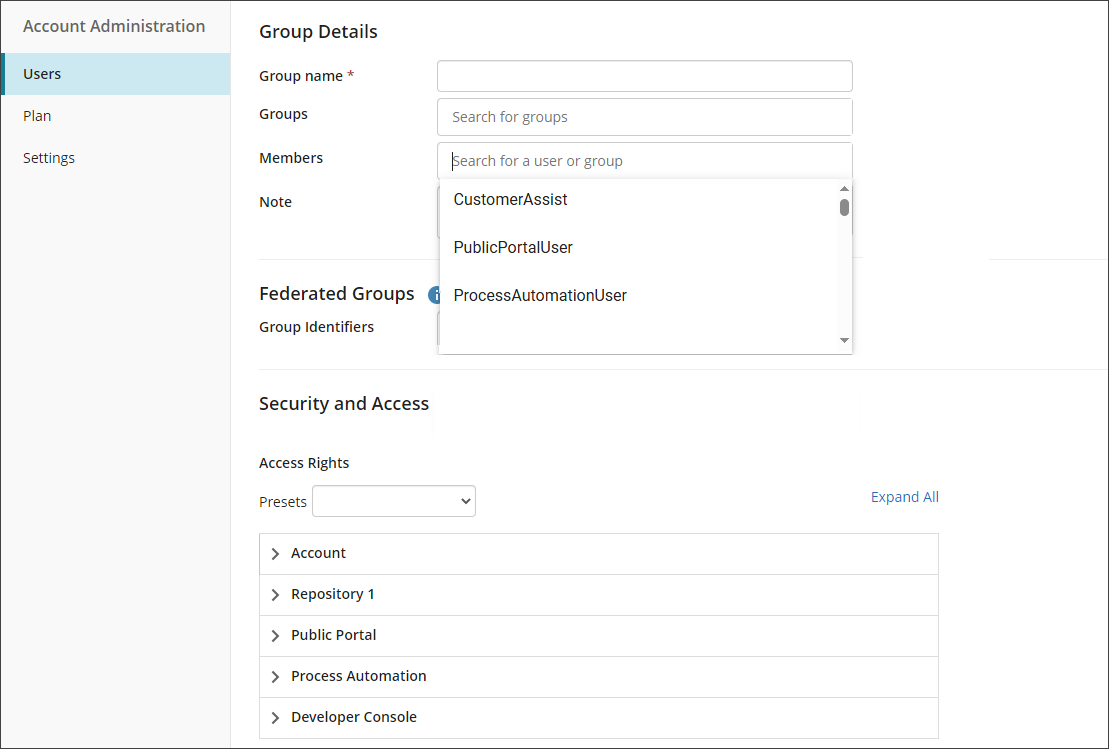
- Click the Members field to select users from the drop-down menu.
- In the Access Rights section:
- Presets: Use this drop-down menu to choose one of the following options:
- Full Rights: Selecting this option allows the user full access rights to Laserfiche Account Administration, Public Portal, and Process Automation. In addition to this, the user will have rights to grant themselves full access in the Laserfiche Repository.
- Inherit All: Selecting this option means the user's access rights will be inherited from the user's group membership.
- Remove All Rights: Selecting this option means the user will not have any access rights to the Laserfiche Repository and Process Automation. User will not have any access rights to Laserfiche Account Administration and Public Portal unless inherited by the user's group membership.
- Customize access by selecting from the security options available for the account.
 Account
Standard user accounts granted one of these rights can access the Laserfiche Account Administration site. Administrator accounts can always access the Account Administration site.
- Account Administration allows the user account full access to the Laserfiche Cloud Account Administration site.
- Billing Administration allows the user account to view the Plan tab and Billing tab (if applicable) in the Laserfiche Cloud Account Administration site.
- Trustee Administration allows the user account to view the Users tab in the Laserfiche Cloud Account Administration site.
- Audit Administration allows the user account to access Audit Trail.
- View User Group Membership allows the user account the ability to view group membership
Laserfiche RepositoryRights in this section control access to Audit Trail, Documents, and Laserfiche Repository Administration applications.
- Access to Laserfiche Repository allows the account to sign in to the Laserfiche Repository and view documents.
- Set Laserfiche Privileges allows the account to manage privileges for the Laserfiche Repository through Repository Administration.
- Access to Laserfiche Repository Management allows the account to access Laserfiche Repository Administration.
- Audit Reporting allows the account to generate and view audit reports on the Laserfiche Repository.
- Laserfiche Web Configuration Manager allows the account to configure the default toolbar buttons for the entire repository. These defaults will be used instead of the generic repository defaults for any user who has not customized their toolbar. This role also allows the account to lock down toolbar configuration for other users.
Public Portal- Public Portal Administrator allows the account to access the Public Portal Designer.
Process Automation- Access to Process Automation allows the account to sign in to Process Automation.
- Process Administrator allows the account full access to Process Automation, including full administrative rights.
- Process Asset Administrator allows the account to administer files, holidays, profiles, workers, queues, and work schedules in Process Automation.
- Process Developer allows the account to create and modify workflows, rules, workers, queues, and starting events.
- Process Manager allows the account to create teams, view and start business processes, and modify rules.
- Form Developer allows the account to create surveys.
Developer Console- Developer Console Administrator
- Presets: Use this drop-down menu to choose one of the following options:
- Click the Create button to save and create your group.
Adding Users To A Group
There are multiple methods of adding users to a preexisting group.
Add Users by Clicking + Add to Group Button
- In the Laserfiche Account Administration pane, click Users.
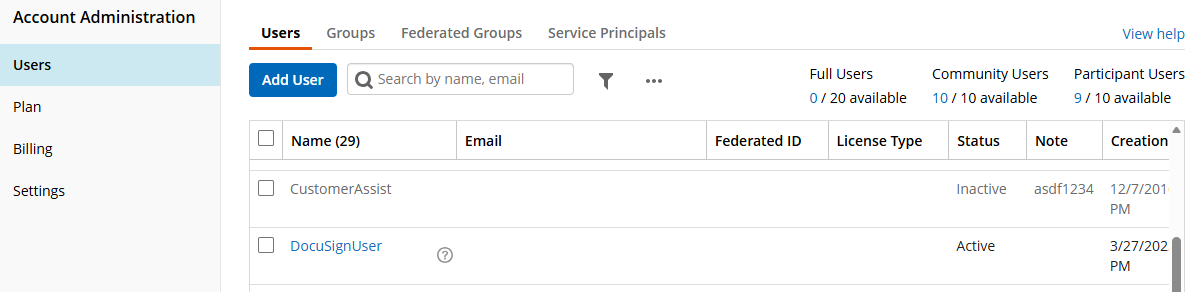
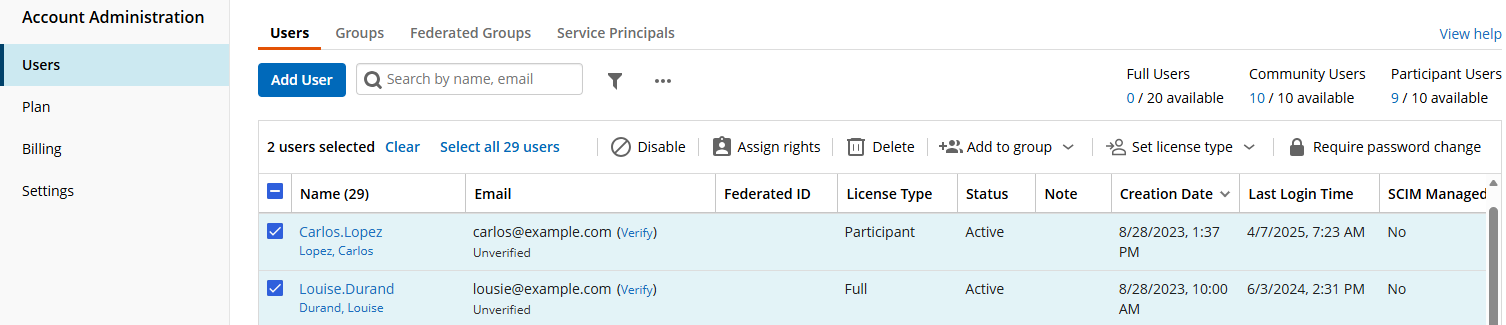
- Select the check-boxes for the users that will be added to your group.
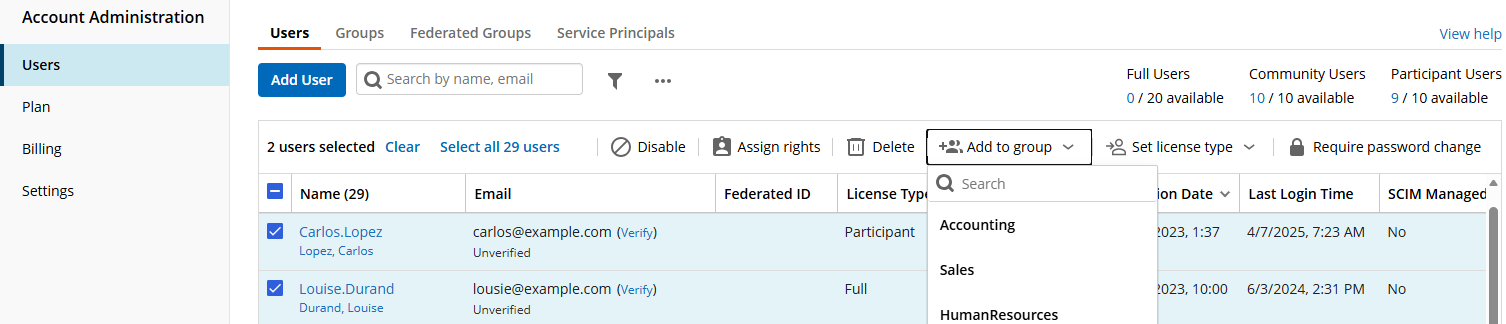
- Select the Add to group button. In the drop-down menu, click the name of the group to which the selected users will be added.
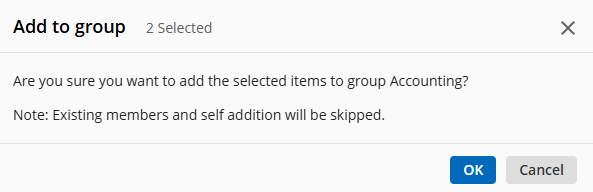
- In the Add to group dialog box, review the group member list and click OK.
Note: To modify or assign rights to users in a group, navigate to Security and Access section in the Creating a Group page.
Tip: Assign rights at the group level as much as possible. Access rights can be set on either individual users or on groups, but setting rights on groups and allowing the users within the groups to inherit those rights will result in less manual configuration to accomplish the same purpose, and therefore will be easier to troubleshoot and less prone to error in the future. In general, the more manual configurations you need to accomplish something, the greater overhead for administration in the future.
Editing A Group
A preexisting group can be edited by navigating to the Edit Group page in Laserfiche Account Administration.
- In the Account Administration page, click Groups.
- In the Name column, click the name of the group you want to edit.
- On the Edit Group page, the Group Details section lets you modify Group name, Members, and Note sections.
- To add users to the group, click the Members field to type the name of the user or select from the drop-down menu.
- To delete users from the group, click the x in the right corner of each username.
- The Security and Access section lets you set user access rights.
Note: To learn more about access rights, navigate to the Security and Access section under Creating A Group.