Laserfiche AI
Laserfiche AI features allow you to extract and process data quickly and easily, generate summaries and analysis, deliver insights into your content, and otherwise make better and more efficient use of the information in your Laserfiche system. Laserfiche AI powers several features across Laserfiche.
Using Laserfiche AI Features
For information on configuring and using AI features in Laserfiche, see the following pages:
Laserfiche AI Usage
AI units are metered on select work processes, giving regular daily users freedom of exploration, experimentation and testing with Laserfiche AI features.
The following operations do not decrement your number of AI units:
-
In the Laserfiche Repository Web Client:
- Selecting the Automatically select template and extract values button in a document's fields pane.
- Selecting the Extract values button in a document's fields pane.
- Selecting the Automatically select tags button in a document's Metadata pane.
-
In Process Automation:
- Selecting the Test AI Prompt button when creating an AI-assisted prompt rule.
- Selecting the Test rule in the Run Rule activity settings section of the Workflow Designer.
- Using the Regex Builder in the Business Process Designer.
-
Smart Chat:
- Smart Chat consumes no AI units in either Ask or Agent mode.
While the above-listed operations do not directly consume AI units, note that if those actions trigger other Laserfiche AI operations, those operations may consume AI units. All AI processes not named above will use AI units. This includes bulk actions such as selecting multiple documents or selecting <Automatically select tags>, <Automatically select template>, or <Automatically extract fields> in a drop-down option.
You can view your current AI unit usage on the Plan page; see AI Units for more information.
Enabling and Disabling Laserfiche AI Features
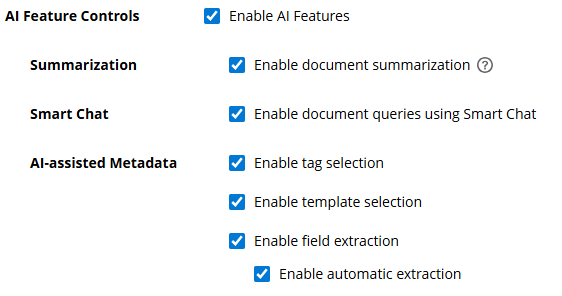
By default, Laserfiche AI features are enabled for plans that support them. Administrators can choose to disable Laserfiche AI features in repository settings. In the app picker, select Repository Administration and then select General. In the Settings tab, you can select Enable AI Features to enable or disable all features, or specify which AI features to use. These changes are global to the repository and will take effect for all users.
You can also enable field extraction with Smart Fields, but configure it so that fields values will only be extracted by manually selecting Extract values on individual documents rather than having them automatically extracted when a template is applied and saved. To do so, select Enable field extraction, and clear Enable automatic extractions.
Security and Governance
For information Laserfiche AI security and governance, see the Laserfiche Security, Trust, and Compliance page.