Configuring the Microsoft Entra App for Microsoft 365 OAuth 2.0
Register the App in Microsoft Entra
Tip:For detailed instructions, see Microsoft's documentation on registering an application. Refer to the to register an application.
- Sign in to the Microsoft Entra admin center as a user with at least the Cloud Application Administrator role.
- Browse to Identity > Applications > App registrations, and select New registration .
- Select Accounts in this organizational directory only ([Organization] only - Single tenant).
- Go to the Overview page of the application. Copy the Application (client) ID and Directory (tenant) ID. Save these values for later. They will be required when creating role assignments.
- Go to Manage -> Authentication
- Click + Add Redirect URI
- Select Mobile and desktop applications
- Add the following redirect URI: https://login.microsoftonline.com/common/oauth2/nativeclient
- Click Configure
- Go to Manage -> Certificates and secrets -> Client secrets
- Select New client secret.
Important: Copy and securely store the client secret. It will not be visible again after you leave this page.
- To grant access to all mailboxes, go to Manage -> API permissions
Note: After granting admin consent (step 7b), the application can send email as any user under the tenant, as described in Microsoft Graph permissions reference and Role Based Access Control for Applications in Exchange Online. To limit the application permission to only specific Exchange Online mailboxes, do not configure the Mail.Send application permission and follow the steps in the following Limit application permissions to specific Exchange Online mailboxes section.
- Click Add a permission -> Microsoft Graph -> Application permissions -> Mail.Send
- Click Grant admin consent for [Organization].
Notes: [Organization] will be replaced by the organization's name.
- Go to Enterprise applications (you can search for it in the portal).
- Record the Application ID and Object ID. These IDs will be used in the Creating a new role assignment section below.
Note: [Organization] will be replaced by the organization's name.
Limit application permissions to specific Exchange Online mailboxes
- Skip step 7 in the preceding section when registering the app in Microsoft Entra.
- Refer to the online help for Limiting application permissions to specific Exchange Online mailboxes.
You can limit permissions using: Admin Units or Management Scopes.
Create a new resource scope
Create a new resource scope via Admin Units or Management Scopes.
Create a new resource scope via Admin Unit
- Follow the instructions under Create an admin unit to create a new Admin Unit.
- Follow the instructions under Add users, groups, or devices to an admin unit to add users/mailboxes to the Admin Unit and to allow the access to its email.
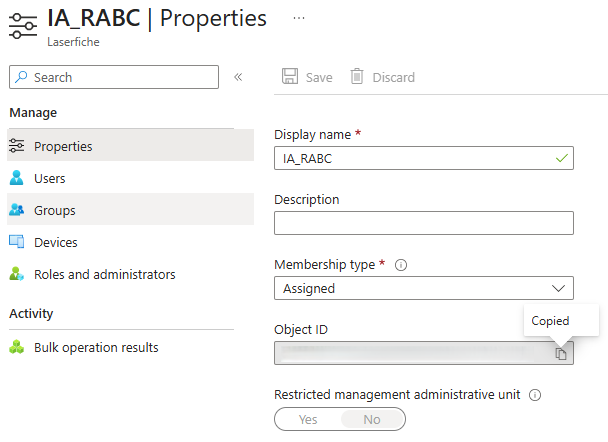
- Record the Object ID of the Admin Unit. It will be used in the Creating a new role assignment section below.
Create a new resource scope via Management Scopes
Follow the instructions Add Management Scopes to add management scope.
- Connect to Exchange Online PowerShell. For details, see Connect to Exchange Online PowerShell.
- Run the following command in Windows PowerShell to connect to Exchange Online, replacing the placeholders.
- The <TENANT_ID> is the Directory (tenant) ID copied in step 3 of Register the App in Entra above.
- The command Connect-ExchangeOnline will prompt a sign-in page to sign in.
Install-Module -Name ExchangeOnlineManagement
Import-Module ExchangeOnlineManagement
Connect-ExchangeOnline -Organization <TENANT_ID>
- Run the following command in Windows PowerShell to add management scope, replacing the placeholders.
- The <MANAGEMENT_SCOPE_NAME> is the name for management scope, and it will be used in New-ManagementRoleAssignment command.
- The <USER_PRINCIPAL_NAME> is the email address used to allow the access to email. Learn more about the RecipientRestrictionFilter.
New-ManagementScope -Name "<MANAGEMENT_SCOPE_NAME>" -RecipientRestrictionFilter "UserPrincipalName -eq '<USER_PRINCIPAL_NAME>'"
Create a Service Principal in Exchange Online
This step creates a service principal in Exchange Online so that RBAC can assign mailbox-scoped permissions to the app.
Run the following command in Windows PowerShell, replacing the placeholders.
- The <APPLICATION_ID> is Application ID copied in step 3 of Register the App in Entra above
- The <OBJECT_ID> is the Object ID copied in step 3 of Create a new resource scope via Admin Unit above.
Ensure the signed-in user has sufficient permissions to run this command.
New-ServicePrincipal -AppId <APPLICATION_ID> -ObjectId <OBJECT_ID> -DisplayName <name>
Create a new role assignment
Create anew role assignment via Admin Unit
Run the following command in Windows PowerShell, replacing the placeholders.
- The <APPLICATION_ID> is the Application (client) ID copied in step 3 of Register the App in Entra above.
- <Management Scope> is the Object ID copied in step 3 of Create a new resource scope via Admin Unit above.
New-ManagementRoleAssignment -Name <name> -Role "Application Mail.Send" -App <APPLICATION_ID> -RecipientAdministrativeUnitScope <Management Scope>
Create a new role assignment via Management Scopes
Run the following command in Windows PowerShell, replacing the placeholders.
- The <APPLICATION_ID> is the Application (client) ID copied in step 3 of Register the App in Entra above.
- <Management Scope> is the name of the management scope.
New-ManagementRoleAssignment -Name <name> -Role "Application Mail.Send" -App <APPLICATION_ID> -CustomResourceScope <Management Scope>
Test the new service principal
Run the following command in Windows PowerShell to test the new service principal, replacing the placeholders for Identity and Resource.
- The <APPLICATION_ID> is the Application (client) ID copied in step 3 of Register the App in Entra above.
- <MailBoxAddress> is the mailbox address used for testing.
Test-ServicePrincipalAuthorization -Identity <APPLICATION_ID> -Resource <MailBoxAddress>
The output indicates whether the application has Mail.Send permission for the specified mailbox.

Note: Changes to application permissions may take 30 minutes to 2 hours to propagate, depending on recent API activity. When testing configurations, the test command bypasses this cache. An app with no inbound calls to APIs will have its cache reset in 30 minutes, whereas an actively used app will keep its cache alive for up to 2 hours.