Laserfiche Mobile
Laserfiche offers two distinct mobile app experiences:
- The legacy Laserfiche app, which provides access to your repository and forms functionality.
- The new Laserfiche Forms app built for working with forms only.
Note: A second app for working with the repository only is coming soon!
This separation allows for an improved experience for users who primarily work with forms. Both apps work with self-hosted installations and Laserfiche Cloud.
Laserfiche Forms App
The Laserfiche Forms app is a dedicated mobile app that lets users interact with Laserfiche Forms directly on their iOS or Android devices. With this app, users can access their Forms inbox, complete assigned tasks, find and fill out forms, submit new form processes, and attach images from their mobile device — all while on the go.
 See a video on the Laserfiche Forms App
Learn how to use the Laserfiche Forms App to manage tasks, collaborate with teams, and start processes from anywhere. Stay productive on the go with secure, mobile-friendly task and process management.
Platform
The Laserfiche Forms app currently supports iOS and Android devices.
iOS
- iOS 15.1 or later
- Any device compatible with iOS 15.1 or later
Android
- Android 9.0 or later
- Any device compatible with Google Play
Installation
- To install the Laserfiche Forms app, open the App Store on an Apple device or Google Play on an Android device.
- Search for Laserfiche Forms and locate the app.
- Tap Get on an Apple device or Install on an Android device, and install the app to your device.
Sign In
- On the Sign-In page, enter the following:
- Account ID: Enter your Laserfiche Cloud 9-digit account ID (provided by your administrator).
- Username: Enter your username.
- Password: Enter your password.
- Tap Sign in.
Note: If a user's session remains idle for an extended period, a warning message is displayed informing them that they will be signed out in five minutes unless they choose to continue their session. This session timeout is configured in Account Administration. By default, the feature is enabled, and the idle timeout period is set to 15 minutes.
Settings
To access settings, help, and other app information, tap the menu button at the top left, and then tap the Settings  icon.
icon.
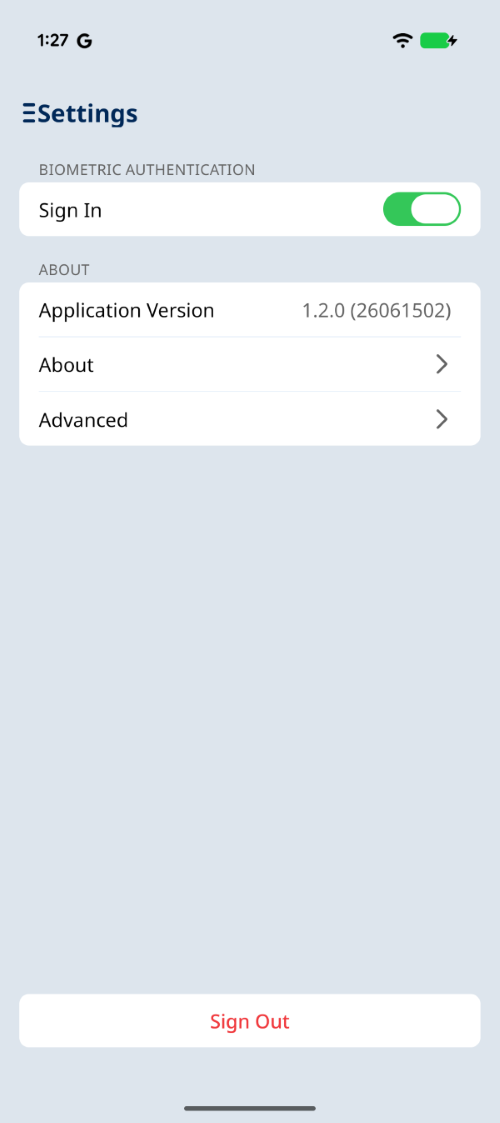
Biometric Authentication
To make signing in faster and more secure, you can enable biometric authentication (fingerprint or facial recognition).
Enabling biometrics improves security and streamlines access to your forms processes, especially if you access content frequently on the go. Once enabled, the next time you sign in, you will be prompted to authenticate using biometrics.
Note: Biometrics are currently supported for SAML, Active Directory Federation Services (AD FS), and Laserfiche users. Learn more about biometric authentication limitations.
About
This section displays the application version, the Forms server version, additional app details, and some advanced app actions. It also provides options to switch the Forms server you are connected to and to sign out of the application.
Application Version: Displays the current version of the app
About
- Help: Opens the help files for the Laserfiche app.
- Community: Leaves the Forms app and takes you to the Laserfiche Answers website.
- Support Site: Leaves the Forms app and takes you to the Laserfiche Support Site.
- Privacy Policy: Opens the Laserfiche Privacy Policy.
Advanced
- Export Log File: This option lets you export the application runtime log file and share it with support when needed. Logs will be kept for one day.
Sign Out: Tap Sign Out to sign out of the app.
Working in the App
Topics on using forms in business processes include a section on how to work with forms within the mobile app:
Getting Started with Inbox
Learn how to access and manage your personal and team form tasks.
Starting a Process
Learn how to select and submit forms to initiate new business processes.
Creating URLs for the Forms App
Learn how to create URLs to a starting form, draft, or task in the Laserfiche Forms App.
Laserfiche Forms App Troubleshooting
Legacy Laserfiche App
The legacy Laserfiche app, for iOS and Android, lets you browse your repository, add new entries from your phone and camera, edit metadata, submit and approve forms, start business processes, and much more. For more information, see Laserfiche App for iOS, Laserfiche App for Android, or Laserfiche App Administration.
Note: The existing documentation and links for working with forms in the legacy Laserfiche app apply to the integrated app that supports both repository and forms. Some procedures and screens described there may not match the experience in the Forms-only app — ensure you’re referencing the correct documentation for the app you’re using.
Navigating Laserfiche Mobile
Folder Browser
Once signed in, you will be inside the Folder Browser. Tap the folders to navigate your repository. Tap the back button to go back a folder. If you navigate away from your folders, you can swipe right and tap All Files in the main menu to navigate back to your folder structure. You can create new documents and folders using the Add button  in the top right.
Search
If using an Apple device, pull down to display a search box. If using an Android device, tap the magnifying glass in the top right to perform a search.
Document Viewer
Once you have located the desired document, tap it to open it. Tap the More button  in the top right to access additional actions you can perform on the document. For example, you can view the document's text, email a link to the document, add the document to a library, view the document's properties, etc. Tap the Metadata button
  to modify the document's fields and/or templates. Tap the Annotations
  button to view the document's annotations. Tap the Close button
  to close the document.