Signing In to Laserfiche
How to Sign In
Note: If you are an administrator and this is your first time signing in to Laserfiche Cloud, see Getting Started with Laserfiche Account Administration.
To sign in to Laserfiche Cloud, have your Laserfiche Cloud account ID (9 or 10 digits) and a valid username and password ready.
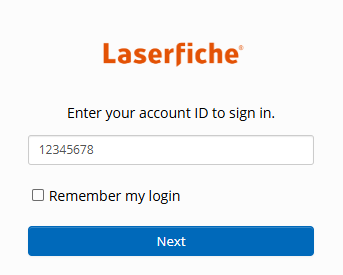
- On the signin page, enter your account ID, and click Next.
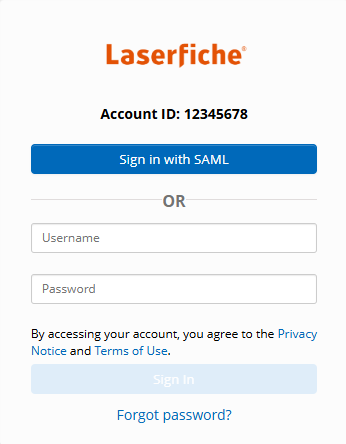
- Enter your username and password, and click Sign In. If your organization has single-sign on or Windows Authentication configured, click the corresponding button.
Recommended Web Browsers
For the best experience, access Laserfiche Cloud using the latest versions of Chrome or Firefox on a broadband Internet connection.
Common Web Addresses for Accessing Laserfiche Cloud Services
Laserfiche Cloud is an online content management system comprised of multiple web services. The following tables list common web addresses for accessing Laserfiche Cloud services with a web browser.
Note: The repository ID can be found on the Plan page in Account Administration.
| Web Address | Description |
|---|---|
|
https://signin.laserfiche.com https://signin.laserfiche.ca https://signin.eu.laserfiche.com |
Default sign-in address. |
|
https://signin.laserfiche.com/?customerid=111111111 https://signin.laserfiche.ca/?customerid=1111111111 https://signin.eu.laserfiche.com/?customerid=2111111111 |
Sign-in URL to a specific account ID. Replace the italicized value with your Laserfiche Cloud account ID (9 or 10 digits). The sign-in page will have your account ID already populated. |
|
https://app.laserfiche.com/laserfiche/?repo=r-000ab000 https://app.laserfiche.ca/laserfiche/?repo=r-000ab000 https://app.eu.laserfiche.com/laserfiche/?repo=r-000ab000 |
Use to directly sign in and view your Laserfiche documents. Replace 000ab000 with your repository ID. This address can also be used by components such as Laserfiche Connector when creating a profile that connects to the Laserfiche Web Client. When setting up a Laserfiche Connector profile that uses the Web Client URL and Repository option, set the web client URL to https://app.laserfiche.com/laserfiche and the repository to r-000ab000. |
|
https://r-000ab000.laserfiche.com https://r-000ab000.laserfiche.ca https://r-000ab000.eu.laserfiche.com |
Use when prompted for server and repository information in desktop applications such as Quick Fields. Replace 000ab000 with your repository ID. Use when creating a Session object in Laserfiche SDK (Repository Access) integrations. |
|
https://portal.laserfiche.com/Portal/Welcome.aspx?repo=r-000ab000 https://portal.laserfiche.ca/Portal/Welcome.aspx?repo=r-000ab000 https://portal.eu.laserfiche.com/Portal/Welcome.aspx?repo=r-000ab000 |
The public portal for the specified repository. Replace 000ab000 with your repository ID. |
Signing in to Laserfiche desktop applications
- Open the Laserfiche desktop application.
- If prompted, select the option indicating that you are using Laserfiche Cloud.
-
On the Sign-In page, enter the following:
- Account ID: Your Laserfiche Cloud account ID (9 or 10 digits).
- Username: Your username.
- Password: Your password.
- Click Sign in.
Laserfiche Quick Fields
When prompted for server and repository information:
- For both Server and Repository, enter r-repositoryid.laserfiche.com. The values must match. Replace repositoryid with your repository ID.
- Select Password authentication and enter your username and password.
Note: Windows authentication cannot be used to connect to Laserfiche Cloud.
- Select Use SSL connection.
Laserfiche SDK (Repository Access) Integrations
When creating the Session object:
- When using the Session.Create overload that takes a CloudTicket object, for the repositoryHost string parameter, pass in the repository ID host name: r-123456789.laserfiche.com. Replace 123456789 with your repository ID.
Note: The repository ID can be found on the Plan page in Account Administration, the Overview page in Repository Administration, and in your browser’s address bar when viewing documents in the Web Client.
Signing into Laserfiche Mobile
After downloading and installing Laserfiche Mobile from the iTunes App Store or Google Play, tap the application to open it.
- On the Laserfiche Mobile start page, tap Sign in.
Sign in
- Open the Laserfiche Mobile app.
- Tap Sign in.
- On the Sign-In page, enter the following
- Account ID: Enter your Laserfiche Cloud 9-digit account ID (provided by your administrator).
- User name: Enter your user name.
- Password: Enter your password.
- Tap Sign in.