Managing Tasks
Managing Tasks on a Computer
The Tasks tab on the Laserfiche home screen helps you easily view and manage all the tasks you have rights to see. Navigate between your tasks and team tasks, and assign, release, or change properties like due dates and priorities.
Viewing Lists of Tasks
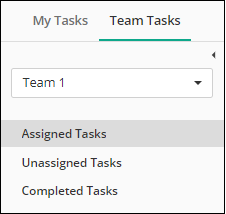
The two main sections in the Tasks tab are My Tasks and Team Tasks. My Tasks includes tasks assigned to you that have not been completed (including drafts), tasks that you can perform but are not assigned to anyone on a team, and tasks you have completed. Team Tasks includes tasks associated with the team you select in the following drop-down in the top left.
To change the column display in the list of tasks, click on Change column display ( ). This will bring up a dialog that lets you specify the columns shown in the list and their order.
For displayed columns, you can order the list of tasks by the tasks' column values. You can also filter on those column values by clicking the Edit filter icon ( ) and entering a string that you want the filtered column values to match.
Besides filtering by column, you can also search for tasks in the search bar at the top of the list of tasks.
Viewing Task Details
Select a task and then click on the Details pane on the right to see more task details. In both tabs of the pane, you can open the task or carry out an action on it (unless it has been completed). In the Summary tab, you can view task information, reassign the task, change its due date, or change its priority.
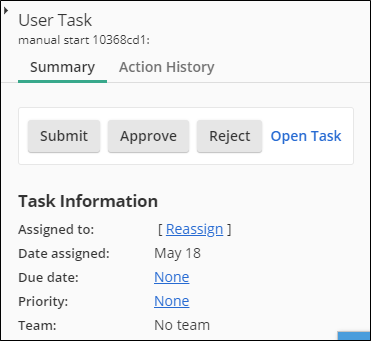
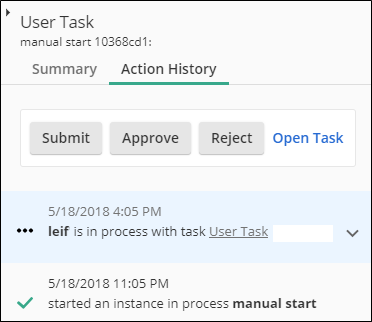
In the Action History tab, you can see when the various stages of the instance happened and which user or team is responsible for that stage. For a completed task, the time of completion is also shown.
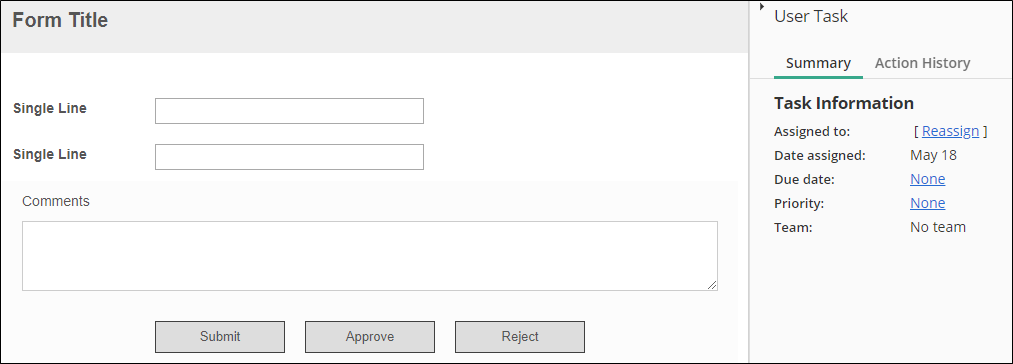
The task details pane can also be accessed from within the task window itself. When you open a task to work on it, it appears as a expandable/collapsible pane on the right.
Modifying the Display of Completed Tasks
On the Completed Tasks page, you can view the tasks that the signed-in user completed, which includes forms submitted, processes started, and user tasks finished. The tab displays the 5,000 most recent completed tasks with a link at the bottom to display more.
Completing Tasks
You can complete tasks from the main pane of the Tasks tab, or from the task details pane.
To complete a task from the main pane:
- Click on the name of a task.
- Complete the form that pops up.
- Select an action button.
When you submit the form, the process automatically advances to the next task in the process. If you are assigned that task, and the process is set to load the following task automatically, the task will appear in your list of assigned tasks.
Drafts
If you do not have time to complete the form, save it as a draft. The task will be available in the Drafts section of My Tasks. You can complete the task later, or you can reassign the task and save it, and the draft will be removed from your list of assigned tasks. If you begin working and want to discard your changes, click the X in the top right to return to your last saved draft.
Assigning Tasks
Tasks can be (re)assigned from the list of tasks, from the task details pane, or from the task window itself (if you are in the middle of working on a task). Select the task(s) you want to reassign, then click the Reassign selected tasks ( ) icon. If you are in the middle of the task and want to reassign it, you can click the same icon in the top right corner of the task window.
Changing Due Dates and Priorities on Tasks
You can change due dates and priorities from the task details pane, from the list of tasks, or from within the task window itself (if you are in the middle of a task).
To change due dates and priorities from the list of tasks:
- Select one or more tasks.
- Select one of the following options:
- Click the Modify selected tasks' due dates button
 in the toolbar to modify the due date of the task.
 - Click the Modify selected tasks' priorities button
 in the toolbar to modify the priority of the task.
- Click the Modify selected tasks' due dates button
- Specify the due date or priority.
- Click Save.
To change due dates and priorities from within the task window:
- Open the task by clicking on its name (if it is not already open).
- In the Details pane on the right, click on the value of the property you want to change. Alternatively, click Edit due date () or Edit priority () in the top right corner.
- Make your changes and click Save.
Free Training: View the Working with Tasks in Laserfiche Guide on Aspire.
Managing Tasks in the Laserfiche Forms App
Using the Laserfiche Forms app, you can access your inbox to complete tasks assigned to you, search for and fill out specific forms, add images from your mobile devices to forms, and more.
Navigating to Tasks
If you're assigned tasks as part of a process, you can view and complete those tasks from the inbox. The number of tasks will be listed at the top of the task page.
Example: When employees submit travel requests, you need to approve them. Once you approve them, an email is automatically sent to the travel coordinator to make travel arrangements.
To view and complete tasks
- Tap My Tasks from the main menu, under Inbox. To view the menu, tap the menu button at the top left. The first 20 tasks will be displayed and you can scroll to load more. You will see the task name due date, priority, and assignment details.
- To navigate your tasks, you can sort them, search by task name, and switch between the following task types:
- Open: View all active tasks currently assigned to you.
- Drafts: Access any task or form you started and saved without completing.
- Unassigned: Review tasks that are available for you to claim.
- Completed: See all tasks you have finished.
- Tasks are automatically sorted by the date they were assigned. To change how tasks are organized, use the drop‑down menu at the top and select one of the following options:
- Date Assigned
- Due Date
- Priority (urgent, high, medium)
- Task name
- Ascending
- Descending
- Newest to Oldest
- Oldest to Newest
Note: Changing priority is currently not supported when using the Forms app to connect to Laserfiche Cloud.
- Under Open, tap any task to view its details or begin completing it. To quickly locate a specific task, use the Search button in the top right corner.
- The task page will appear showing you the form you need to act on. You can use the options at the bottom to save the task as a draft, release it, reassign it, or edit its due date.
- Review the form and tap an action button (i.e., Approve) to complete the task.
- If you need to update multiple tasks at once, long‑tap any task—or tap Select at the top—to choose one or more items. Once selected, use the options at the bottom of the screen to:
- Update due dates
- Change priority
- Reassign tasks
- Release tasks
Team Tasks
Business Processes uses teams to organize and route tasks. Tasks can be assigned to an entire team and be visible to all team members in a central list. From this list, team members can choose to complete tasks or managers can directly assign tasks to specific team members. Team tasks are listed under Teams in the main menu. Tasks assigned to a specific team member will also appear in the My Tasks section for that user.
Note: You will only see a list of teams you are a member of.
To view team tasks
- Tap Team Tasks from the inbox. If you're not in the inbox, tap the menu button at the top left.
- Tap the name of the team you want to view tasks for.
- The tasks under Assigned have been assigned to a user on the selected team. These tasks will also appear in the My Tasks section for the user they are assigned to.
- The tasks under Unassigned can be claimed by any member of the team, or a manager can assign them to specific users. Team members can see unassigned team tasks under Unassigned in their inbox.
- Completed team tasks will be under Completed.
Optional:
- Tap the Sort drop-down at the top to sort the tasks by date assigned, due date, priority, task name, newest to oldest, earliest to latest, etc.
- Tap the Search button to search the task list by task name.
To assign team tasks to yourself or others
- Under Unassigned, tap the task to open it. Or you can select multiple tasks by clicking Select at the top right, then selecting the checkboxes next to the tasks.
- Tap Assign to me to assign it to yourself, or Reassign to assign it to another team member.
- If reassigning a task, on the Reassign page, select User to reassign the task to a new user or Team to reassign the tasks to a different team.
- Type the user or team name in the box and add any comments describing why you are reassigning the task. This message will appear in the task's action history. When finished, tap Reassign at the top right. To cancel the assignment, tap the X at the top left.
- If you worked on a task, saved it as a draft, and need to reassign the remainder of the task to someone else to complete, select Keep existing draft to send them the partially complete task draft. The task work already completed will be saved and passed on to the next user or group so they can start where you left off. Do not select Keep existing draft if you want to erase all task work and have the user or group start the task from scratch.
To complete a team task
- Under Unassigned, tap the task to open it. Or you can select multiple tasks by clicking Select at the top right, then selecting the checkboxes next to the tasks.
- Tap Assign to me.
- Complete the task and submit it. The completed task will be listed under Completed. Team tasks assigned to you will also be displayed in your inbox under My Tasks.
To save unfinished tasks as drafts
- With the task open, tap Save Draft.
- The task will be saved as a draft. You can view and complete the task under My Tasks (displayed with a draft icon) .
To change the due date of a team task
- Tap the task to open it. Or you can select multiple tasks by clicking Select at the top right, then selecting the checkboxes next to the tasks.
- Tap Edit Due Date.
- The current date and time will appear at the top. Scroll to the desired date and time and tap OK. If a due date has already been set, you can remove the due date by tapping Clear next to Set Due Date.This option will not appear if a due date has not been set.
- Tap Save.
Drafts
If you started filling out a form or completing a task, but had to save it before you could finish, it will appear under Drafts when you tap My Tasks in your Forms inbox.
To work with a draft
- Tap My Tasks from the Forms inbox, then tap Draftsat the bottom.
- Tap the draft you want to work with. Drafts will display a Draft icon to distinguish them from tasks.
- Make any desired changes to the draft and either submit it or save it again to work on it later. Alternatively, tap the X in the top right to return to the list of forms without saving any changes.
To remove a draft
- Tap My Tasks from the Forms inbox, then tap Drafts at the bottom;.
- Tap Select at the top right, then select one or more drafts to remove.
- Tap Discard Draft, then confirm you want to delete it. Deleting a draft cannot be undone.
Unassigned
If you have the appropriate rights, you will see all tasks assigned to your team that are available to claim under Unassigned. You can claim, reassign, or edit the due date of the tasks in this list.
Completed
You can view completed tasks and processes under Completed.
Note: Pressing the menu button and selecting an option refreshes the page.