Managing Custom Reports
From the main Custom Reports screen, you can create new reports, copy existing reports, see the list of existing reports, modify report properties, create a schedule, and delete reports.
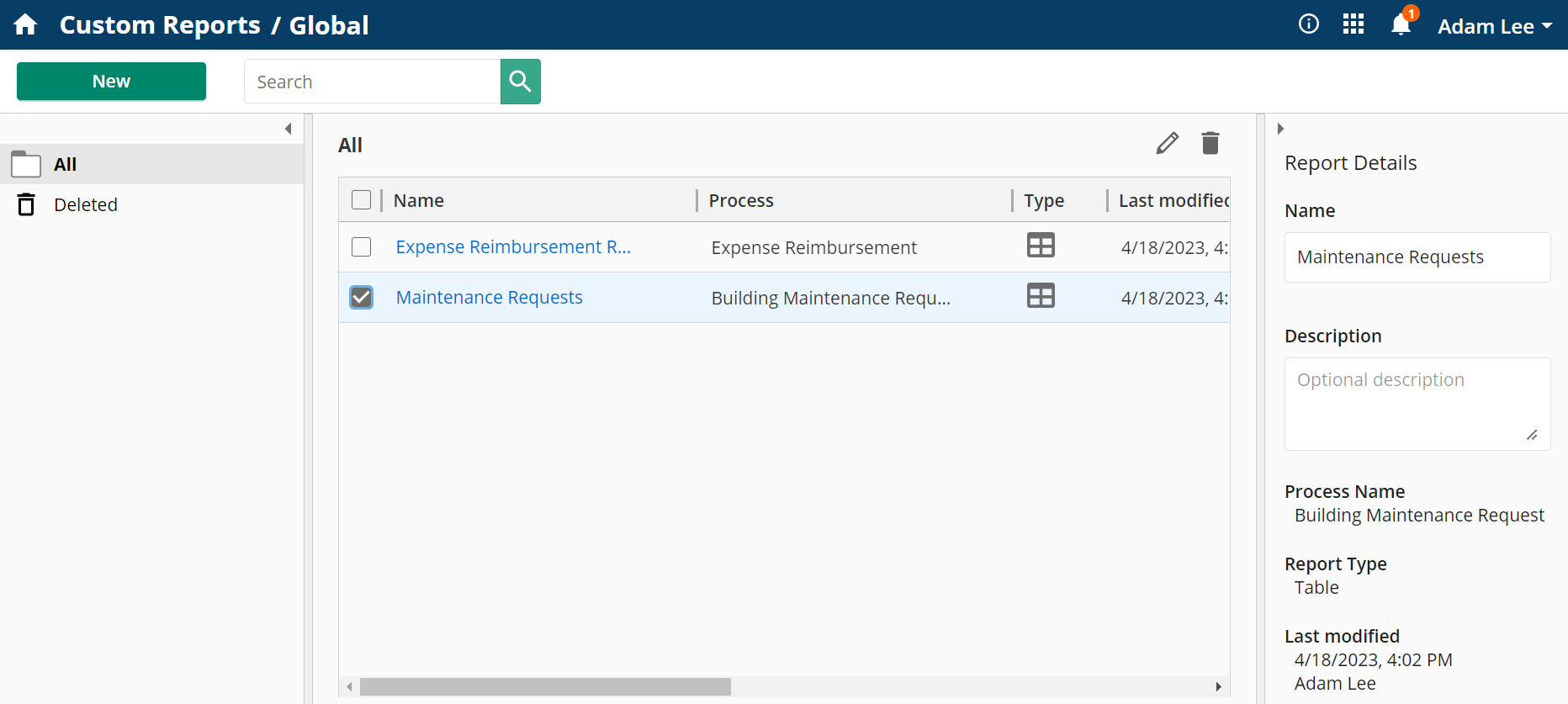
Menu Pane (Left)
The left panel lets you choose whether the list displays current or deleted reports.
Center Pane
The center pane displays a list of the reports, and provides information about the reports. The immediately visible elements are the report name, the process the report is based on, and the style of the report (type). Additional items include creation and modification details.
Report Details Pane (Right)
The right pane will display detailed report information for a selected report. You can change the name and description of a selected report within this panel, and view information on the process, report type, and modification details as well.
Note: The process of a custom report cannot be changed once it's been created.
Creating a New Report
To create a new report, click the New button.
Scheduling a Report
The right pane contains a Scheduler tab that can schedule automated report delivery by saving the report to the repository or emailing the report on a recurring schedule.
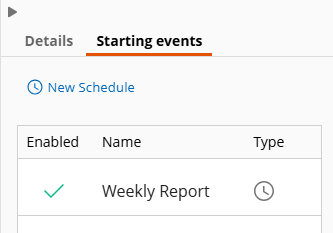
Use the New Schedule link to create a schedule.
- On the Conditions step, select a starting date, time, and time zone and choose a recurrence pattern:
- Never runs the report once on the specified start date.
- Daily runs the report every day, every weekdays, or every number of days (e.g., every 1 day repeats everyday, every 2 days repeats every other day).
- Weekly runs the report on the selected days or number of weeks (e.g., every 1 week repeats every week, 2 every other week).
- Monthly runs the report every month on a specific day (e.g., on the first Sunday repeats the first Sunday of each selected month).
- Optional: Choose an end date for the recurrence.
- Optional: Click Show Tests to view the dates and times when the schedule will run. The Test cases textbox lets you specify the number of dates and times you want to see from the schedule. For example, when you type "5" in the textbox, the first five dates and times when the starting event will run will appear.
- On the Actions step, choose the delivery method for the report. You can save a copy of the report in the repository or email the report.
Note: Starting events for custom reports count towards the starting events service limit. Emails sent by a scheduled custom report count towards general email service limits. Learn more about service limits.
Searching for a Report
To search for a report by name, click the search bar, type part of the name of the report, and click the magnifying glass icon.
Selecting and Opening a Report
To select a report, click on the row for the report or click the check box next to the report name.
To open a report, click on the linked report name in the row, or select the report and click the Edit icon  at the top right corner of the table .
Copying a Report
To copy an existing report, select a report and click the Copy icon  at the top right corner of the table. The copied report will be named using "{report_name} - Copy." If the copied name exists, it will be "{report_name} - Copy (1)" and will increase the number as more copies are made.
Deleting a Report
To delete a report, select the report and click the Delete icon  at the top right corner of the table.
- Deleted reports can be viewed in the Deleted folder in the left menu pane.
- Delete reports cannot be recovered.
- Deleted reports will be removed from the Deleted folder after 90 days.