Email Display Names
Create sender display names for email messages sent as part of a business process or workflow. By default, email notifications sent by an email service task, a user task, or a Workflow Email activity are shown as being sent by Laserfiche Notification. Create additional display names that designers can select when configuring these email actions.
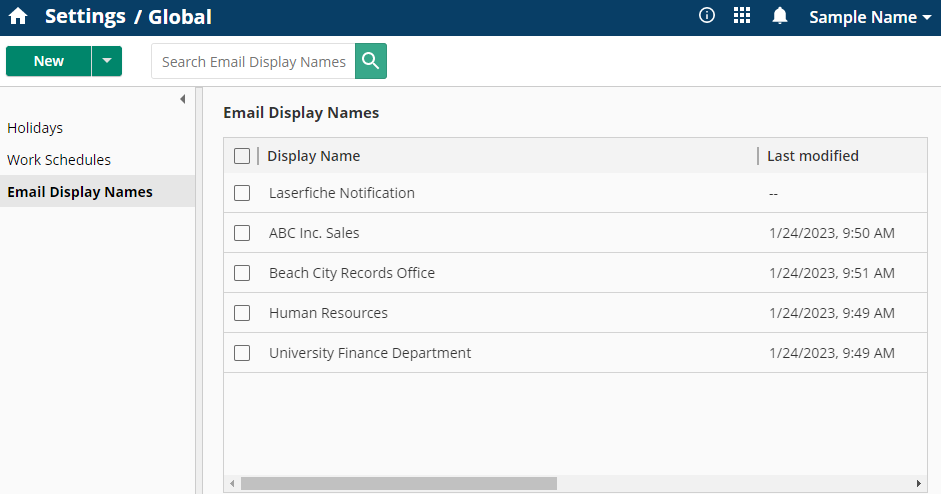
Creating and Modifying an Email Display Name
You must be a Process Administrator, Process Manager, or Process Asset Administrator to add or edit email display names.
- Open the Settings page.
- Select the Email Display Names tab and click New.
- Type the desired display name and note the preview for how the display name will appear.
- Click Create.
To modify an email display name:
- Open the Settings page.
- Select the Email Display Names tab.
- Select the email display name in the list.
- Click Edit (
 ) in the top right.
 - Modify the display name as desired and note the preview for the new display name.
- Click Update to complete the change.