Viewing an Instance Report
You can interpret the progress and performance of your workflow instances using the instance reporting feature in the Instances tab. This report is available on the Monitor and Design pages. From the navigation bar on the Monitor page, you can easily find any instance report using the nearby search feature, while from the navigation bar on the Design page, you can easily navigate between the associated workflow definition and the instance report.
Interpreting an Instance Report
The various tabs in the instance reporting feature let you interpret the progress and performance of a workflow instance. The following table describes when you would use each tab.
-
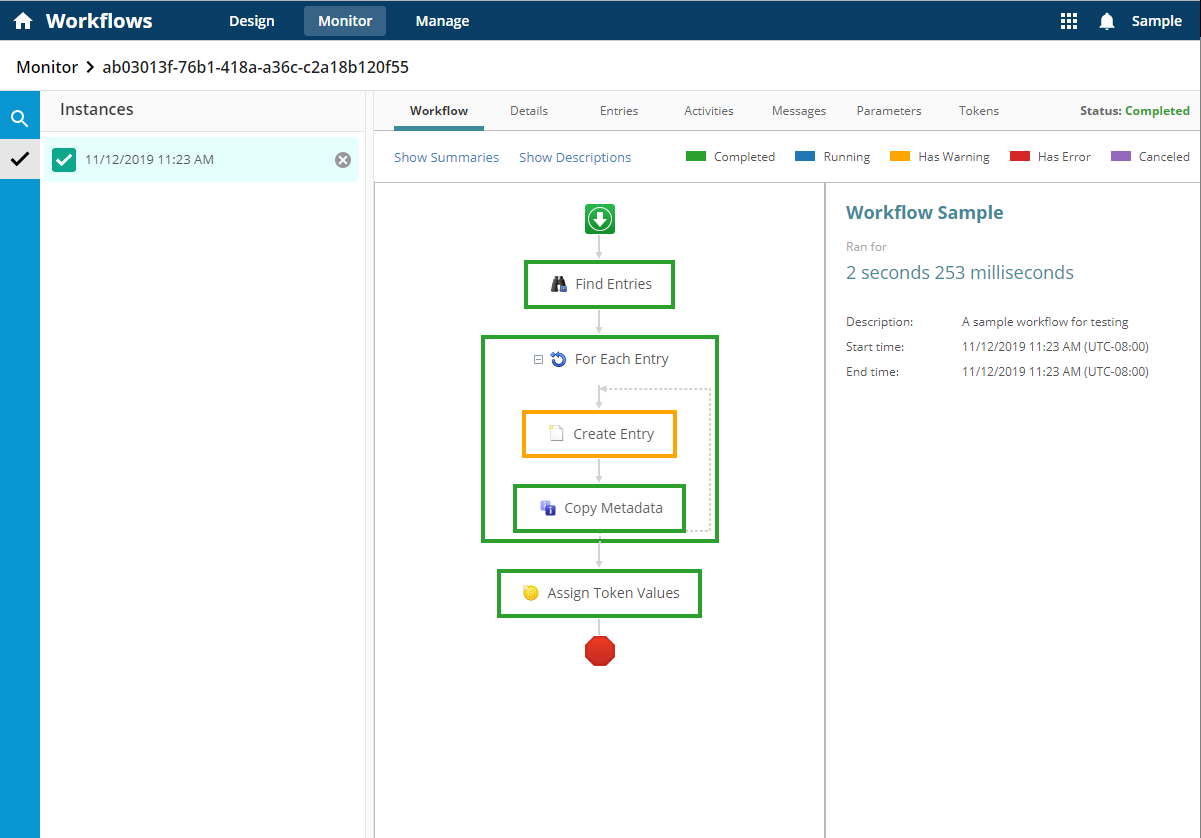
 Workflow: View the workflow design, activity statuses, activity properties, and description for each activity. Allows users to easily see which activities in the workflow succeeded or failed, and which paths within conditional branches were processed.
 -
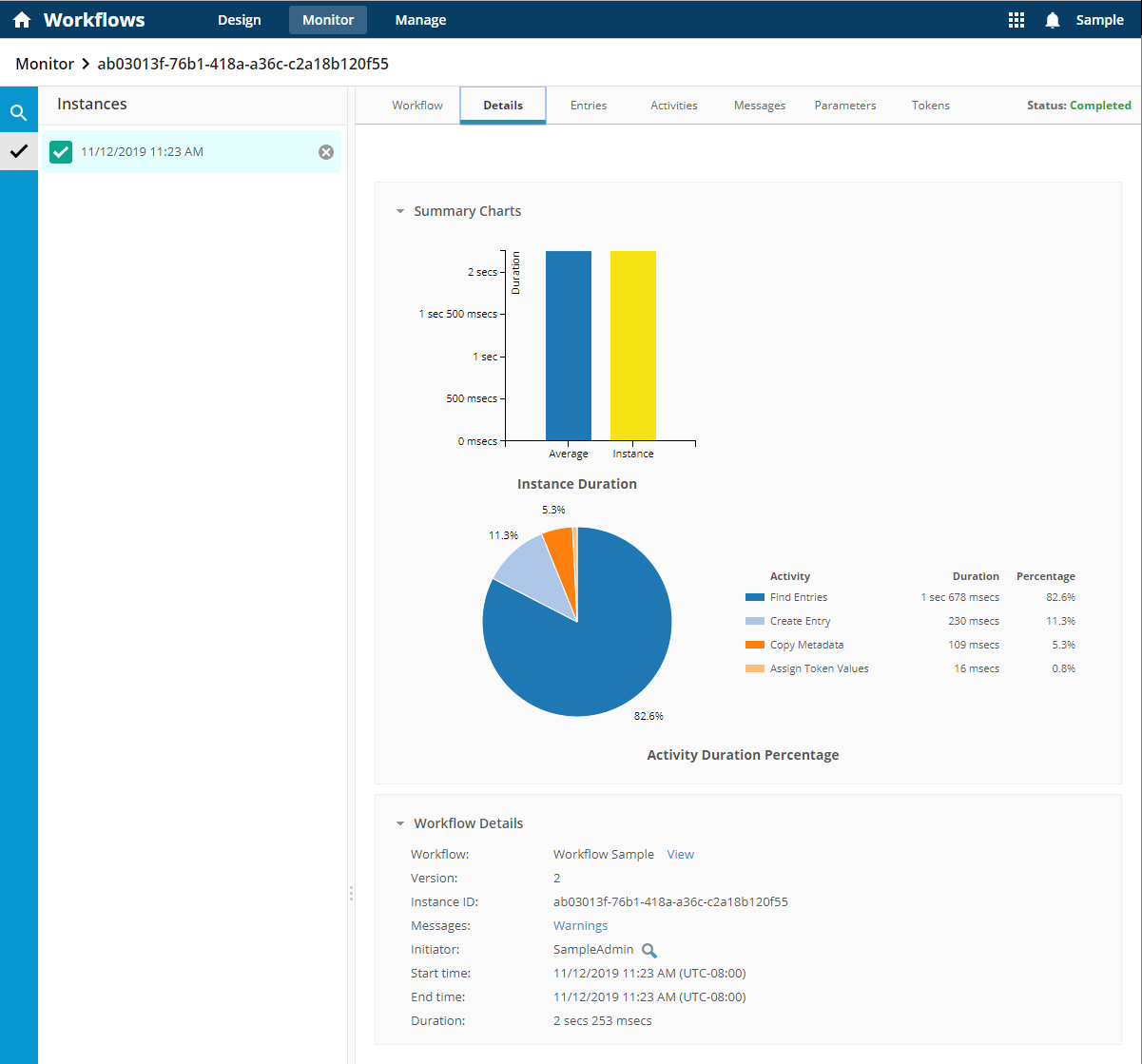
Details: View general statistics about the instance's performance. Provides insight into how long the workflow took to complete, showing possible bottlenecks in the process or areas where revision for optimization might be necessary or desired.
-
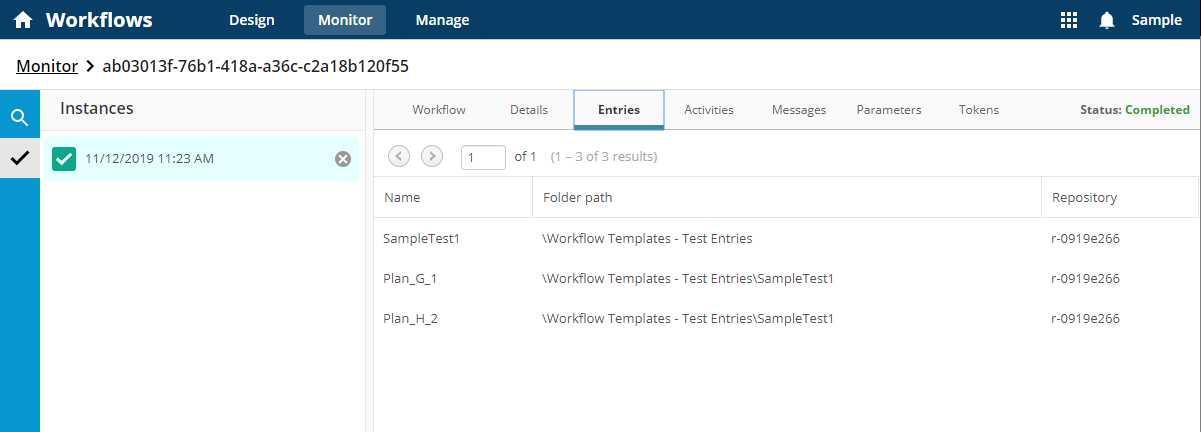
Entries: View the entries used, along with each entry's folder path and repository. Provides for verification that processes are acting on the right entries, or verification that desired entries are not missed in processing.
-
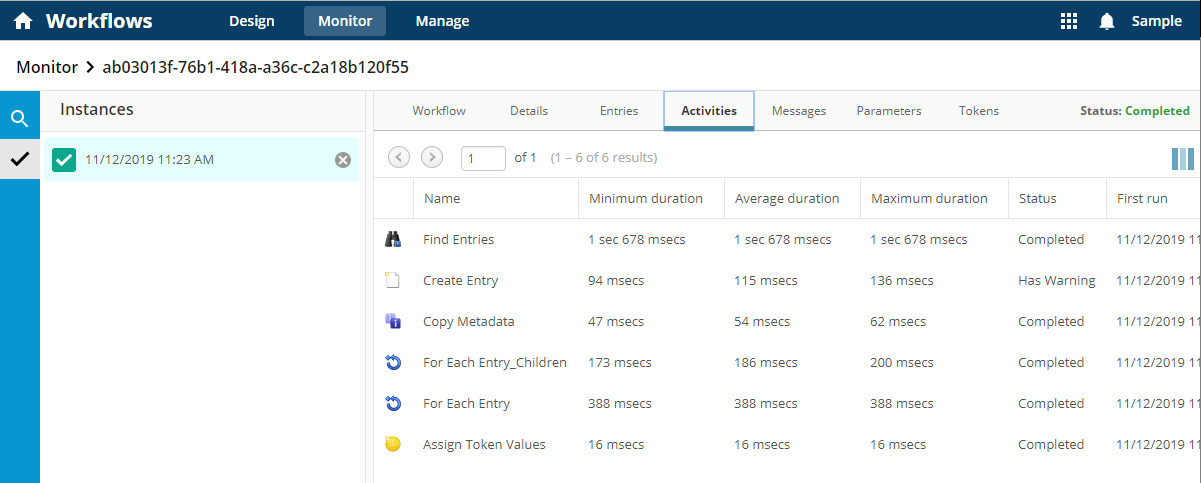
Activities: View a list of each activity, activity duration, workflow duration, status, and more. Provides a more detailed view of each activity's performance than the Details section allowing for a more granular view.
-
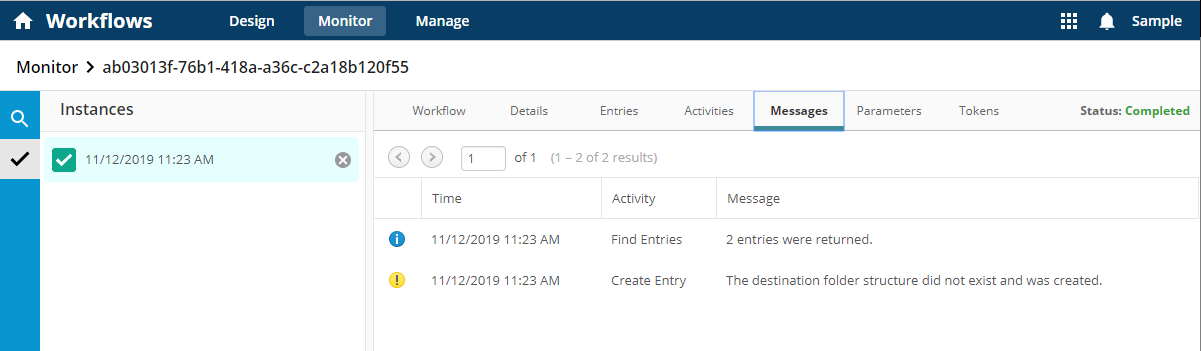
Messages: View a list of the errors, warnings, and informational messages for an instance.
-
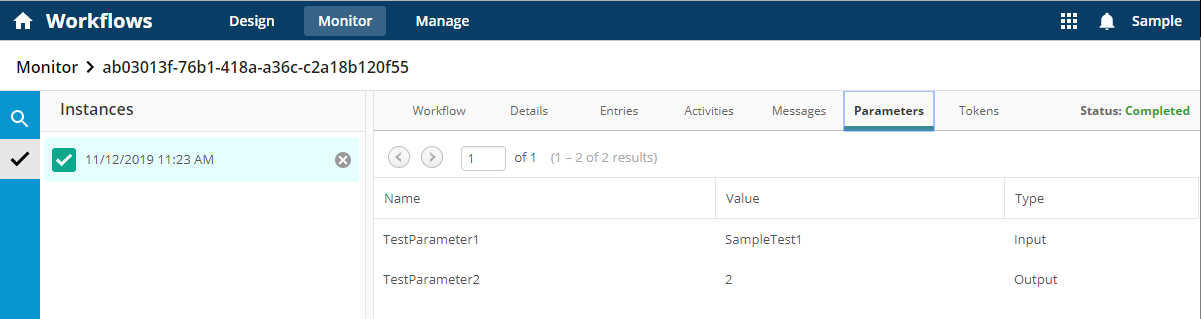
Parameters: View a list of the input and output parameters and their values within an instance.
-
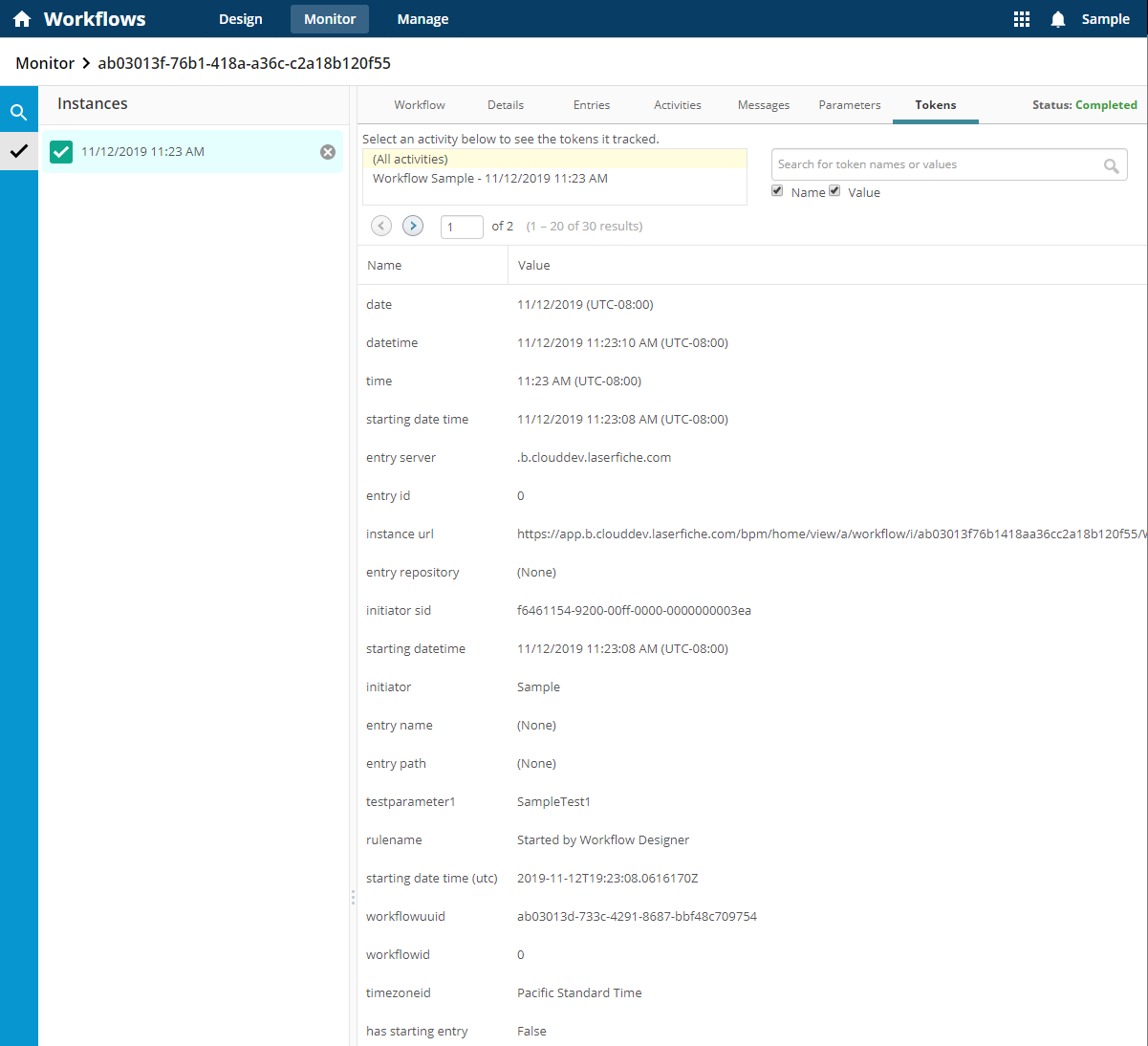
Tokens: View a list of the instance tokens along with the current value of the token. Allows users to review the tokens as they flow through the workflow.
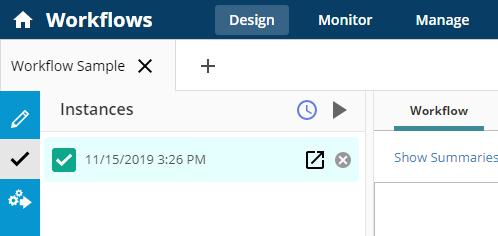
Click the Open Instance button  next to the instance in the left pane to open the report from the Design to the Monitor page.
Click Recent Activity on the Design page to view the latest workflow activity on the Monitor page..
The tab in the navigation bar looks like the following:
Note: Instance reports are retained for up to 30 days before being purged.