Find Entry
This activity finds an entry using its entry ID or location and makes the entry available to other activities in your workflow. Learn about tokens this activity produces
Note: If you want to return a collection of entries, rather than an individual entry, use the Find Entries activity instead.
To set up this activity:
- Drag the activity from the toolbox pane and drop it in the Designer pane.
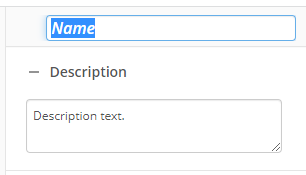
- In the properties pane, type a name and description of the activity.
- In the Entry to Find property box, specify where the activity looks for the entry.
- Specify how you want to find the entry:
- with ID: Type an entry ID, or click the Browse button (ellipsis)
 to browse to an entry. All documents, folders, and shortcuts stored in a Laserfiche repository are assigned a Laserfiche Entry ID number. If you choose to find an entry based on an ID number, the entry with the specified ID does not need to stay at the same path for this activity to find it. Click the Token button (right arrow)
  to add a token.
 - at: Type a location path, or click the Browse button (ellipsis) to browse to a folder. If you choose this option, the entry you specify a location for must stay at the same path for the activity to run correctly. Click the Token button (right arrow) to add a token.
- with ID: Type an entry ID, or click the Browse button (ellipsis)
- Optional: Select If the entry is a shortcut, use the document or folder that it references to find the document or folder that a shortcut references.
- In the Additional Properties property box, click Select properties to retrieve... to retrieve additional properties about the entry.
- Select the checkbox next to each desired
 property.
- In the Fields property box, click Select fields to retrieve... to select the fields to retrieve values from.
- Optional: To find a particular field, narrow the list of fields using the following options:
- Name: Type the field name.
- Template: Display fields associated with a specific template.
- Only show selected fields: View only the fields you have selected.
- Optional: Select or clear all fields by choosing Select / Clear all at the bottom of the dialog box.
Note: You can select No value under If multi-value, retrieve to retrieve values from a multi-value token.
- All values (as a multi-value token): Stores all the values assigned to the field in a multi-value token.
- The values at the following indices: Select the values in a multi-value field to store in a token by typing the value's index. Values are given an index number according to the order in which they are added to the field. The higher the number, the newer the value. If a field value has an index of 1, this means that it is the field's oldest value.
- Click OK.
- In the Options property box, specify the additional information about the Find Entry activity.
- Report a warning if no entry is found: Lets you report a warning in the instance report if the activity does not find an entry. Clear this option if you do not want to report a warning. You might not want to report a warning if you expect this activity to not find the entry; for example, if you are only using this activity to check whether an entry exists.
- List entry in workflow instance details: Lets you add the found entry to the list of entries in the Entries tab of the instance details. If you don't need to know what entry the activity finds (for example, if you are running a maintenance workflow), you can clear this option to not record that information.
- Generate URLs to the document: Select this option to generate URLs to the found entry as tokens that can be embedded in the body of an email. One URL is for the web; the other is for a mobile device.
- Generate a shortcut (.lfe) to the document: Select this option to generate a shortcut (.lfe file) to the found entry. You can open the shortcut as an email attachment on desktop client.
You may want to disable activities if you only want to test specific sections of your workflow. To disable activities:
- Select an activity in the designer pane to highlight it.
- In the Description property box, clear Enable.
Tokens for Find Entry Activity
This activity produces the following tokens:
| Name | Description | Sample Syntax |
|---|---|---|
| OutputEntry_Name | The name of the found entry. | %(FindEntry_OutputEntry_Name) |
| OutputEntry_Id | The Laserfiche ID number of the found entry. | %(FindEntry_OutputEntry_Id) |
| OutputEntry_Path | The folder path of the found entry. | %(FindEntry_OutputEntry_Path) |
| OutputEntry_FullPath | The folder path of the found entry including the entry's name. | %(FindEntry_OutputEntry_FullPath) |
| OutputEntry_Repository | The repository the found entry is in. | %(FindEntry_OutputEntry_Repository) |
| EntryWasFound | Whether the Find Entry activity found the specified entry. This token can have one of two possible values: True or False. | %(FindEntry_EntryWasFound) |
| OutputEntry_CheckOutComment | The comment associated with the current version of the entry. | %(FindEntry_OutputEntry_CheckOutComment) |
| OutputEntry_CheckedOutBy | The user account that checked out the entry. | %(FindEntry_OutputEntry_CheckedOutBy) |
| OutputEntry_CheckedOutBySID | The Security Identifier of the user account that checked out the entry. | %(FindEntry_OutputEntry_CheckedOutBySID) |
| OutputEntry_CheckedOutDate | The date when the entry was checked out. | %(FindEntry_OutputEntry_CheckedOutDate) |
| OutputEntry_ClassificationLevel | The VERS classification level of the entry. | %(FindEntry_OutputEntry_ClassificationLevel) |
| OutputEntry_CreatedBy | The user account that created the entry. | %(FindEntry_OutputEntry_CreatedBy) |
| OutputEntry_CreatedBySID | The Security Identifier of the user account that created the entry. | %(FindEntry_OutputEntry_CreatedBySID) |
| OutputEntry_CreationDate | When the entry was created. | %(FindEntry_OutputEntry_CreationDate) |
| OutputEntry_CutoffCycle | The name of the records management cutoff cycle governing the entry. | %(FindEntry_OutputEntry_CutoffCycle) |
| OutputEntry_CutoffDate | When the record was cut off. | %(FindEntry_OutputEntry_CutoffDate) |
| OutputEntry_CutoffEligibility | When the record become eligible for cutoff. | %(FindEntry_OutputEntry_CutoffEligibility) |
| OutputEntry_CutoffInstruction | The name of the records management cutoff instruction that governs the found entry. | %(FindEntry_OutputEntry_CutoffInstruction) |
| OutputEntry_CutoffInstructionType | The type of cutoff instruction. | %(FindEntry_OutputEntry_CutoffInstructionType) |
| OutputEntry_ParentID | The Laserfiche ID number of the parent folder containing the found entry. | %(FindEntry_OutputEntry_ParentID) |
| OutputEntry_ElectronicFileLastModifiedDate | When the electronic file associated with the document was last modified. | %(FindEntry_OutputEntry_ElectronicFileLastModifiedDate) |
| OutputEntry_ElectronicFileSize | The file size of the electronic file associated with the document. | %(FindEntry_OutputEntry_ElectronicFileSize) |
| OutputEntry_EntryLockType | Specifies whether the found entry is currently locked. | %(FindEntry_OutputEntry_EntryLockType) |
| OutputEntry_EventDate | The set event date on a record. | %(FindEntry_OutputEntry_EventDate) |
| OutputEntry_Extension | The file extension of the electronic file. | %(FindEntry_OutputEntry_Extension) |
| OutputEntry_FilingDate | The filing date of the found entry, if the found entry is under records management. | %(FindEntry_OutputEntry_FilingDate) |
| OutputEntry_FinalDispositionAction | The final disposition action type on the retention schedule governing the found entry. | %(FindEntry_OutputEntry_FinalDispositionAction) |
| OutputEntry_FinalDispositionDate | The final disposition date on the found entry. | %(FindEntry_OutputEntry_FinalDispositionDate) |
| OutputEntry_HasSubfolders | Indicates whether the found entry contains subfolders. | %(FindEntry_OutputEntry_HasSubfolders) |
| OutputEntry_HasDocumentRelationships | Indicates whether the found entry contains document relationships. | %(FindEntry_OutputEntry_HasDocumentRelationships) |
| OutputEntry_HasElectronicDocument | Indicates whether the found entry is associated with an electronic file. | %(FindEntry_OutputEntry_HasElectronicDocument) |
| OutputEntry_HasHold | Indicates whether the found entry is a record that is currently has a hold. | %(FindEntry_OutputEntry_HasHold) |
| OutputEntry_HasImage | Specifies whether the found entry is a document that contains image pages. | %(FindEntry_OutputEntry_HasImage) |
| OutputEntry_HasLocations | Indicates whether the document text is linked to locations on page images. | %(FindEntry_OutputEntry_HasLocations) |
| OutputEntry_HasTags | Indicates whether the found entry has assigned tags. | %(FindEntry_OutputEntry_HasTags) |
| OutputEntry_HasText | Indicates whether the found entry contains text pages. | %(FindEntry_OutputEntry_HasText) |
| OutputEntry_HasThumbnails | Indicates whether the found entry contains thumbnail images. | %(FindEntry_OutputEntry_HasThumbnails) |
| OutputEntry_HitCount | The number of context hits. | %(FindEntry_OutputEntry_HitCount) |
| OutputEntry_IsCheckedOut | Indicates whether the found entry is currently checked out. | %(FindEntry_OutputEntry_IsCheckedOut) |
| OutputEntry_IsClosed | Indicates whether the found entry is a record that is closed. | %(FindEntry_OutputEntry_IsClosed) |
| OutputEntry_IsCutoff | Indicates whether the found entry is a record that is cutoff. | %(FindEntry_OutputEntry_IsCutoff) |
| OutputEntry_IsDispositioned | Indicates whether the found entry is a record that is in final disposition. | %(FindEntry_OutputEntry_IsDispositioned) |
| OutputEntry_IsIndexed | Indicates whether the found entry is indexed. | %(FindEntry_OutputEntry_IsIndexed) |
| OutputEntry_IsLatestVersion | Indicates whether the found entry is the highest position in a document link group. This value defaults to True for documents that are not in a link group. | %(FindEntry_OutputEntry_IsLatestVersion) |
| OutputEntry_IsSigned | Indicates whether the found entry contains a digital signature. | %(FindEntry_OutputEntry_IsSigned) |
| OutputEntry_IsVersionControlled | Indicates whether the found entry is under version control. | %(FindEntry_OutputEntry_IsVersionControlled) |
| OutputEntry_IsVitalRecord | Indicates whether the found entry is a record that is marked as vital. | %(FindEntry_OutputEntry_IsVitalRecord) |
| OutputEntry_LastModifiedBy | The user account that last modified the found entry. | %(FindEntry_OutputEntry_LastModifiedBy) |
| OutputEntry_LastModifiedBySID | The SID of the user account that last modified the found entry. | %(FindEntry_OutputEntry_LastModifiedBySID) |
| OutputEntry_LastModifiedDate | The last modified date of the found entry. | %(FindEntry_OutputEntry_LastModifiedDate) |
| OutputEntry_LastReviewDate | The last time that a vital record was reviewed. | %(FindEntry_OutputEntry_LastReviewDate) |
| OutputEntry_LatestVersionComment | The latest version comment of a document under version control. | %(FindEntry_OutputEntry_LatestVersionComment) |
| OutputEntry_LatestVersionNumber | The latest version number of a document under version control. | %(FindEntry_OutputEntry_LatestVersionNumber) |
| OutputEntry_LinkGroupNumber | The ID of the link group that found entry belongs to. | %(FindEntry_OutputEntry_LinkGroupNumber) |
| OutputEntry_Location | The current location of the found record. | %(FindEntry_OutputEntry_Location) |
| OutputEntry_LocationID | The ID of the current location of the found record. | %(FindEntry_OutputEntry_LocationID) |
| OutputEntry_LockedBy | The user account that has a lock on the document. | %(FindEntry_OutputEntry_LockedBy) |
| OutputEntry_LockedBySID | The SID of the user account that has a lock on the document. | %(FindEntry_OutputEntry_LockedBySID) |
| OutputEntry_MimeType | The MimeType of the electronic file associated with the document. | %(FindEntry_OutputEntry_MimeType) |
| OutputEntry_NextReviewDate | When the vital record is next due for review. | %(FindEntry_OutputEntry_NextReviewDate) |
| OutputEntry_OCRedPages | The number of OCRed pages in the document. | %(FindEntry_OutputEntry_OCRedPages) |
| OutputEntry_OwnerName | The user account that is marked as the owner of the document. | %(FindEntry_OutputEntry_OwnerName) |
| OutputEntry_OwnerSID | The user account that is marked as the owner of the document. | %(FindEntry_OutputEntry_OwnerSID) |
| OutputEntry_PageCount | The number of pages in the found document. | %(FindEntry_OutputEntry_PageCount) |
| OutputEntry_CheckOutComment | The check out comment if the found entry is currently checked out. | %(FindEntry_OutputEntry_CheckOutComment) |
| OutputEntry_RecordFolderId | The entry ID of the record folder that contains the found entry. | %(FindEntry_OutputEntry_RecordFolderId) |
| OutputEntry_Relevance | The Laserfiche Full-Text Search Engine's relevance score for a found entry. | %(FindEntry_OutputEntry_Relevance) |
| OutputEntry_RetentionSchedule | The Retention Schedule governing a record. | %(FindEntry_OutputEntry_RetentionSchedule) |
| OutputEntry_ReviewandUpdateCyclePeriod | The review cycle that governs a vital record. | %(FindEntry_OutputEntry_ReviewandUpdateCyclePeriod) |
| OutputEntry_Security | The allowed entry access rights for the user that is doing the search. | %(FindEntry_OutputEntry_Security) |
| OutputEntry_SeriesCode | The record series code. This value only returns on the actual record series. | %(FindEntry_OutputEntry_SeriesCode) |
| OutputEntry_ShortcutTargetID | The entry ID of the target of a shortcut. | %(FindEntry_OutputEntry_ShortcutTargetID) |
| OutputEntry_ShortcutTargetType | The entry type of the target of a shortcut. | %(FindEntry_OutputEntry_ShortcutTargetType) |
| OutputEntry_SignatureCount | The number of digital signatures on the document. | %(FindEntry_OutputEntry_SignatureCount) |
| OutputEntry_TemplateColor | The color of the template that is assigned to the found entry. | %(FindEntry_OutputEntry_TemplateColor) |
| OutputEntry_TemplateId | The ID of the template that is assigned to the found entry. | %(FindEntry_OutputEntry_TemplateId) |
| OutputEntry_TemplateName | The name of the template that is assigned to the found entry. | %(FindEntry_OutputEntry_TemplateName) |
| OutputEntry_TotalDocumentSize | The sum of the sizes of all parts of the found Laserfiche document (images, text, electronic file). | %(FindEntry_OutputEntry_TotalDocumentSize) |
| OutputEntry_Type | Whether the found entry is a record series, folder, or document. | %(FindEntry_OutputEntry_Type) |
| OutputEntry_WebAccessURL | A link to the found entry that goes to Web Access after you select Generate URLs to the document. | %(FindEntry_OutputEntry_WebAccessURL) |
| OutputEntry_MobileURL | A link to the found entry that goes to Mobile after you select Generate URLs to the document. | %(FindEntry_OutputEntry_MobileURL) |
| Output LFShortcutFile | An attachment in an email containing the found entry. | %(Email_Output LFShortcutFile) |
The "FindEntry" portion of the syntax changes to match the activity's name.
Note: All non-alphanumeric characters, except underscores, are removed from the name. For example, if you rename the activity "Get Resume #1", the syntax for the OutputEntry_Id token is "%(GetResume1_OutputEntry_Id)".