Rename Entry
This activity renames a Laserfiche entry. Learn about tokens this activity produces.
To set up the activity:
- Drag the activity from the toolbox pane and drop it in the Designer pane.
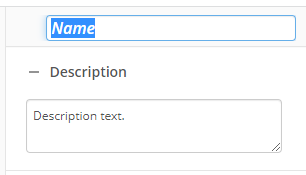
- In the properties pane, type a name and description of the activity.
- In the New Entry Name property box, type the entry's new name. Click the Token button (right arrow)
 to add a token.
 - In the Entry to Rename property box, select the entry you want this activity to rename. Learn more about selecting an entry
You may want to disable activities if you only want to test specific sections of your workflow. To disable activities:
- Select an activity in the designer pane to highlight it.
- In the Description property box, clear Enable.
Tokens for Rename Entry Activity
This activity produces the following tokens:
| Name | Description | Sample Syntax |
|---|---|---|
| OutputEntry_Name | The new name of the renamed entry. | %(RenameEntry_OutputEntry_Name) |
| OutputEntry_Id | The Laserfiche ID number of the renamed entry. | %(RenameEntry_OutputEntry_Id) |
| OutputEntry_Path | The folder path of the renamed entry. | %(RenameEntry_OutputEntry_Path) |
| OutputEntry_FullPath | The folder path of the renamed entry, including the entry's new name. | %(RenameEntry_OutputEntry_FullPath) |
| OutputEntry_Repository | The repository the renamed entry is in. | %(RenameEntry_OutputEntry_Repository) |
The "RenameEntry" portion of the syntax changes to match the activity's name.
Note: All non-alphanumeric characters, except underscores, are removed from the name. For example, if you rename the activity "Standardize/Names", the syntax for the OutputEntry_Id token will be "%(StandardizeNames_OutputEntry_Id)".