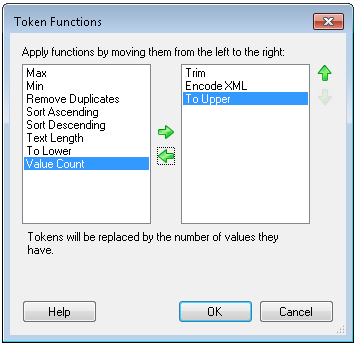
Token Functions
This feature lets you edit the token value with one or more pre-configured operations.
| Name | Description | Example |
|---|---|---|
| Average | Replaces a token with the average of the numeric values. | |
| Encode URI | Converts a token's characters (except RFC 2396 unreserved characters) to the hexadecimal representation so the token can be used in a web address. More info. | If you apply this function, http://My Website.com will be converted to http://My%20Website.com. |
| Encode URL | Converts a token's characters (except RFC 3987 unreserved characters) to the hexadecimal representations so that the token can be used in a web address. This activity converts more characters than Encode URI does. More info. | If you apply this function, ?parameter1=1&1parameter2=2 will be converted to %3Fparameter1%3D1%26parameter2%3D2. This activity will convert more characters than Encode URI |
| Encode XML | Allows you to escape XML characters, such as <, >, ", ', and &, and replace them with their encoded values. Choose this option if your token includes XML characters that you want to display as text in e-mails or other places. If you do not encode the XML with this function, e-mail clients may try to interpret the XML instead of simply displaying the text. | If you apply this function, <tag> will display as <tag>;. |
| Escape Search Name | Includes a backslash (\) in a query that contains an escape character. | You want to perform a field search {[]:[FieldName] = "Value"}, where FieldName is [Brackets and "Quotes"]. This produces {[]:[[Brackets and “Quotes”]] = “Value”}, which returns a 9085 unrecognized character error, because the additional brackets and quotes are not removed. To remove (or escape) the brackets in the field name, add "EscapeSearchName". This looks like {[]:[%(FieldNameToken#@EscapeSearchName@#)] = "Value"}. This resolves to {[]:[\[Brackets and \"Quotes\"\]] = "Value"}. |
| Escape Search Phrase | Includes a backslash (\) in a query that contains Laserfiche search syntax and an escape character. | You want to perform a field search {[]:[FieldName] = "Value"}, where Value is bl"ah. This produces {[]:[FieldName] = “bl”ah”}, which returns a 9085 unrecognized character error, because the additional quotes are not removed. To remove (or escape) the quotes in the value, add "EscapeSearchPhrase". This looks like {[]:[FieldName] = "%(Value#@EscapeSearchPhrase@#)"}. This resolves to {[]:[FieldName] = "bl\"ah"}. |
| Max | Replaces a token with the largest numeric value in the token. | |
| Min | Replaces a token with the smallest numeric value in the token. | |
| Remove | Removes exact matches from a token value. For example, when you type "def" in the text box under the drop-down menu, and type "abcdefg" in the Test Value text box, you will still see "abcdefg" in the Result Value box. If you type "def" in the Test Value text box, the value will be removed. | |
| Remove At | Removes the value at the index, where "1" is the first value in the token. | |
| Remove Duplicates | Removes duplicate values from the token. | |
| Remove Empty Items | Removes empty values from the token. | |
| Remove Text | Removes the matched substring from the string. For example, when you type "def" in the text box under the drop-down menu, and type "abcdefg" in the Test Value text box, you will see "abcg" in the Result Value box. | |
| Sort Ascending | Organizes the values in the token from smallest to largest. | |
| Sort Descending | Organizes the values in the token from largest to smallest. | |
| Split |
Divides a single-value token into a multi-value token based on specified characters in the token. When you apply this function, a text box appears for you to specify the characters the token will be divided at. Alternatively, click the Token button (right arrow)
Tip: The split function adds a blank space at the end of each value. Additionally, if the single-value token has spaces between the delimiter and the next value those spaces will be retained. Combine this function with the "Trim" function to remove those extra spaces from the multi-value token. You can split a token into a multi-value token by entering one of the control characters (below) into Split on. When you apply the control character, the syntax is changed to %(Token 1#@Split(#NEWLINE#)@#), where this example uses the #NEWLINE# control character. |
If the token's value is "Jan;Bob;Sue" and you specify ; as the delimiter, then the result of this function will be a token with three values: Jan, Bob, Sue. If the token's value is Animal Control Department Health Department Human Resources Department Accounting Department, and you specify "Department" as the delimiter, the resulting multi-value token will have four values: Animal Control, Health, Human Resources, Accounting. |
| Sum | Replaces token with the sum of the values in the token. | |
| Text Length | Replaces token with the number of characters in the token. | Work Request forms require that employee's last names be no more than 10 letters. By applying the Token Length function to the %(Last Name) token, you can count how many letters are in the employee's last name. Using a Conditional Sequence activity (to check for Last Name tokens with a value larger than 10) and a Pattern Matching activity, you can truncate all employee last names that are longer than 10 letters. |
| To Lower | Converts all letters in the token to lowercase. | |
| To Title Case |
Converts the first letter of each word in the token to uppercase. Tip: If your token is in all capital letters and you want to convert it to title case, first apply the To Lower function and then the To Title Case function. |
|
| To Upper |
Converts all letters in a token to uppercase. Tip: If your token is in all capital letters and you want to convert it to title case, first apply the "To Lower" function and then the "To Title Case" function. |
|
| Trim | Removes whitespace before and after a token's value. | |
| Value Count | Replaces token with the number of values in the token. |
 to use a token in your delimiter.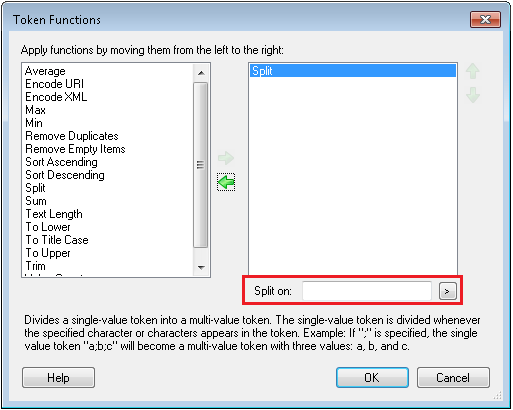
Apply a Token Function
Click the Select function link, and, in the  Token Function dialog box, move the functions you want to apply to the token from the left Available column to the right Applied column by clicking the green right arrow
  . Functions will be applied to the token in the order they appear in the right column. You can change the order by selecting the function you want to move and using the green up-and-down arrows
  . Click OK to return to the Token Editor.