Actions on Documents
This section focuses on actions that are specific to documents, such as checking out, viewing them in the document viewer, saving, streaming, and locking.
Opening and Checking Out Documents
[Settings]OpenEdocAsDoc
If TRUE, electronic documents (except PDFs) are opened in the document viewer by default.
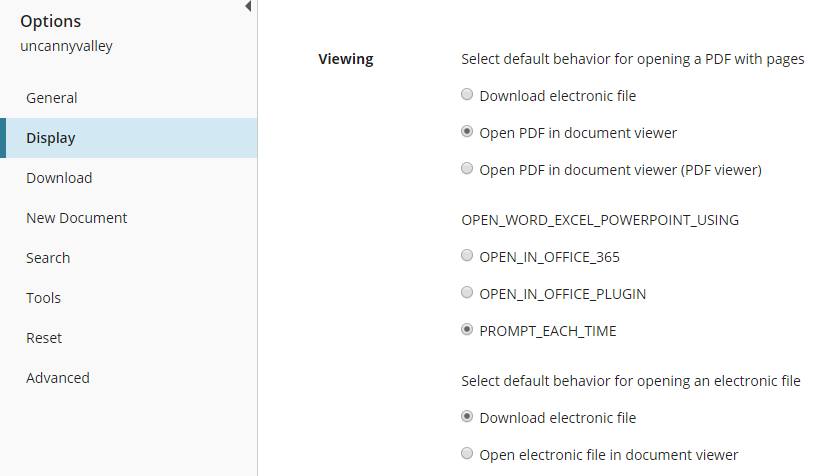
In the web client, this attribute can be changed by selecting the relevant option under Select default behavior for opening an electronic file in Options → Display:
Valid values:
- TRUE/FALSE
Default value: FALSE
[Settings]OpenPDFAsDoc
Specifies whether to open PDFs in the Laserfiche document viewer by default. This can be set manually by the user in the same dialog box referenced in [Settings]OpenEDocAsDoc.
Valid values:
- TRUE/FALSE
Default value: TRUE
[Settings]OpenEdocReadOnly
Determines whether electronic files that are not PDFs are opened in read-only mode by default. The user can configure this in the same dialog box described in [Settings]OpenEDocAsDoc.
Valid values:
- TRUE/FALSE
Default value: FALSE
[HiddenDialogs]ConfirmUndoCheckout
Determines whether a confirmation dialog box appears when a user attempts to undo a checkout. Applies to the web client only.
Valid values:
- Integers. Set to 6 to hide dialog box. Delete attribute to show dialog box.
[HiddenDialogs]DeleteModifiedDocOnUndoCheckout
When the user clicks "Undo check out" on a modified document, this attribute determines whether a dialog box appears asking them whether to delete the local copy.
Valid values:
- Integers. Set to 6 to hide dialog box. Delete attribute to show dialog box.
[Settings]PromptOfficeSelection
Determines whether to open Microsoft Office documents using Office 365 or the Laserfiche Office Integration. Applies to the web client only.
Valid values:
- Integers. 0 = Use Office 365, 1 = Use Laserfiche Office Integration, 2 = Ask the user.
Default behavior: Ask the user
[WebAccess]PromptDownloadOfficePlugin
If FALSE, the prompt to download the Laserfiche Office Integration, which usually appears when the user opens or checks out a document without having the integration installed, will be turned off. Applies to the web client only.
Valid values:
- TRUE/FALSE
Default value: TRUE
[Settings]OpenInPDFViewer
Determines whether to open PDF files in an embedded PDF viewer within the document viewer. Applies to the web client only.
Valid values:
- TRUE/FALSE
Default value: FALSE
[WebAccess]StreamMedia
Determines whether audio and video files will be streamed upon opening. This is the same setting as Stream media files under Options → Display. Applies to the web client only.
Valid values:
- TRUE/FALSE
Default value: TRUE
Saving or Checking In Modified Electronic Documents
[HiddenDialogs]DeleteOnCheckIn
When the user checks in a document, this attribute determines whether a prompt appears asking whether to delete the local copy of the document.
Valid values:
- Integers. Set to 6 to hide dialog box. Delete attribute to show dialog box.
[HIDDENDIALOGS]ConfirmSaveDocument
When this attribute is not set, a dialog box will pop up when the user makes changes to a document and tries to exit the document viewer. If the user clicks "Don't ask me again" in this dialog box, or if they clear the "Save document" box in Options → Reset → Prompts, this attribute will be set to 6 in their trustee attributes, and the dialog box will not appear on future occasions. To bring back the dialog box, delete the attribute from the user's trustee attributes. After you delete the attribute, the change will take effect when the cache of user attributes next updates.
Valid values:
- Integers. Set to 6 to disable dialog box. Delete attribute to enable dialog box.
Deleting Documents or Pages
[HIDDENDIALOGS]ConfirmPageDelete
Asks users if they really want to delete a page when they attempt a delete a page. When this attribute is not set, a confirmation dialog box pops up when the user attempts to delete the page. They can click "Don't ask me again" to disable this dialog box in the future, or they can clear the "Page delete" box in Options → Reset → Prompts. Either way, their [HIDDENDIALOGS]ConfirmPageDelete attribute will be set to 6.
Valid values:
- Integers. Set to 6 to disable dialog box. Delete attribute to enable dialog box.
[HiddenDialogs]DeleteEmptyDoc
Determines whether a confirmation dialog box appears when a user moves all of one document's pages to another document. The dialog box asks if the user wants to delete the former document.
Valid values:
- Integers. 6 disables the dialog box. Delete attribute to enable dialog box.
[HiddenDialogs]ConfirmDeleteEDoc
Determines whether a confirmation dialog box appears when a user attempts to delete an electronic file from a document. Web client only.
Valid values:
- Integers. 6 disables the dialog box. Delete attribute to enable dialog box.
Other Actions
[HIDDENDIALOGS]ConfirmMoveCopy
When this attribute is not set, a dialog box will pop up when the user tries to copy and paste a document. If the user clicks "Don't ask me again" in this dialog, this attribute will be set to 6 in their trustee attributes, and the dialog box will not appear in future copy-and-paste attempts. To bring back the dialog box, delete the attribute from the user's trustee attributes. After you delete the attribute, the change will take effect when the cache of user attributes next updates.
Valid values:
- Integers. Set to 6 to disable dialog box. Delete attribute to enable dialog box.
[WebAccess]MoveOrCopyDefault
Determines the default option selected in the Move or Copy dialog box.
Valid values:
- String. "move" = Move selected by default, "copy" = Copy selected by default.
[HiddenDialogs]InsertBeforePage
Specifies whether a dialog box pops up asking the user where to insert pages in a document.
Valid values:
- Yes = Do not show dialog, No = Show dialog.
Default behavior: Dialog box appears.
[HiddenDialogs]ConfirmReleaseLock
Specifies whether the user gets a confirmation dialog box when they try to release a lock on a document. Web client only.
Valid values:
- Integers. 1 = Show dialog box, 6 = Do not show dialog box.