Search
These attributes affect search settings, including display options for the search pane and search results.
The columns displayed in the search results are controlled by the [XmlColumnDisplay]Data attribute.
Display Options
[Settings]ImageSearchHitColor, [Settings]ImageSearchHitColorIndex
These attributes determine the highlight color for search hits on the image pane of the document viewer.
Valid values:
- Integers representing an enumerated type with a flags attribute.
[Settings]DisplayContextLines
This is the same setting as Show context lines in Tools → Options → Search → Results Display.
Valid values:
- TRUE/FALSE
Default value: TRUE
[Search]ContextHitLength
This is the same setting as Characters per line in Tools → Options → Search → Results Display.
Valid values:
- Integers
Default value: 80
[Search]QuickSearchKeywordFlags
Determines which Quick Search keyword options are defaulted on a per user basis. Web client only.
Valid values:
- Integers representing an enumerated type with a flags attribute. 1 = Document Text, 2 =All Fields, 4 = Entry names, 8 = Annotation Text.
Default value: 3 (text and fields)
[Search]QuickSearchWithinFolders
Determines whether to restrict quick search results to the current folder. Web client only.
Valid values:
- TRUE/FALSE
Default value: FALSE
[Search]SelectedEveryoneQuickSearches
Contains a comma-delimited list of the GUIDs of selected global custom searches. These searches are selected from the global list that is in the [Settings]CustomQuickSearchXml attribute for the Everyone group.
Valid values:
- String
[Search]SelectedQuickSearches
This list specifies the quick searches that the user has added to the quick search bar.
Valid values:
- Comma-delimited string that is a selection among 1, 2, 4, 8, 16, and the GUIDs of custom quick searches. 1 = Include document text, 2 = Include field values, 4 = Include entry names, 8 = Include annotation text, 16 = Perform search within current folder only. For example, to make quick searches look only for document text in the current folder, set this attribute to "1,16".
[Search]CustomQuickSearchXml
Contains an XML specification of all custom quick searches that the user has created. For the Everyone group, this attribute provides custom searches to all users.
Valid values:
- String
[Search]ShowRankedResults
This is the same setting as Show only top 40 results initially when performing quick searches in Options → Search in the web client. If you have been having issues with not getting certain field values in your quick search results, setting this attribute to FALSE may help, as this will expand your search to non-indexed fields.
Valid values:
- TRUE/FALSE
Default value: FALSE
Searching within Documents
Note that some display properties, such as [Settings]TextSearchHitColorIndex, [Settings]TextSearchHitColor, [Settings]ImageSearchHitColor, and [Settings]ImageSearchHitColorIndex, also apply to in-document searches. This subsection covers attributes relevant to only in-document searches.
[WebAccess]LastSearchBlocks
Determines what search types are available in the web client's Advanced Search dialog box. These can be added or removed by selecting Add search type or clicking the "X" on existing search types.
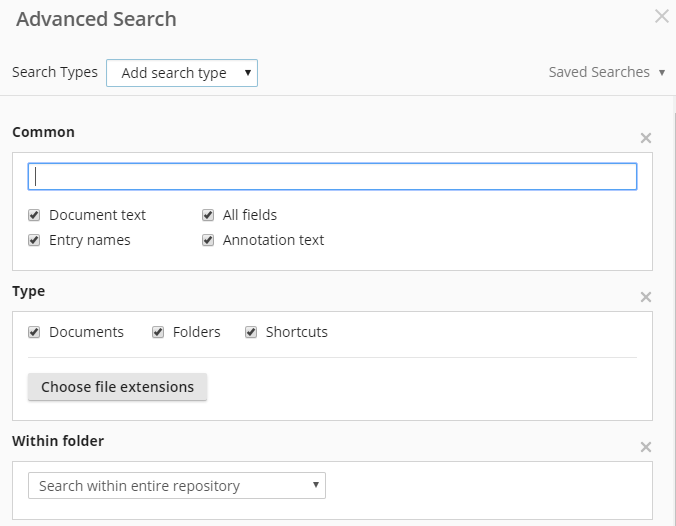
[WebAccess]RememberSearchBlocks
This must be TRUE in order for [WebAccess]LastRecycleBinSearchBlocks and [WebAccess]LastSearchBlocks to apply.
Valid values:
- TRUE/FALSE
Default value: FALSEs
Which Volumes to Search
[Search]CheckVolumeRights
Determines whether to show only volumes that the user has read access on in the volume search section.
Valid values:
- TRUE/FALSE
Default value: TRUE
[Search]OnlyLogicalVolumes
Determines whether to show only logical volumes, not physical volumes, in the volume search section.
Valid values:
- TRUE/FALSE
Default value: TRUE
[Search]IncludeShortcuts
This is the same setting as Options → Search → Results in the web client.
Valid values:
- TRUE/FALSE
Default value: FALSE
[Search]LatestVersionsSearch
Determines whether the search results will show only the latest document in a link group. Helpful when several versions of the same document are stored as different documents in a link group. This is the same setting as Return only the latest document in a link group in Options → Search → Results in the web client.
Valid values:
- TRUE/FALSE
Default value: FALSE
Matching Criteria
[Settings]SearchPartialMatches
This is the same setting as Find partial matches when performing a quick search in the web client's Options → Search → Search options.
Valid values:
- TRUE/FALSE
Default value: TRUE
[Settings]EnableStemming
This is the same setting as Include variations of root word in indexed searches in the web client's Options → Search → Search options.
Valid values:
- TRUE/FALSE
Default value: TRUE
[Search]Option
Determines whether to use fuzzy search.
Valid values:
- Integers. 0 = No fuzzy search, 1 = Fuzzy search using number of letters, 2 = Fuzzy search using percentage of word.
Default value: 2
[Search]Error
Determines the percentage of word or number of letters to use in fuzzy search (see [Search]Option). If you are using number of letters, you can only specify a number from 1 to 9.
Valid values:
- Integers
Default value: 25
[Search]LastError
Stores the last used value for [Search]Error. This way, the user can see the last values chosen in Options → Search → Search options in the web client even if they disable fuzzy search.
Valid values:
- Integers
Default value: 2
[Search]AltError
Stores the last used value for [Search]Error for the criterion that is different from that of [Search]LastError. For example, if the last fuzzy search was carried out based on word percentage, then [Search]LastError will contain the percentage used, while [Search]AltError will contain the number of characters last used for a number of characters-based fuzzy search. The reverse would apply if the last fuzzy search was based on number of characters. This way, the user can see the last values chosen in Tools → Options → Search → General or Options → Search → Search options in the web client for the alternate type of fuzzy search.
Valid values:
- Integers
Default value: 1
[Settings]SearchCollationRule
This is the same setting as Options → Search → Search options in the web client.
Valid values:
- String. CS = Case-sensitive, CI = Not case-sensitive, AS = Accent-sensitive, AI = Not accent-sensitive. Example: "CS,AI".
Default value: The case and accent-sensitivity setting in the Laserfiche Administration Console.
[Settings]UseDefaultCollation
Determines whether Default (Case Insensitive/Accent Sensitive) is selected for [Settings]SearchCollationRule.
Valid values:
- TRUE/FALSE
Default value: TRUE
Saved Searches
[WebAccess]SavedSearches
This attribute stores in XML format the searches that the user has carried out in the web client. The values of all attributes have a 1000-character limit, so this attribute may be split into several attributes in the form [WebAccess]SavedSearches0, [WebAccess]SavedSearches1, …, [WebAccess]SavedSearchesN if the user has done many searches. If the value of this attribute is still within the 1000-character limit, then there will only be one attribute, [WebAccess]SavedSearches.
Note: Copying all of one user's [WebAccess]SavedSearchesN attributes will copy all that user's saved searches. If you want to copy only some individual saved searches within that user's entirety of saved searches, you need to select the sections of XML corresponding to your desired searches and copy them into other users' [WebAccess]SavedSearches attributes. If you need more than one attribute to store these searches, you will have to add an additional attribute [WebAccess]SavedSearches (with no digit at the end) and set it equal to MULTI-ATTR:M, where M is the number of attributes in the list [WebAccess]SavedSearches0, [WebAccess]SavedSearches1, …, [WebAccess]SavedSearchesN that you had to create. Please note that since you start from 0, M = N + 1. Setting [WebAccess]SavedSearches to MULTI-ATTR:M tells the web client how many attributes to load.
Valid values:
- Integers. Set to 6 to hide dialog box. Delete attribute to show dialog box.
[HiddenDialogs]ConfirmDeleteSavedSearch
Determines whether a confirmation dialog box appears when the user tries to delete a saved search.
Valid values:
- Integers. Set to 6 to hide dialog box. Delete attribute to show dialog box.
Others
[Settings]LimitSearchResults
Determines whether to limit indexed search results to the limit specified by [Search]FullTextSearchLimit.
Valid values:
- TRUE/FALSE
Default value: FALSE
[Search]FullTextSearchLimit
Determines the maximum number of full text search results to return.
Valid values:
- Integers
Default value: -1 (no limit)
[WebAccess]MaxDynamicList
When conducting an advanced search on a list field in the web client, this determines the maximum number of list item values that can be displayed when entering values to search for. Assigning larger values to this attribute will lead to poorer performance.
Valid values:
- Integers
Default value: 5000
[Search]ForceUncheckSearchSubfolders
If TRUE, the "Include subfolders" option will be cleared by default even if the user's [Search]Subfolders attribute is set to 1. Web client only.
Valid values:
- TRUE/FALSE
[Search]OpenIfOneResult
Determines whether a search result will be opened automatically if it is the only result for the search.
Valid values:
- TRUE/FALSE
Default value: TRUE
[Settings]OverrideBrowserControlF
If TRUE, the keyboard shortcut CTRL+F causes the focus to be shifted to the web client's search input. This overrides the browser's usual shortcut behavior.
Valid values:
- TRUE/FALSE
Default value: TRUE