Configure Single Sign-On with Entra ID
Account administrators can configure single sign-on to Laserfiche Cloud through Microsoft Entra ID.
To configure single sign-on, follow these steps:
1. Create a Laserfiche Application in Microsoft Entra ID
Follow the following steps to add an application to your Microsoft Entra ID tenant:
- In the Azure portal, on the left navigation panel, select Entra ID.
- In the Microsoft Entra ID pane, select Enterprise applications. The All applications pane opens and displays a random sample of the applications in your Microsoft Entra ID tenant.
- In the Enterprise applications pane, select New application.
- Click Non-gallery application and follow the instructions to create a Laserfiche application
- When finished, navigate to one of the links below for additional information:
2. Enable Single Sign-On for your Laserfiche App
After you finish adding a Laserfiche application to Microsoft Entra ID, follow the steps below to set up single sign-on (SSO):
- In the Microsoft Entra ID portal, select Enterprise applications.
- Find and select the Laserfiche App.
- Select SAML to open the SSO configuration page.
- On the SSO Configuration page, you may choose between one of the options below:
- Option A: Manually fill in the required fields:
- In the Basic SAML Configuration section, click the Edit button.
- Navigate to Account Administration in Laserfiche Cloud.
- Click the Settings tab.
- Click the Single Sign-On tab.
- Click Service Provider Information. Keep the dialog box open to use the information to finish filling out the required fields in Azure.
- Navigate back to Microsoft Entra ID and finish filling out all required fields.
- Option B: Upload metadata file:
- Navigate to Account Administration in Laserfiche Cloud.
- Click the Settings tab.
- Click the Single Sign-On tab.
- Click Service Provider Information.
- Click download Laserfiche metadata file.
- Navigate back to Microsoft Entra ID and click Upload metadata file button.
- Click Select a file.
- Navigate to the location the Laserfiche metadata file was downloaded on your computer.
- Click Add to finish.
Note: If this is your first time configuring single sign-on in Laserfiche Cloud, please see Configuring Laserfiche Cloud for Single Sign-On (SSO).
3. Download Metadata URL from Microsoft Entra ID
Follow the steps below to download App Federation Metadata URL in Microsoft Entra ID:
- In the Microsoft Entra ID portal, select Enterprise applications.
- Find and select the Laserfiche App.
- In the Manage section, select Single sign-on to open the Single sign-on pane for editing.
- In the SAML Signing Certificate section, find the App Federation Metadata Url and copy it.
4. Import Metadata in Laserfiche Cloud
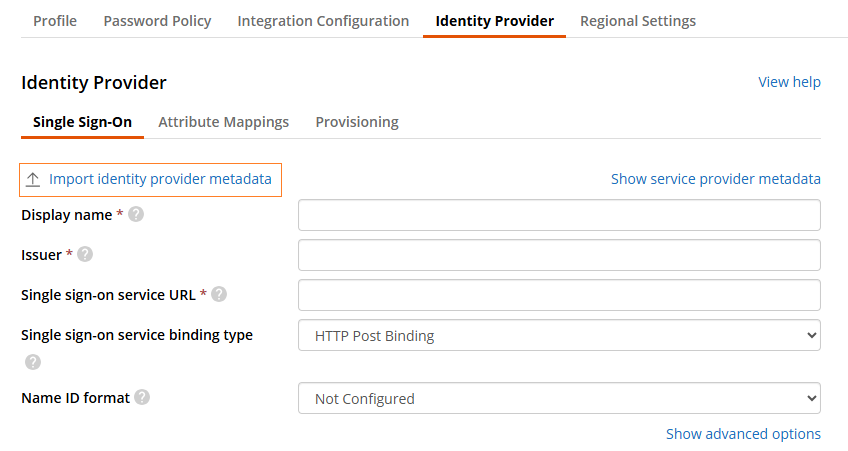
Laserfiche Cloud supports dynamic configuration. To do this, you must obtain the URL for the identity provider metadata in the previous step.
- Click Import identity provider metadata.
- Paste the App Federation Metadata URL in the Please provide identity provider metadata URL field.
- Click Ok.
5. Optional: Configure Advanced SSO options in Laserfiche Cloud
6. Optional: Mapping User Attributes and Claims between Entra ID and Laserfiche Cloud
When a user authenticates to the Laserfiche application, Entra ID issues the application a SAML token with information (or claims) about the user that uniquely identifies them. By default, this information includes the user's username, email address, first name, and last name.
The Unique User Identifier (Name ID) identifier value is a required claim and is important. The default value is user.userprincipalname. The user identifier uniquely identifies each user within the application. For example, if the email address is both the username and the unique identifier, set the value to user.mail.
Note: To learn more about user attributes & claims or how to customize claims in Azure AD, see How to: customize claims issued in the SAML token for enterprise applications.
Attribute Mappings in Laserfiche Cloud
- Navigate to Laserfiche Cloud and sign in.
- Click the Settings tab under Account Administration.
- Click Single Sign-On tab.
- Click the Attribute Mappings tab.
- Enter the attribute Name that you specified in Azure AD. Do not use the attribute Value.
- Once finished, click Save changes.
7. Optional: Test Single-Sign On in Azure AD
Follow the steps below to test to see if single sign-on is working:
Note: Users will need to be added to Users and groups in Azure AD before they can sign in. To learn more, see
- In the Azure AD portal, select Enterprise applications.
- Find and select the Laserfiche App.
- In the Manage section, select Single sign-on to open the Single sign-on pane for editing.
- In the Test Single Sign-On section, click Test.
- Click Sign in as current user. This will complete Azure sign in on the application's sign in page.
Note: If you are seeing an error, use the Resolving errors section in Azure AD to paste the error. Then, click Get resolution guidance to troubleshoot further. Here are two common links for troubleshooting: