Configure SAML Single Sign-On with Okta
Account Administrators can now configure SAML single sign-on to Laserfiche Cloud through Okta.
To configure SAML single sign-on with Okta in Laserfiche Cloud, follow these steps:
1. Create a Laserfiche Application in Okta
- Sign in to Okta and navigate to the Admin Dashboard.
- Choose Applications.
- Click Add Application.
- Click the Create New App button.
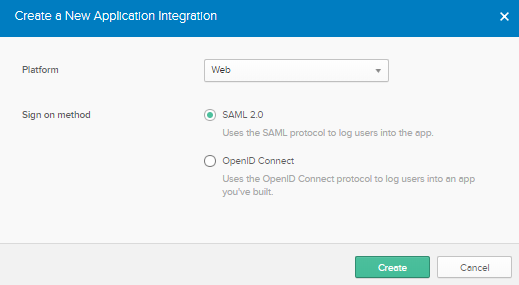
- In the Create a New Application Integration dialog box, choose the following options for the fields below:
- Platform: Web
- Sign on method: SAML 2.0
- Click Create.
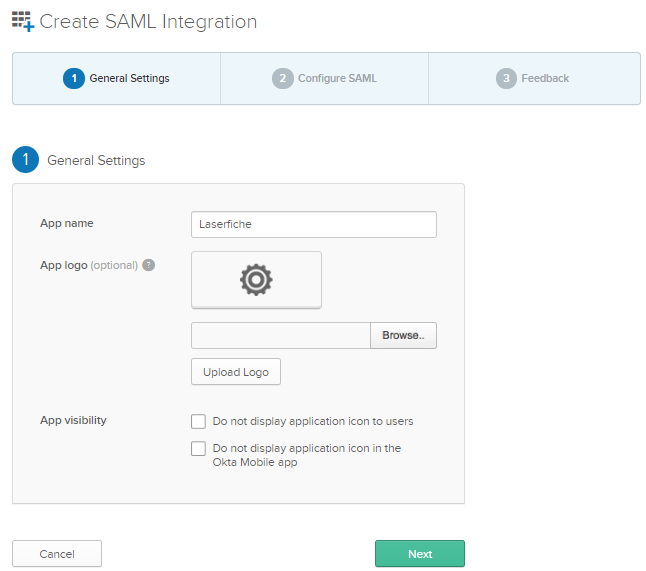
- In the Create SAML Integration page, under the General Settings tab, enter the App name as Laserfiche. Optionally, you may upload an App logo and choose App visibility.
- Click Next.
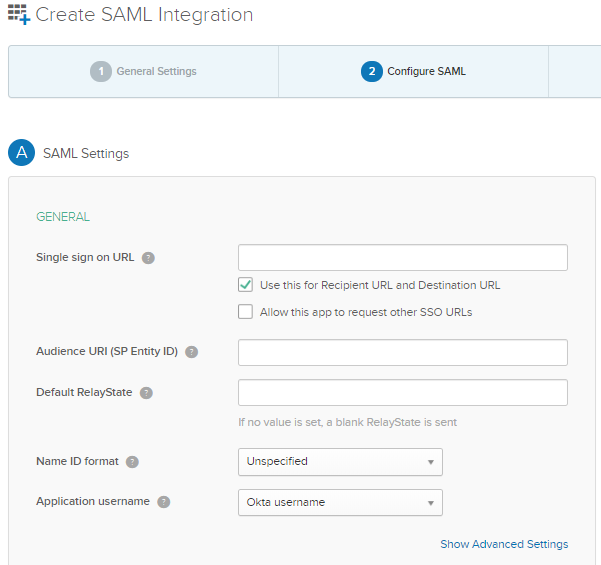
- In the Configure SAML tab, enter the following information using the Service Provider information in the SAML Settings section:
- Single sign on URL: This is the location where the SAML assertion is sent with a HTTP POST. This is often referred to as the SAML Assertion Consumer Service (ACS) URL for your application. Fill out this field with the Assertion Consumer Service URL.
- Check the check-box for Use this for Recipient URL and Destination URL to use the Assertion Consumer Service URL as the Recipient and Destination URL.
- Audience URI (SP Entity ID): This is the application-defined unique identifier that is the intended audience of the SAML assertion. Fill out this field with the Audience URL (SP Entity ID).
- Default RelayState: This identifies a specific application resource in an identity provider initiated Single Sign-On scenario. Fill out this field with the Default relay state.
- Name ID format: This identifies the SAML processing rules and constraints for the assertion's subject statement. Use the default value of Unspecified.
- Application Username: Determines the default value for a user's application username. The application username will be used for the assertion's subject statement. It is recommended to change this to Email.
- Click Next.
- Fill out the Feedback tab as desired.
- Click Finish.
Note: To learn more about Applications, see Okta's documentation page.
2. Download Identity Provider Metadata in Okta
SAML 2.0 is not configured until the setup instructions are completed.
Choose between one of the two options below. You will need this information to configure Laserfiche Cloud.
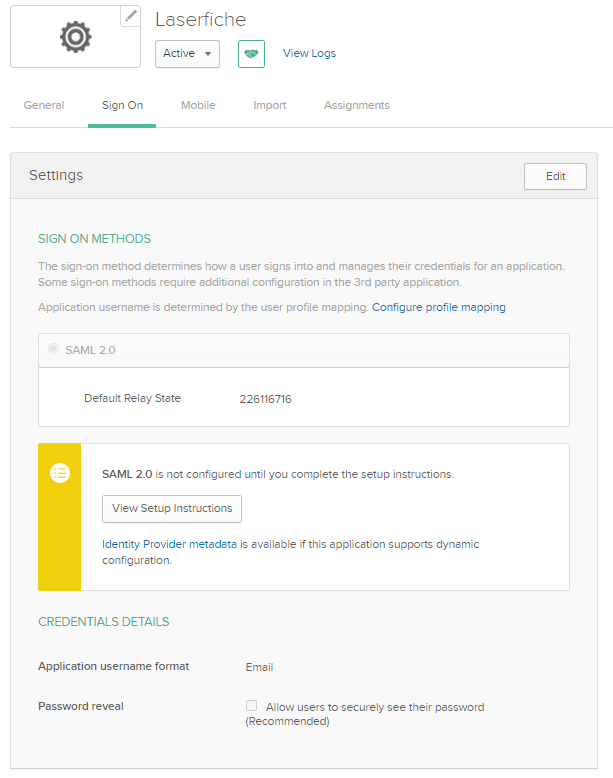
- Click View Setup Instructions to manually configure SAML 2.0 for Laserfiche application.
- Recommended: Click Identity Provider metadata. Copy the browser URL.
3. Import Metadata in Laserfiche Cloud
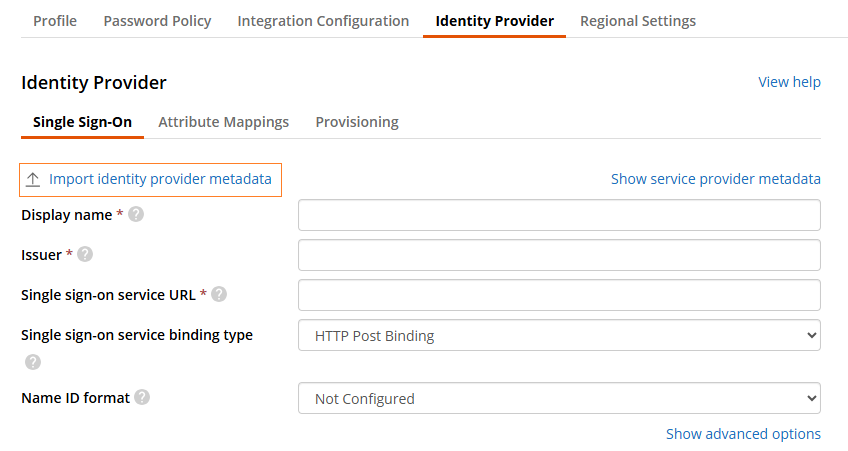
Laserfiche Cloud supports dynamic configuration. To do this, you must obtain the URL for the identity provider metadata.
- Select Import identity provider metadata.
- Paste the identity provider metadata URL in the Please provide identity provider metadata URL field.
- Click OK.
4. Assign People or Groups to Application in Okta
There are two ways to assign individual apps.
Applications page
- From the Applications page, search or scroll down to the application you want to assign to one or more people or groups.
- Click the Action button drop-down menu.
- Choose Assign to Users or Assign to Groups.
Specific app
- From the Applications page, search or scroll down to the app you want to assign to one or more people or groups.
- Click the individual app to view its page.
- On the app specific page, click the Assign button.
- Choose either Assign to People or Assign to Groups. An Assign <app name> to People /Assign <app name> to Groups dialog appears listing available end users or groups who are not already assigned to the selected app.
- Click the Assign button next to each user or group for which you want this app assigned. For users, complete the Attributes page.
- Assign more users or groups, or click Done.
Assign applications for people and groups:
- From the Applications page, click Assign Applications. The Assign Applications page appears. On the left of this screen is a list of available Applications. On the right of the screen, there is a list of People in your org.
- From the list of available Applications, select the application(s) that you want to assign to users. Selecting the check-box at the top of the list selects all listed applications.
- From the list of People in your org, select the users to whom you want to assign the selected application(s). Selecting the check-box at the top of the list assigns the applications to all users.
- Select Search by group in the drop-down menu next to the People search field.
- Enter the name of the group, then select the users.
- Click Next.
- Review the summary page and complete any additional information requested on the page.
- Click Confirm Assignments.
To assign to group(s):
Note: To learn more about Applications, see Okta's documentation page.
5. Optional: Configure Advanced SSO options in Laserfiche Cloud
6. Optional:Attribute Mappings
- Sign in to Okta.
- Click the Applications tab and click your Laserfiche application.
- Click the General tab.
- In the SAML Settings section, click Edit.
- Click Next to navigate to the Configure SAML section.
- Scroll down to the Attribute Statements section.
- Enter the Name of the attribute. Leave Name format as Unspecified. Enter a Value for the attribute.
- Click Add Another to add more attribute statements.
- When finished, scroll down and click Next. Then click Finish.
Note: To view a complete list of attributes, click the Assignments tab. Click the name of a person in the People tab. Click the Profile tab. To learn more, navigate to Okta's help documentation.
Attribute Mappings in Laserfiche Cloud
- Navigate to Laserfiche Cloud and sign in.
- Click the Settings tab under Laserfiche Account Administration.
- Click Single Sign-On tab.
- Click the Attribute Mappings tab.
- Enter the attribute Name that you specified in Okta. Do not use the attribute Value.
- Once finished, click Save changes.