Users Overview
View the Users tab to manage accounts that can sign in and access Laserfiche Cloud services.
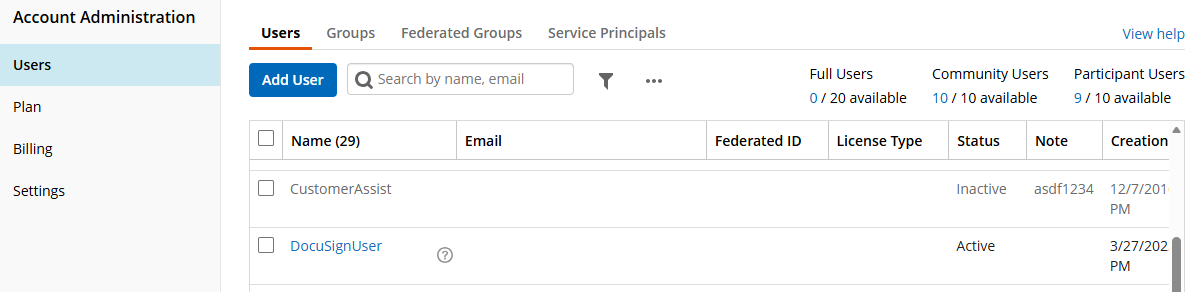
Note: There must be at least one active user account with administrator privilege.
Tip: Assign rights at the group level as much as possible. Access rights can be set on either individual users or on groups, but setting rights on groups and allowing the users within the groups to inherit those rights will result in needing fewer manual configuration to accomplish the same purpose, and therefore will be easier to troubleshoot and less prone to error in the future. In general, the more manual configurations you need to accomplish something, the greater overhead for administration in the future.
Filtering
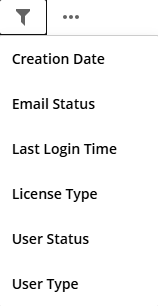
Select from several different filters to narrow down the list of users.
Adding Users
Create user accounts that will be able to access Laserfiche Cloud services.
Creating Users in Laserfiche
Discover how to add and manage users and groups to control access to your Laserfiche environment. User setup includes assigning licenses, security rights, authentication options, and group membership for streamlined administration.
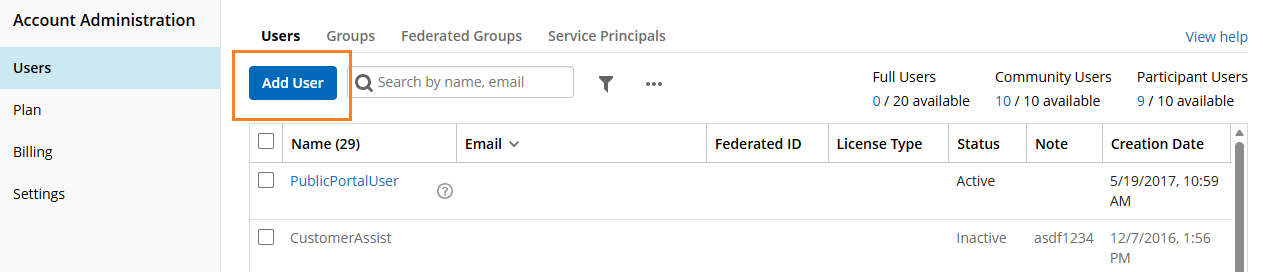
- In the left pane, under Account Administration, click the Users tab.
- Click the Add User button as shown in the image below.
- In the Email field, enter the user's email address. By default, the Send email verification check-box is checked. Once this user is created, a verification email is automatically sent to the user to activate their Laserfiche Cloud account.
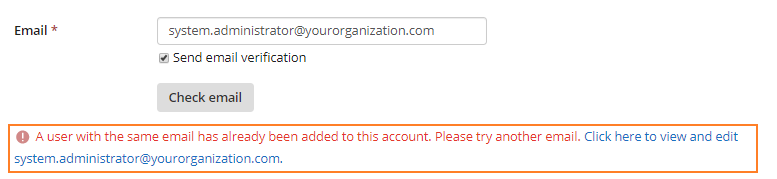
- Click the Check Email button to verify this email address is available. If this email address belongs to an existing user, an error message will appear, as seen in the image below.
- In the User Details section, enter user's information. A username can contain the following characters and is limited to a maximum length of 47:
- a-z (case preserving but case-insensitive)
- 0-9
- ' (single quote)
- _ (underscore)
- - (hyphen)
- . (period)
- In the Password section, choose between one of these two options:
- Send a password setup email: Selecting this option will gray out the Password and Confirm password fields. An email is sent to the user, prompting them to set the password for their Laserfiche Cloud account.
- Set initial password: Selecting this option requires filling out the Password and Confirm password fields. To prompt the user to set their password upon signing-in, click the check-box for User must change password on next sign-in.
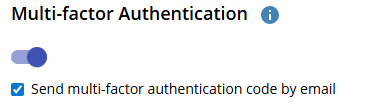
- Optional: Turn on Multi-factor Authentication (MFA) to require that the user specify a second piece of information in addition to their password when signing in. By default, the Send multi-factor authentication code by email is checked.
- In the User Security and Access section, choose the User License Type for this user.
- In the Access Rights section:
- Presets: Use this drop-down menu to choose one of the following options:
- Full Rights: Selecting this option allows the user full access rights to Laserfiche Account Administration, Public Portal, and Process Automation. In addition to this, the user will have rights to grant themselves full access in the Laserfiche Repository.
- Inherit All: Selecting this option means the user's access rights will be inherited from the user's group membership.
- Remove All Rights: Selecting this option means the user will not have any access rights to the Laserfiche repository and Process Automation. User will not have any access rights to Laserfiche Account Administration and Public Portal unless inherited by the user's group membership.
- Customize access by selecting from the security options available for the account.
 Account
Standard user accounts granted one of these rights can access the Laserfiche Account Administration site. Administrator accounts can always access the Account Administration site.
- Account Administration allows the user account full access to the Laserfiche Cloud Account Administration site.
- Billing Administration allows the user account to view the Plan tab and Billing tab (if applicable) in the Laserfiche Cloud Account Administration site.
- Trustee Administration allows the user account to view the Users tab in the Laserfiche Cloud Account Administration site.
- Audit Administration allows the user account to access Audit Trail.
- View User Group Membership allows the user account the ability to view group membership
RepositoryRights in this section control access to Audit Trail, Documents, and Laserfiche Repository Administration applications.
- Access to Repository allows the account to sign in to the Laserfiche repository and view documents.
- Set Laserfiche Privileges allows the account to manage privileges for the Laserfiche repository through Repository Administration.
- Access to RepositoryManagement allows the account to access RepositoryAdministration.
- Audit Reporting allows the account to generate and view audit reports on the Laserfiche repository.
- Laserfiche Web Configuration Manager allows the account to configure the default toolbar buttons for the entire repository. These defaults will be used instead of the generic repository defaults for any user who has not customized their toolbar. This role also allows the account to lock down toolbar configuration for other users.
Public Portal- Public Portal Administrator allows the account to access the Public Portal Designer.
Process Automation- Access to Process Automation allows the account to sign in to Process Automation.
- Process Administrator allows the account full access to Process Automation, including full administrative rights.
- Process Asset Administrator allows the account to administer files, holidays, profiles, workers, queues, and work schedules in Process Automation.
- Process Developer allows the account to create and modify workflows, rules, workers, queues, and starting events.
- Process Manager allows the account to create teams, view and start business processes, and modify rules.
- Form Developer allows the account to create surveys.
Developer Console- Developer Console Administrator
- Click Create, to save and finish creating this user. Click Save and create another, to finish creating this user and start creating another user.
Note: The verification link contained within the verification email will expire in 24 hours.
Note: If you have created Groups, click the Group field. Choose a Group name from the drop-down menu. This will add this user to a group. To learn more about creating groups and adding users to groups, navigate to Creating Groups.
Note: Multi-factor authentication (MFA) is not supported when signing in through the Microsoft Office Integration prior to version 10.4.2.
Note: To learn more about License types, navigate to User License Types.
Important: All users are required to agree to the terms of service when signing in for the first time. This can affect user accounts that are only used for services like Import Agent, Quick Fields Agent, Workflow web service, custom SDK programs that run as a non-interactive service, etc. Services using a user account that has never been used to sign in interactively will be unable to sign in. Please visit a Laserfiche Cloud application website to sign in with the appropriate user account to view and accept the terms of service.
Tip: Assign rights at the group level as much as possible. Access rights can be set on either individual users or on groups, but setting rights on groups and allowing the users within the groups to inherit those rights will result in needing fewer manual configuration to accomplish the same purpose, and therefore will be easier to troubleshoot and less prone to error in the future. In general, the more manual configurations you need to accomplish something, the greater overhead for administration in the future.
Deleting and Disabling User Accounts
In the Users tab, under Account Administration, user accounts can be deleted or disabled.
Deleting a user removes the user permanently and frees the assigned user license. Laserfiche Account Administration will no longer show a user history for the deleted user.
Disabling a user frees the assigned user license. However, user history will remain in Laserfiche Account Administration.
Deleting a User Account
- Select one or more users using the checkbox next to the name.
- Once the users have been selected, select the Delete option in the toolbar. Or, right-click the selected users and select Delete from the context menu. All selected user accounts will be deleted.
Disabling a User Account
- Select one or more users using the checkbox next to the name.
- Once the users have been selected, select the Disable option in the toolbar. Or, right-click the selected users and select Disable from the context menu. All selected user accounts will be disabled.
Note: A disabled user can be enabled to reactivate the user account. If the ProcessAutomationUser is disabled, then process automation service will lose access to the Laserfiche Repository.
Enabling Multi-factor Authentication
Multi-factor authentication (MFA) adds an additional security step when signing in to Laserfiche Cloud.
In addition to providing a username and password, users must specify a second piece of information generated by a time-based one-time password (TOTP) authentication application. Any TOTP authentication application can be used such as Google or Microsoft authenticator.
Note: Components that run as services, like Import Agent, Email Archive, Snapshot, or Quick Fields Agent cannot use accounts with MFA when connecting to Laserfiche Cloud because they run in the background without any way to enter a MFA code.
To enable multi-factor authentication
- Sign in to the Laserfiche Cloud Account Administration site and view the properties for a user account.
- Under the Multi-factor Authentication section, click the Configure Multi-factor Authentication link.
- In the Multi-factor Authentication for UserName dialog box, set the Multi-factor Authentication option to Yes.
- Laserfiche Cloud generates a secret key for the user account. Take note of the value of the Shared secret as the value must be input into the Amazon Virtual MFA, Google Authenticator, or Microsoft Authenticator app on the user's mobile device.
- If the user cannot physically be at your administrator workstation monitor, use the Email to field to verify that the user account's email address is correct and then click Send to send an email with the secret key.
Note: User must verify their email address prior to an administrator enabling multi-factor authentication (MFA) for a user account.
Note: Multi-factor authentication (MFA) is not supported when signing in through the Microsoft Office Integration prior to version 10.4.2.
Configuring a Password Policy
Administrators can configure a password policy for Laserfiche users not managed by an identity provider. In the Account Administration app, view the Settings page and click the Password Policy tab.
Configure a password rotation policy, password complexity requirements, and failed authentication lockout policy for Laserfiche users.
When configuring password complexity, character sets are defined as follows:
- English uppercase letters (i.e., A - Z)
- English lowercase letters (i.e., a - z)
- Numbers (i.e., 0 - 9)
- Non-alphanumeric characters (e.g., !, @, $, etc.)
Configuring an Idle Session Timeout
Administrators can configure an idle session timeout policy. In the Account Administration app, view the Settings page and click the Session Management tab.
Turn on the Disconnect idle sessions option and specify the period of inactivity before Laserfiche automatically signs out users.