Getting Started with Formulas
Formulas are rules that use functions to define the relationship between inputs and outputs. The functions range from numerical calculations to dates and times. In a workflow, the formula uses token values from earlier in the workflow as inputs. The result of the formula is stored in an output token that you can use elsewhere in your workflow.
Example: You want to calculate each student's grade on an exam. With input parameters %(Correct_Answers) and %(Total_Questions), you can use the Division function to produce the formula. On the canvas, you have "%(Correct_Answers) / %(Total_Questions)". When the formula runs in a workflow, the two input parameters are replaced with token values to produce a result.
Getting Started with Formulas
Discover how to create reusable rules that calculate values from inputs. Formulas allow you to apply consistent logic across workflows and processes.
To create a formula:
1. Defining the Input Parameters
While you can enter a value directly into a function, you can use input parameters as placeholders that are filled when the function runs. For example, the following input parameters are used for the number of correct answers on a test and the total number of questions on that test.
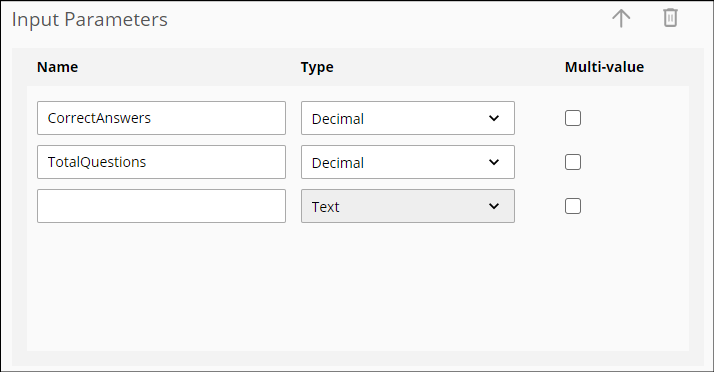
To define an input parameter:
- Under Input Parameters, use the Name field to provide a unique name. The name cannot contain spaces, so use underscores instead.
- Select the text under Type to select the type of data in the parameter.
- Optional: Select the checkbox under Multi-value to accept more than one value in the parameter.
Example: A multi-value input parameter with values 1, 2, and 3 contains "1,2,3".
- Click the Test button to ensure output is as expected.
2. Adding Parameters and Functions to the Canvas
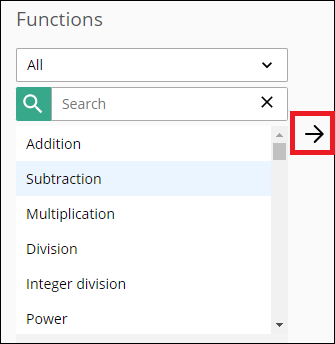
After you configure your input parameters and find the functions you want to add, you can insert them into the Formula Expression canvas. The canvas is where you build your actual formula. You can add the parameters and functions directly into the canvas, or you can select the parameter or function and click the right-facing arrow →. You can also multi-select input parameters.
Example: In the following sample image, you would select Subtraction and the right-facing arrow → to insert the function into your formula.
3. Specifying the Output Parameter
The output parameter contains the result of the formula calculation.
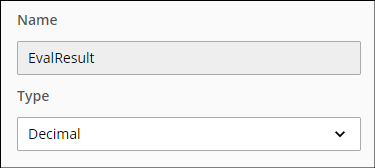
To specify an output parameter, select the type of data in the parameter in the Type drop-down menu.
Example: In the following sample image, the EvalResult parameter contains the student's test grades as a decimal.
5. Use the rule in a workflow or a business process.
Reference: Selecting the Data Type
The data type defines the type of value that replaces the input and output parameters in your formula.
You can select from the following data types:
- Text: A sequence of characters without double-quotes.
 See formatting details
 - Integer:
A large positive or negative number without a decimal between -2^31 and (2^31) - 1. See formatting details
- Long: An even larger positive or negative number without a decimal between -2^63 and (2^63) - 1. See formatting details
- Decimal: A positive or negative number that can contain a decimal. See formatting details
- DateType: A date value (with or without a time value). See formatting details
- Boolean: An either-or relationship. See formatting details