Run Rule
This activity allows you to run one rule in your workflow definition. When the workflow runs, the activity takes one or more values from earlier in the workflow as inputs to the rule. The activity applies the rule logic to the inputs and produces a result. The result may be stored in one or more tokens. You can use the resulting tokens elsewhere in your workflow process.
The following links provide more information on how to configure the various rule types:
- Configuring a data query rule
- Configuring a decision table rule
- Configuring a document merge rule
- Configuring a lookup table query rule
- Configuring a formula rule
You may want to disable activities if you only want to test specific sections of your workflow. To disable activities:
- Select an activity in the designer pane to highlight it.
- In the Description property box, clear Enable.
For an example that uses this feature across process automation, see the Migrating Laserfiche Form Tables into Microsoft Word Documents whitepaper.
Configuring a Query Rule
This configuration of the Run Rule activity allows you to use a query to find specific data in lookup table or external data source.
To use a query rule in a workflow:
- Drag the Run Rule activity from the toolbox pane and drop it in the Designer pane.
- In the properties pane, type a name and description of the activity.
- In the Rule property box, select whether you want to run a Data Query or Lookup Table Query.
- Select the rule and rule version.
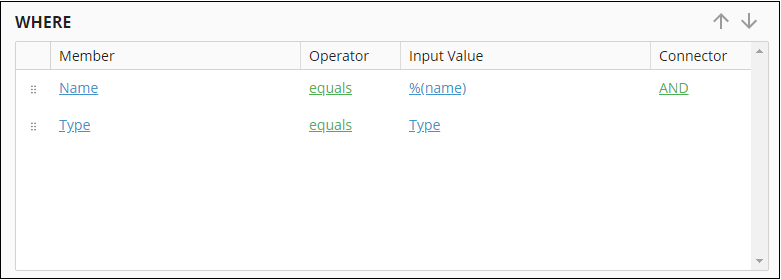
- Under Input Values, specify the token or hard-coded values you want to use for each input field. The input values presented here correspond to the Input Value column in the WHERE section of the data query, when the input value is set as an input parameter.
- Under Output Tokens, specify the name and tag of the single-value token that contains the result of the rule. The output values presented here correspond to the Output Parameter column in the SELECT section of the data query.
- Click Test rule to preview the output.
- Under Rows to Return, specify the number of results to return when more than one row matches the inputs. This is especially useful when a data query finds all rows in a table of 10,000 rows, but you only want the first three rows.
Configuring a Decision Table Rule
This configuration of the Run Rule activity allows you to reference the decision table logic to make a decision in your workflow and then use the results of the decision elsewhere in the process. When the decision table produces more than one result, you can use a For Each Row activity to iterate over each result. The following instructions use the sample decision table from the Output Order Hit Policy page.
To configure a decision table rule:
- Drag the Run Rule activity from the toolbox pane and drop it in the Designer pane.
- In the properties pane, type a name and description of the activity.
- In the Rule property box, select Decision Table Rule.
- Select the rule and version. The version corresponds to the "Major" version number for the rule.
- Under Input Values, specify the token and/or hard-coded values you want to use for each input field.
Example: In the following image, the input name Age represents the input field on the Output Order decision table. When the activity runs, the value of the %(Age) token is entered for the input.
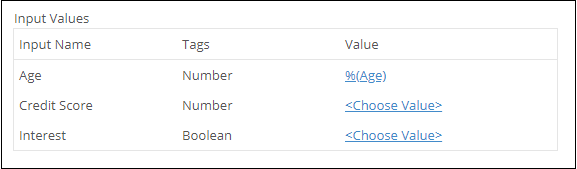
Note: When you select <Choose Value>, you see a text box, token picker, and three dots. The text box contains the input value. Note that when you enter a string value in the text box, you do not have to place double quotes around the string. The token picker lets you select a token. The three dots lets you select an item from a decision table's predefine list, if the decision table has one.
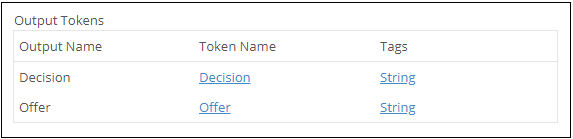
- Under Output Values, specify the name and tag of the single-value token that contains the result of the rule.
Example: In the following image, the output name Decision represents the output field Decision on the Output Order decision table. The token name Decision is used to represent the token that contains the result of the decision. This token looks like %(RunRule_Decision).
Configuring a Document Merge Rule
This configuration of the Run Rule activity allows you to update a document or PDF using a document merge rule. The document contains simple and/or table merge fields that update the document in different ways. Simple merge fields are replaced by single values, while table merge fields are replaced by iterative data in a table-like structure. The activity produces a file that contains the result of the document merge.
To configure a document merge rule:
- Drag the Run Rule activity from the toolbox pane and drop it in the Designer pane.
- In the properties pane, type a name and description of the activity.
- In the Rule property box, select Document Merge Rule.
- Select the rule and version. The version corresponds to the "Major" version number for the rule.
- Under Input Values, choose the values you want to update the simple merge fields with. The values can be hard-coded or from a token.
- Under Output Tokens, provide a name for the token containing the resulting file from the merge. You do not have to modify the token tag labeled File.
Example: The following output token DocumentMergeResult contains the resulting file.

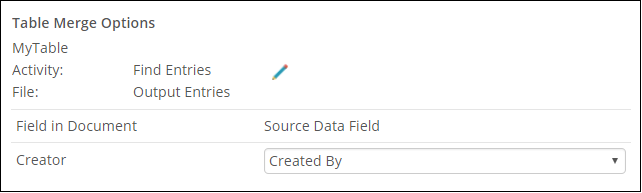
- Under Table Merge Options, first select the source of the table merge and then choose the data you want to populate each field with.
Example: You select Output Entries from a Find Entries activity. In the first field in the document Creator, you can use the Created By property, which can be found in Additional Properties in the Find Entries activity. This updates the table for each entry found.
Configuring a Lookup Table Query Rule
This configuration of the Run Rule activity allows you to reference a lookup table query, perform the custom query on various inputs in the process, and produce some result. You can then use the results of the query elsewhere in your workflow process.
To configure a lookup table query rule:
- Drag the Run Rule activity from the toolbox pane and drop it in the Designer pane.
- In the properties pane, type a name and description of the activity.
- In the Rule property box, select Lookup Table Query.
- Select the rule and version. The version corresponds to the "Major" version number for the rule.
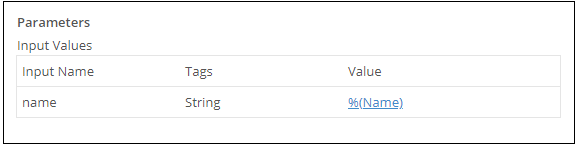
- Under Parameters, specify the token and/or hard-coded values you want to use for each input parameter in the WHERE clause.
Example: Because the Name member uses the input parameter %(name), you can define the parameter in the properties pane. In the following example, the input parameter has the token value %(Name).
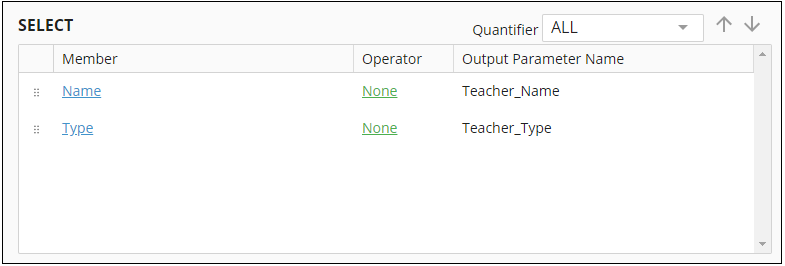
- Under Output Tokens, specify the name and tag of the token that contains the result of the rule from each statement in the SELECT clause.
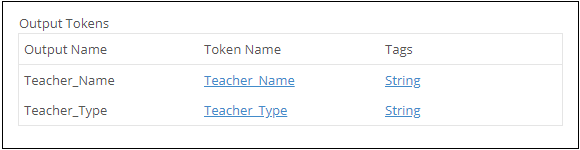
Example: The following output parameters Teacher_Name and Teacher_Type are referenced in the properties pane in the Workflow Designer.
- Under Rows to Return, specify the number of outputs to return.
Configuring a Formula Rule
This configuration of the Run Rule activity allows you to use one of your formula rules and reference the result elsewhere in your process.
To configure a formula rule:
- Drag the Run Rule activity from the toolbox pane and drop it in the Designer pane.
- In the properties pane, type a name and description of the activity.
- In the Rule property box, select Formula.
- Select the rule and version. The version corresponds to the "Major" version number for the rule.
- Under Input Values, specify the token and/or hard-coded values you want to use for each input parameter.
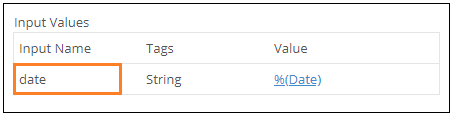
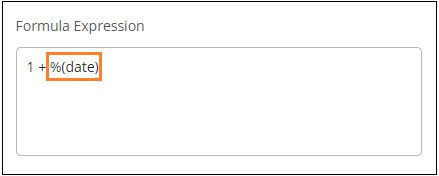
Example: The following input name date is replaced with the value in the %(Date) token.
- Under Output Values, specify the name of the token that contains the results of the formula.
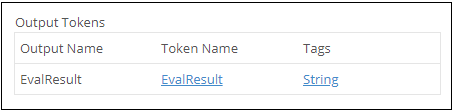
Example: The following output token EvalResult contains the result of the formula.
-
Under Rows to Return, specify the number of results to return when more than one row matches the inputs. This is especially useful when a data query finds all rows in a table of 10,000 rows, but you only want the first three rows.