Data Queries
Queries allow you to perform queries on lookup tables or external data sources. There are two forms of the query editor. The basic editor includes a set of boxes that allow you to build SQL-like expressions to extract information from data sources. The custom editor allows advanced users to write custom SQL queries and scripts using all of the SQL language. Refer to this page for security tips when using the custom SQL editor.
Create a Query
- On the Rules page, select the arrow beside New and select Query as your rule type.
- In the Create Query Rule dialog, specify the Name and Description for your rule.
- Select whether you want to query a lookup table or a data source.
- If you choose to query a data source, specify the external data source that you want to query.
- Choose whether to build a Select, Insert, Update, Custom, or Delete query type.
Note: Delete is only available for the Lookup Table query type, and Custom is only available on the external data source type.
- Click Create.
Build a query using the basic editor
Build the query statement using the following sections of the query editor unless a Custom query type was selected.
FROM: Specifying a Table
The FROM section of the query editor allows you to specify a table that you want to query.
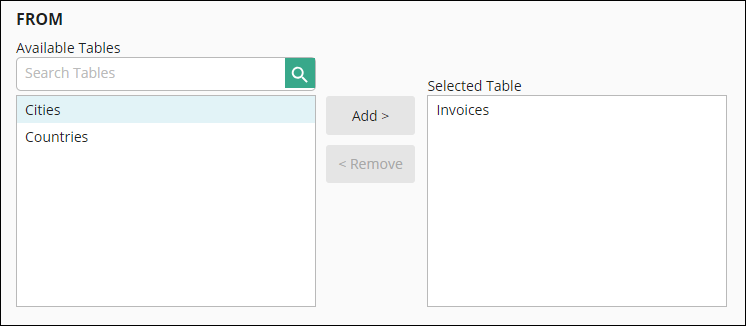
The left part of the section has the tables you can query. This list is updated based on your lookup tables or external data sources. To add a table, either double-click the table on the left, or select the table and click Add.
For external data source queries, you can change the specific external data source in the right pane to use another verified data source.
Example: The following image shows a query on Invoices, but not on Cities and Countries:
Restrictions
The FROM statement has the following restrictions.
- For external data source and lookup table queries, you can select only one table.
SELECT: Selecting Columns
The SELECT section of the query editor lets you select the columns from the table that you want to query.
To specify columns:
- Click Add.
- Select the name of the column you want to query under Column.
- Select the number of unique entries you want to return in Quantifier.
- Optional: Under Function, select an aggregate function to apply to the data.
- Type a name for the output parameter containing the result of the query under Output Parameter. You can use the output parameter name to reference the configured statement in the Run Rule Workflow activity.
Example: If $1 is repeated twice, use DISTINCT to count $1 once and ALL to count each appearance of $1.
Example: Using the Max operator, you can find the maximum salary for all employees in an Employee table.
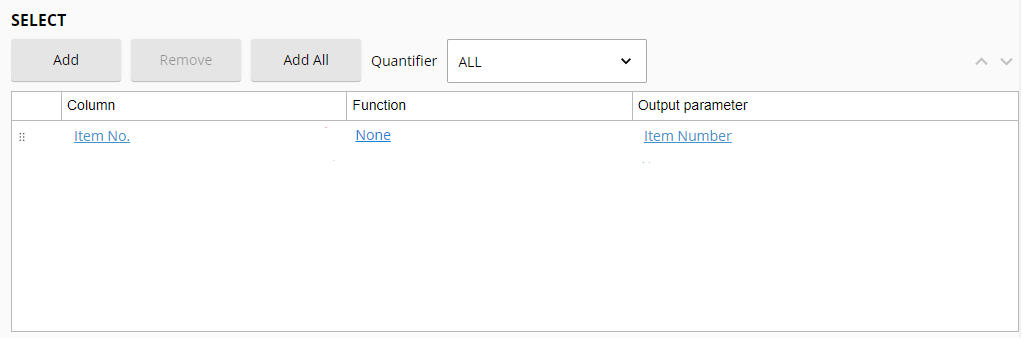
Example: The following image is a sample statement to return all the values in the Item No. column. In Workflow, you would be able to use the Item Number output parameter name to reference the statement.
WHERE: Filtering Columns by Value
The WHERE section of the query editor allows you to filter the columns for specific values in a table. For example, instead of returning all the values in columns Student Name and Student GPA, you can use the WHERE section to specify only those values where the student has a GPA of 4.0. You can also apply operators and use wildcards for pattern searching.
To specify a value:
- Click Add.
- Select the name of the column in which the value is stored under Column.
- Specify the filtering condition by choosing an Operator and entering a Value. You can use an input parameter for the value.
- When you have more than WHERE condition, specify whether the conditions are related by AND or OR operators.
Input Parameters
You can specify the input value by entering a value directly. However, you may not know the specific value, or you may want to keep the query broad enough for multiple types of queries. Input parameters allow you to hold off on specifying a value until the query is actually being used. For example, you may want to specify the input value when you run the query within the editor or use it in the workflow activity.
To use an input parameter:
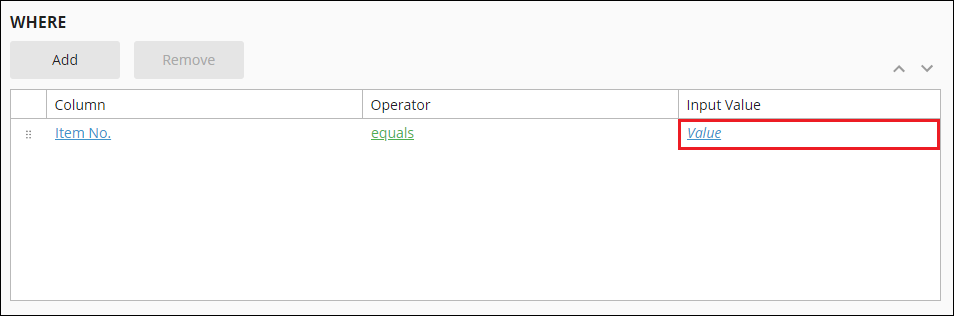
- Click the text under Input Value.
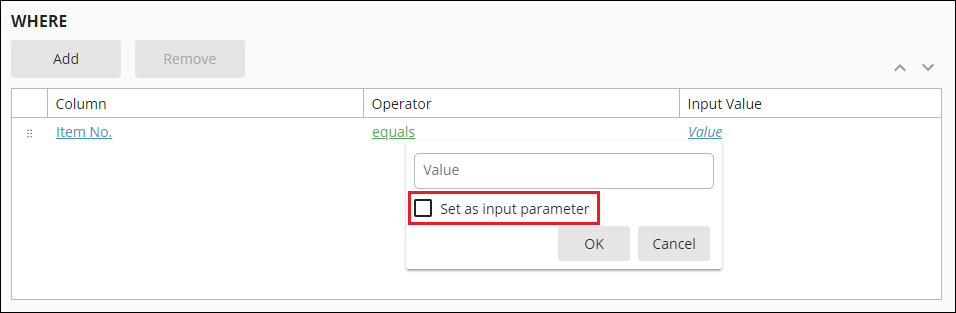
- Click Set as input parameter.
- Set the parameter name.
- Click OK.
Selecting Operators
The operator in a statement defines the relationship between a column and one or more values. Use the following operators to define the values you want to query. Use the NOT checkbox at the top of the drop-down to use the opposite of the selected option.
| Name | Description |
|---|---|
| IN | A set of values. For example, "a" is in the set of values "a", "b", and "c". |
| BETWEEN | A range of number or date values from the first value to the last. |
| LIKE | Any value that fits a pattern in a column. Use wildcards to search for a pattern. (More information below) |
| COMPARISON | A value based on a comparison between the column name and input value. |
| NULL | Any columns that do not have a value. |
Using AND or OR Operators between Different Rows
By default, if you have multiple rows in the WHERE section of the query editor, they will be connected by an AND operator. The query editor lets you change this to an OR operator, or to nest multiple levels of clauses linked by AND and OR operators.
- To change an operator from an AND to an OR or vice versa, click on the operator and select your desired operator.
- To join two rows with an AND or OR operator, drag one row onto the other row and select your desired operator.
- To add a row into an AND or OR clause at the same level as another AND or OR clause, drag the row onto the latter AND or OR.
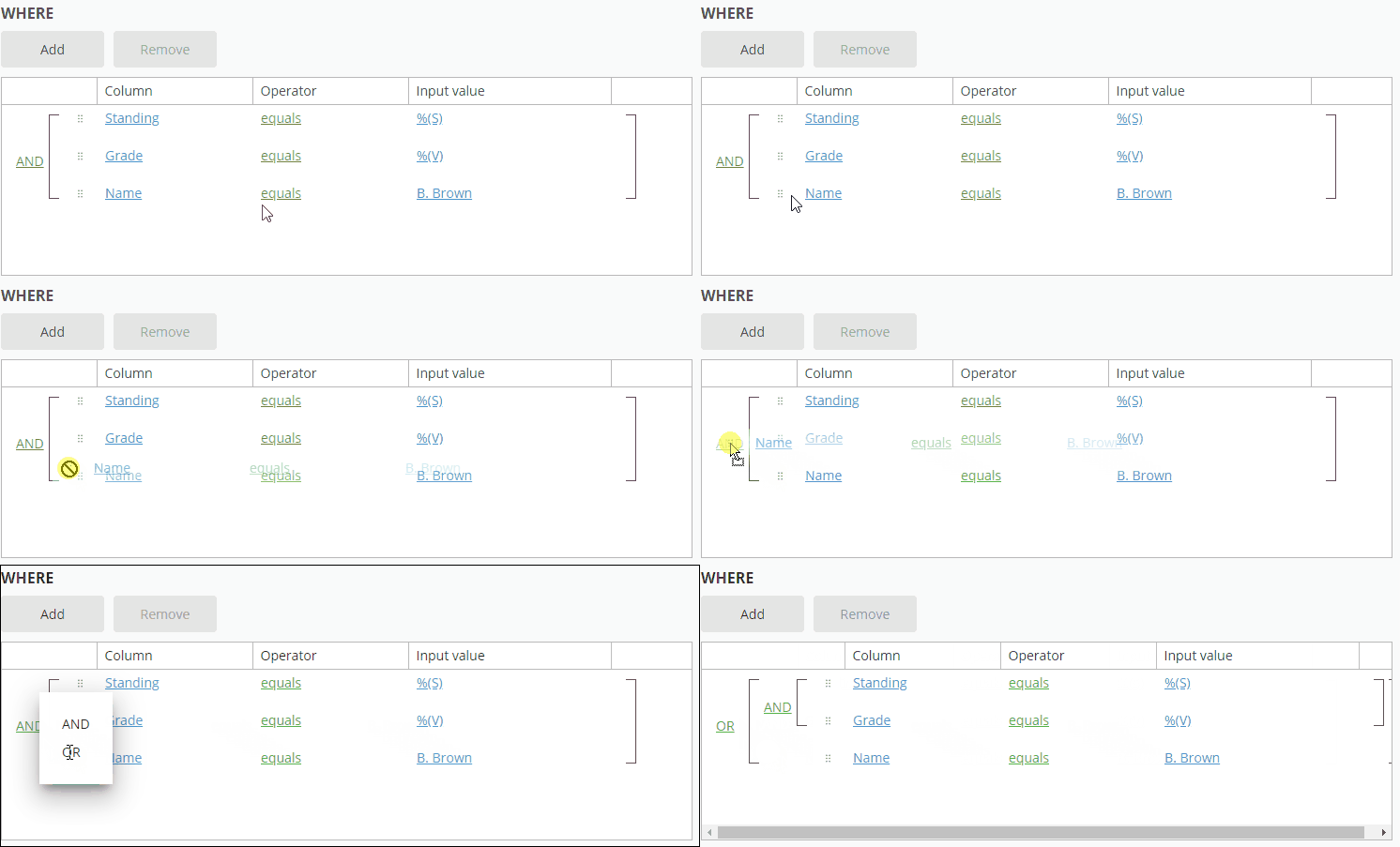
Example: I add three rows to a WHERE clause. Initially, the three rows are joined by AND operators by default. I want to move the row for the Discount condition to an OR condition grouped with CouponCode. In the animated image below, I accomplish this by dragging the Discount row to the CouponCode row and selecting OR.
Using Wildcards
Wildcards let you query values according to a pattern. You can use the following wildcard rules with a LIKE operator:
| Name | Description | Example |
|---|---|---|
| Percent ("%") | Represent zero or more characters. |
"a%" queries values that start with "a" "%a" queries values that end with "a". |
| Underscore ("_") | Represent one character. |
"_a" queries any two-letter values with "a" as the second letter "_a%" queries any values with "a" as the second letter. |
ORDER BY: Sorting Query Data
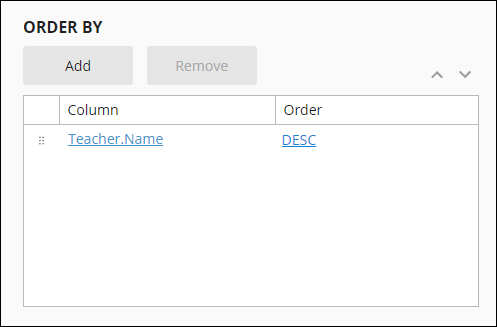
The ORDER BY section of the query editor lets you specify the columns by which you want to organize the query results. For example, the following statement orders the results by the name of the teacher in reverse alphabetical order.
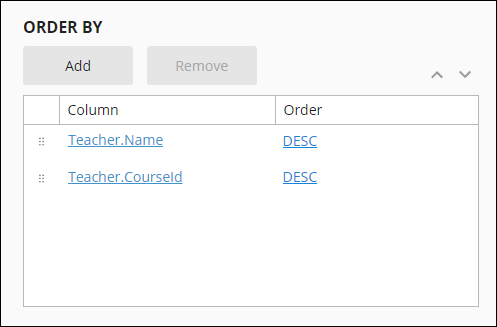
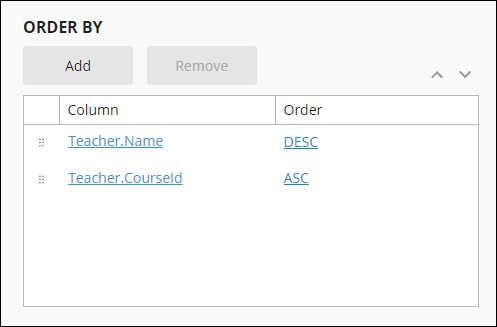
When you want to order by many columns, Laserfiche sorts results by the first column specified in the ORDER BY section, followed by the second, and so on. To reorder the priority of columns, use the grip to the left or the up and down arrows in the top right. For example, the following image shows ordering by the teacher name and then the course ID.
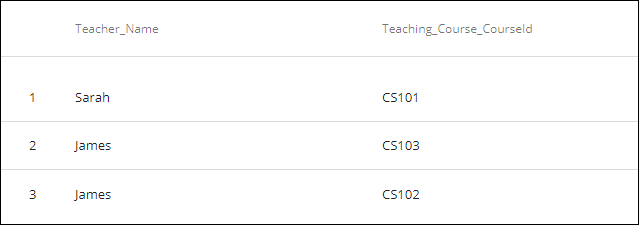
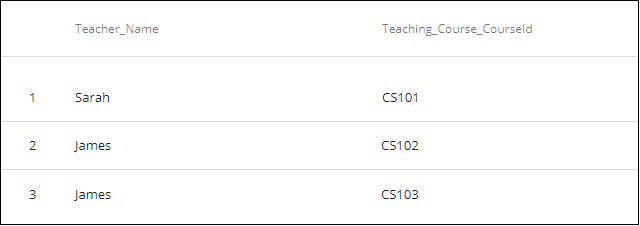
This configuration produces the following result:
You can change the order of the second column with the following configuration:
This configuration produces the following result:
GROUP BY: Organizing Data in a Column Using Operators
The GROUP BY section of the query editor lets you group the results of the operation by another column in the data source. Use GROUP BY to get aggregated information of all the values in a column, such as the values' average or maximum.
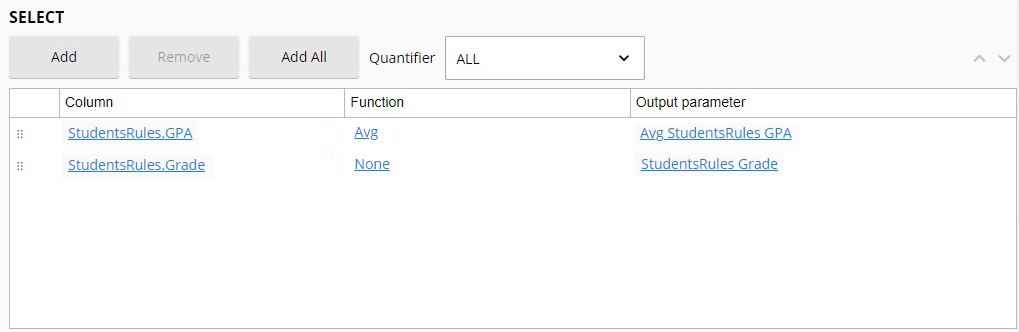
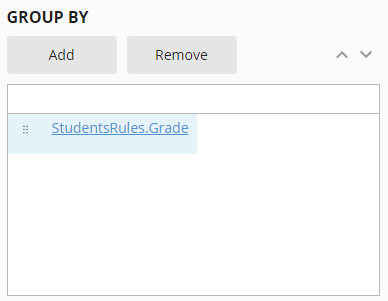
Example: In the SELECT section, you specify an operator to find students' grade point averages and standings. You want to find the average GPA for students in each grade. In the GROUP BY section, you can select the Grade column, which will show you the average GPA for students in each grade. This configuration looks like the following:
After building the query:
- Configure the Rows to Return field with the desired number of rows for the query to return. Returning only the amount of rows necessary for your process can increase performance.
- Use the Test button to ensure that the query works as you expect.
- Add the query to your processes.
Note: If the Rows to Return field is not configured, it will default to 100 rows for new rules and 10,000 rows for previously created rules
Using the Custom query editor
- Write your SQL statements in the Query window or copy and paste from another query editor.
- Use the Insert Token button to create input parameters that can be populated at run time.
- Use the Test button to ensure that the query works as you expect.
Alternatively, you can import a query from a .bri file. After import, double-click on the rule to open the rule editor.
For an example that uses this feature across process automation, see the Migrating Laserfiche Form Tables into Microsoft Word Documents whitepaper.