Using Assignment Roles
A practical guide to setting up, managing, and using assignment roles for targeted task routing.
Overview
What Are Assignment Roles?
Assignment roles let you route tasks to the appropriate specialists within a single team. They reduce inbox noise, keep managerial oversight centralized, and eliminate the need to create multiple, nearly duplicate teams.
Why Use Assignment Roles?
- Route work to specialists without fragmenting your organization into many teams
- Maintain manager visibility while limiting which users actually receive a task
- Support consistent and auditable routing for approvals and resubmissions
Who Is This For?
- Team owners and managers who define teams and manage access rights
- Process designers who configure user tasks and assignment logic
- Administrators who govern naming standards, visibility, and ongoing maintenance
Core Concepts
- Team: A group of users that can receive tasks in processes. A team can include both managers and specialists.
- Access rights: Permissions that control what team members can see or do, such as the Team Manager access right. Access rights are separate from assignment roles.
- Assignment role: A label (for example, Payroll or Invoices) used to route tasks to specific subsets of a team. A user can have multiple assignment roles.
- Task visibility: Determines whether team members who are not targeted by an assignment role can still see a task. Team managers typically retain visibility even if they are not assigned to the task.
Set Up Assignment Roles
Create assignment roles to route tasks to specialists without creating multiple teams. This approach keeps managerial oversight centralized while limiting which users receive specific tasks.
For example, an HR team may include payroll or benefits specialists, or a registrar team may handle only certain schools or majors. Assignment roles allow you to assign tasks directly to these specialists without creating separate teams.
 Creating Assignment Roles Video
This video explains how to create assignment roles within a team and use filters in user tasks to route work to specific role members. Using roles ensures tasks are efficiently assigned to the right people while giving managers full visibility into all team tasks.
Step 1. Create Roles for a Team
Purpose: Define the specialist segments you will use when routing tasks in processes.
Steps:
- Open the team.
- Select the Assignment Roles tab.
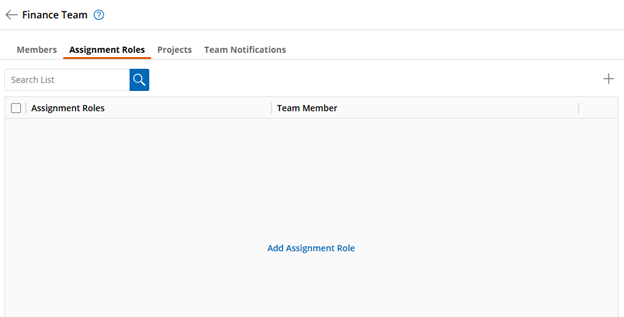
- Click Add Assignment Role (or the + icon if roles already exist).
- Enter a clear, functional role name (for example, Invoices, Payroll, Benefits, or School of Business).
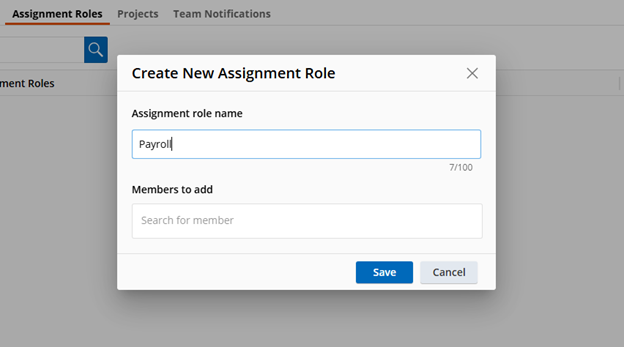
- Save the role.
Tips:
- Start with the fewest roles you need and add more as usage patterns emerge.
- Use durable role names that align with your department structure or service catalog.
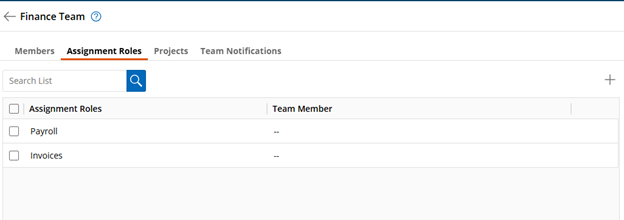
The role list displays each role name and, when available, the members assigned to that role.
Step 2. Add Users to Roles
After creating assignment roles, add users to the team and assign them the appropriate roles. A user can have multiple assignment roles.
Start by assigning only the roles you need. You can add or adjust roles later as requirements change.
The most important access right to assign is Team Manager. Team managers can see all tasks assigned to the team and oversee task distribution. However, even though a team manager can view all tasks, they will not receive tasks routed by assignment roles unless they are explicitly assigned to those roles.
For more information about other access rights, see Getting Started with Process Automation and Team Access Rights.
Adding Assignment Roles to New Team Members
When adding a new user to a team, select the appropriate assignment roles during the user setup process.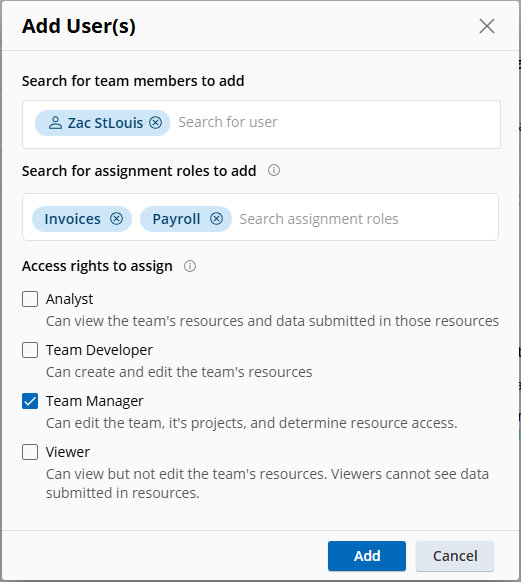
Adding Assignment Roles to Existing Team Members
To assign roles to existing team members:
- Select one or more team members.
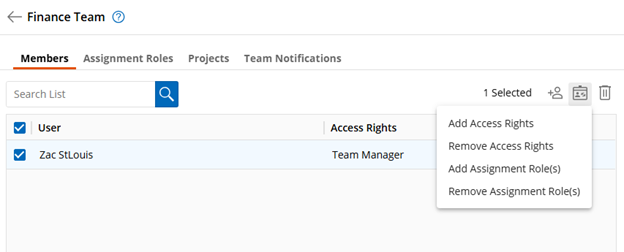
- Click Modify user in the toolbar.
- Select the assignment roles to add.
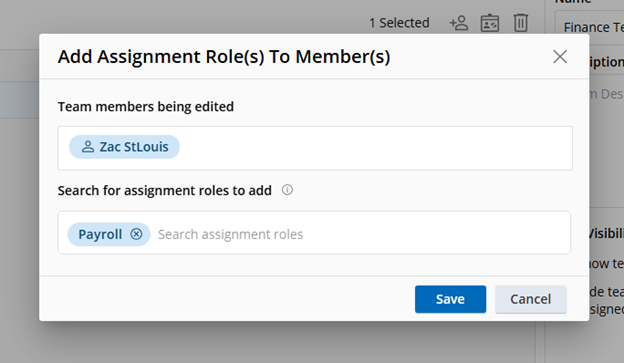
- Save your changes.
Step 3. Use Assignment Roles in Your Processes
For configuration details and additional examples, see the guide on using assignment roles in processes. It includes common routing patterns to help you apply assignment roles effectively.
Use Assignment Roles in Your Processes
Example Teams
HR Team
| Team Member | Assignment Roles | Access Rights |
|---|---|---|
| John Smith | [General], [Benefits] | Team Manager |
| Jane Doe | [Payroll] | Team Manager |
| Paul Johnson | [General], [Benefits] | Standard Member |
| Alison Dear | [Payroll] | Standard Member |
Tasks assigned to [General] are routed to team members with the [General] role (John and Paul). Jane and Alison do not receive these tasks because they do not have the role. However, Jane can still view and manage the tasks because she is a team manager.
For sensitive HR work, set task visibility to Hide. Team managers (for example, John) can still see all team tasks, even without the [Payroll] role.
Registrar Team
| Team Member | Assignment Roles | Access Rights |
|---|---|---|
| John Smith | [School of Nursing] | Team Manager |
| Jane Doe | [School of Engineering] | Team Manager |
| Paul Johnson | [School of Business] | Standard Member |
| Alison Dear | [School of Psychology] | Standard Member |
Team managers can see all Registrar tasks across schools. Other team members only receive and see tasks for their assigned school.
Set task visibility to Show so registrars can support each other and cover absences when needed.
Finance Team
| Team Member | Assignment Roles | Access Rights |
|---|---|---|
| John Smith | [Invoices] | Team Manager |
| Jane Doe | [Payroll] | Team Manager |
| Paul Johnson | [Payroll] | Standard Member |
| Alison Dear | [Invoices] | Standard Member |
Team managers can see all Finance tasks, regardless of assignment role. Other team members only receive and see tasks for their assigned roles.
Use task visibility Hide if payroll work is sensitive and should be visible only to the [Payroll] sub-team and team managers.
Using Assignment Roles
You can use assignment roles in any process that assigns user tasks to teams. In a user task step, select a team that has assignment roles, then configure assignment rules to target the appropriate specialists.
If you have not created assignment roles yet, see Setting Up a Team's Assignment Roles.
Types of Assignment Rules
- Include roles: Assigns the task to any team member who has at least one of the selected roles.
- Exclude roles: Prevents assignment to any team member who has at least one of the selected roles.
- Include task participants: Assigns the task to any team member who previously submitted, approved, or rejected the selected user task step.
- Exclude task participants: Prevents assignment to any team member who previously submitted, approved, or rejected the selected user task step.
Set Up Assignment Rules
- In the user task step, click Add assignment rules.
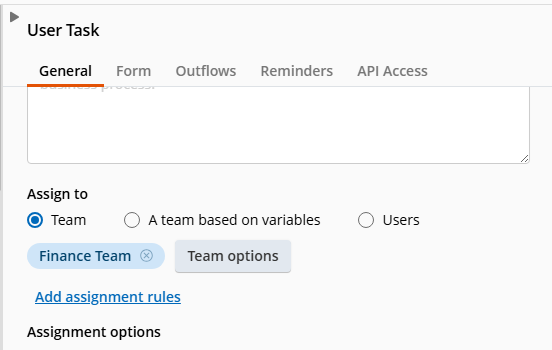
- In the assignment rules dialog, select Include roles and choose the roles relevant to your process.
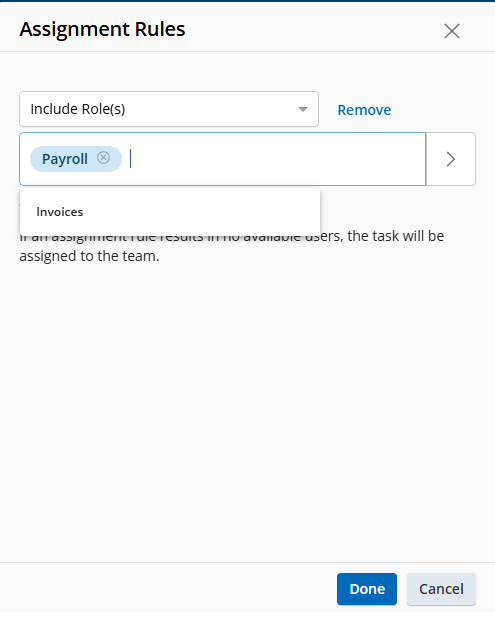
- Click Done, then publish your process.
For additional examples and common use cases, continue to the next section.
How Assignment Rules Are Evaluated
Assignment rules are applied in the order you define them. Each rule narrows the set of eligible assignees.
Evaluation Model
- Start with all members of the selected team.
- Apply rules in sequence to narrow the candidate set:
- Apply Include role(s)
- Apply Exclude role(s)
- Apply Include task participant(s)
- Apply Exclude task participant(s)
- The remaining users become the final assignee pool.
- If no users remain, the task is assigned to the entire team (fallback).
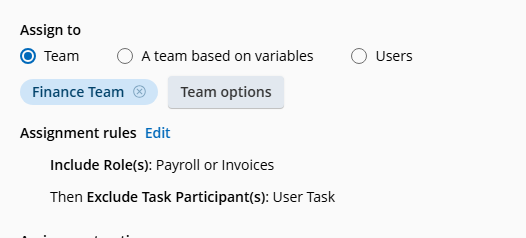
Example: The task first identifies all members of the Finance team. It then narrows the list to members with either the Payroll or Invoices role. From that set, it filters again to include only users who participated in the selected user task step.
Fallback Behavior
If the rule chain results in no matching users, the task is assigned to the entire team. This commonly occurs the first time a step runs, when there are no prior participants to match.
If the process returns to the same task later (for example, after a "send back to initiator" step), the previous participant may then match and be selected.
What Happens When a Task Is Released?
When a team member releases a claimed task, Process Automation automatically re-evaluates the same assignment rules configured for the step, in the same order used at initial assignment. This evaluation runs in the backend; no one needs to manually re-run or confirm the rules:
- Apply Include role(s)
- Apply Exclude role(s)
- Apply Include task participant(s)
- Apply Exclude task participant(s)
The resulting users become the new unclaimed candidate pool for the task. If no users remain, the task falls back to the entire team, the same as at initial assignment.
Example: A Finance task is assigned with Include roles --> Invoices. Alison Dear claims the task and later releases it. Process Automation reruns the Include roles --> Invoices rule, and the task becomes available again to current Finance team members with the Invoices role (John Smith and Alison Dear). It does not automatically become available to the entire Finance team.
Note: Task visibility (see Core Concepts) keeps its usual meaning for ordinary team tasks. This assignment-rule restriction is not limited to tasks that have been released, though: whenever a task is unclaimed and its assignee pool has been narrowed by assignment rules — whether at initial assignment, after a release, or because the rules re-evaluate while the task is still sitting in the pool — only the users in that resulting subset can see and claim it, even on teams set to Show team tasks to all eligible team members. A task can disappear from another team member's Available list for this reason alone, without anyone having released it. Team managers and administrators retain broader oversight regardless of this setting.
Example Process Setups
Consider a simple invoice approval process. A requester submits an invoice (captured in the Invoice_Number token). The submission is routed to the Finance team for approval. If the Finance team rejects the invoice, it returns to the initiator for updates. The corrected invoice is then routed back to Finance for final approval.
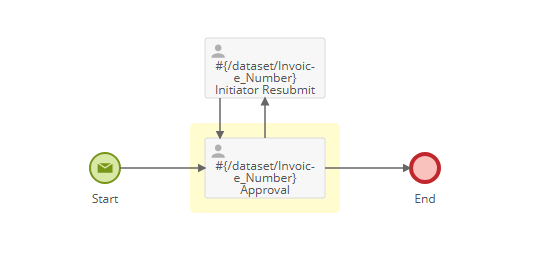
A. Simple Role-Based Assignment (Specialists Only)
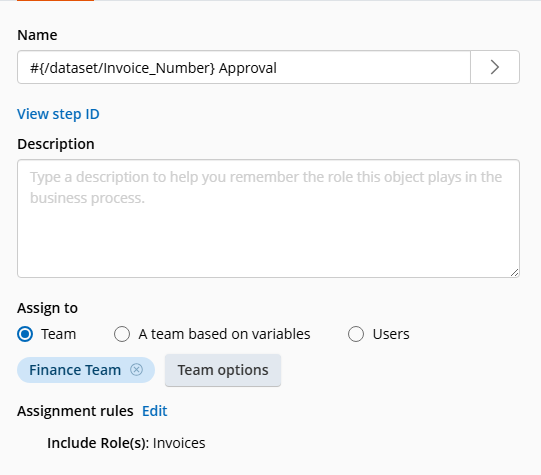
Scenario: Your Finance team includes an Invoices role. You want only invoice specialists to receive invoice approval tasks.
Rule: Include roles --> Invoices
Result: Only members with the Invoices role receive the task. Team managers can still view tasks for oversight.
B. Keep the Same Approver on Resubmission
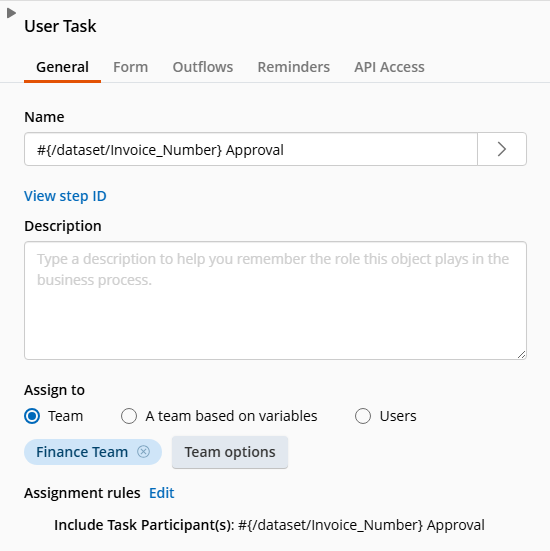
Scenario: Anyone on the Finance team can approve initially. If the initiator resubmits a corrected invoice, it should return to the same approver.
Rule: Include task participants --> [This task]
Result: On the first pass, there may be no previous participant, so the task is assigned to the entire team. On resubmission, the prior approver receives the task.
C. Combine Roles with "Same Approver"
Scenario: Restrict the task to invoice specialists and keep the same approver for resubmissions.
Rules:
- Include roles --> Invoices
- Include task participants --> [This task]
Result: The first run routes to the Invoices sub-team. On resubmission, it targets the same specialist who handled the task previously.
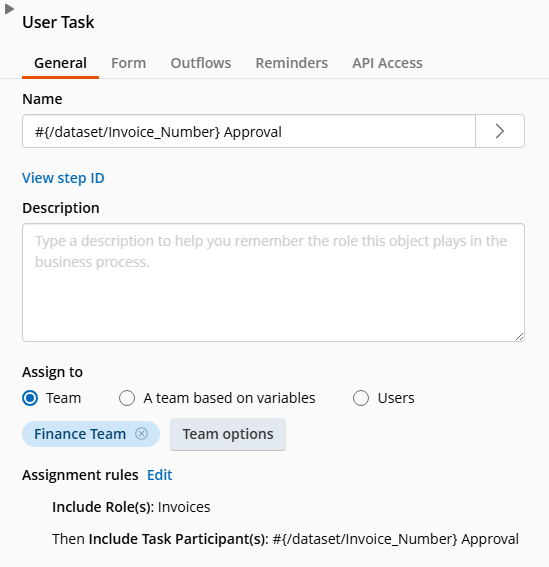
Note: If no user matches at the end of rule evaluation, the task is assigned to the entire team. For example, the first time a user task runs there may be no participant to match. If the process later returns to the same task (such as after a "send back to initiator" flow), the prior participant can be selected.
Best Practices
- Name roles consistently. Use clear, function-oriented names such as Payroll, Benefits, Invoices, or School of Business.
- Start minimal. Fewer roles are easier to maintain. Add roles as real needs emerge.
- Separate visibility from assignment. A manager may be able to view all tasks but will receive tasks only for roles they hold.
- Document your model. Maintain a short registry of each team's roles, their intent, and the processes that use them.
- Test with a pilot. Send sample tasks to confirm the rules target the correct users before moving to production.
- Review quarterly. Remove unused roles, update membership, and verify visibility settings for sensitive workflows.
Troubleshooting
Assignment rule evaluation is logged in the process monitoring view.
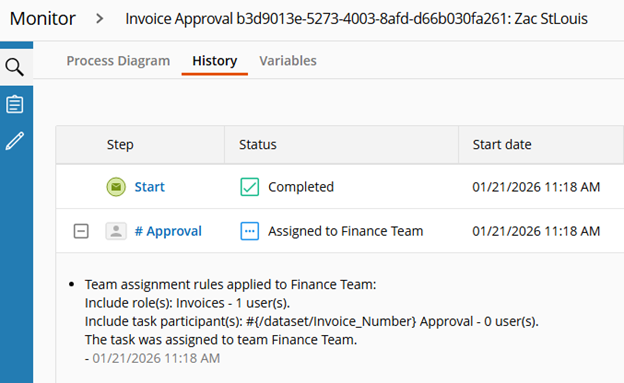
Everyone is getting the task
- Check whether any rule resulted in an empty set, which triggers the team-wide fallback.
- Verify that the included roles exist and that the intended users are assigned those roles.
Managers receive tasks they shouldn't
- Confirm whether managers also have the assignment role.
- Remove the role from managers if they should oversee work without receiving tasks.
Resubmitted items do not return to the same person
- Verify that you added Include task participants for the correct user task step.
- Confirm that the previous approver is still on the team and still has any required role.
A specialist can see sensitive tasks assigned to other roles
- Set task visibility to Hide for that step or process.
- Team managers still retain visibility.
Everyone on the team can claim a released task
- Rule evaluation likely returned no candidates, triggering the team-wide fallback. Verify role membership and participant rules.
The same person is the only one who can claim a released task
- That person may be the only current user matching the rules. The task remains unclaimed until they (or another matching user) claim it again.
Release is not available for a task
- Verify whether the task came from a claimable pool or was assigned by round robin. Round robin tasks are assigned directly to a selected person and cannot be released.
A team manager can see a task but is not in the candidate pool
- Management visibility does not automatically make a team manager a recipient of role-filtered work. Assign the manager the relevant assignment role if they should also receive these tasks.