Getting Started with AI Prompt Rules
An AI Prompt Rule allows you to send a message to an Artificial Intelligence service from Laserfiche or a Web Service Connection and get a response back.
Note: If using a web service-based AI, like ChatGPT, API access to an OpenAI compatible LLM is required. If using Laserfiche AI, the rule will use AI Units. Click here for more information regarding Laserfiche AI Units, and the AI acceptable use policy page for additional information.
AI Prompt Rules Video
Learn how to create AI Prompt rules that bring AI-driven decision making into process automation by using prompts to analyze data, evaluate scenarios, and return intelligent responses within business processes and workflows.
Create an AI Prompt
- On the Rules page, select the arrow beside New and select AI Prompt as the rule type.
- In the Create AI Prompt Rule dialog box, specify the Name and Description for your rule.
- Select either Laserfiche AI or Web Service Connection
- If you selected Web Service Connection, specify the Web Service Connection used to connect to your Artificial Intelligence Service.
- Click Create
- If you selected a Web Service Connection, specify your model. Choosing a model can affect the speed, intelligence, and cost of your AI Prompt Rule. Learn more about the available models from OpenAI here: https://developers.openai.com/api/docs/models
- In the Prompt field, configure the request (prompt) to send to the AI service. You can add Laserfiche tokens to be filled by Workflow or Business Process automations that use the rule.
Note: You may use either a text or file token type. If a file token type is selected, any other information in the prompt box will be ignored. To get specific information about your file input, configure an Advanced prompt and add a User role that contains your instructions. For allowed file types, see https://developers.openai.com/api/docs/guides/file-inputs.
- To help you get started, you can also use the Prompt Library button on the right of the box to insert a sample prompt you can use to enhance your processes.
Note: Inserting a sample prompt will overwrite any existing prompt.
- To help you get started, you can also use the Prompt Library button on the right of the box to insert a sample prompt you can use to enhance your processes.
- Use the Test button to verify that the AI prompt works as you expect. The Test AI Prompt dialog lets you enter sample values for any Laserfiche tokens in use to view how they look as part of your prompt.
Note: Testing your rule is considered a manual operation, and will not count towards use of your AI Units.
Note: Because AI is non-deterministic, responses will not necessarily be the same from run to run.
Configuring an Advanced AI Prompt
- To configure an Advanced AI Prompt, click the Type drop-down and change from Basic to Advanced. In an advanced AI prompt, you can send multiple prompt messages with roles specified to the LLM. You will still always get one response back.
- With an advanced prompt you are able to optionally configure the Temperature for your prompt. Temperature impacts how deterministic or creative the response will be. Not all models allow configuring custom temperatures or use the same values.
- If using Laserfiche AI, the range of accepted temperatures is from 0.00 to 2.00 with values closer to 0 being more deterministic and precise, and higher values being more creative and diverse. The default temperature value is 0.1.
- To configure an additional prompt, click the 'Add Prompt' button at the bottom of existing prompts. Up to 5 prompts can be added.
- Each Prompt can also be configured with a Role. By default, all prompts use the 'User' role. There are three roles available
- User: used for sending your main query to the AI Service. An example user prompt would be "Summarize this text"
- System: used for providing instructions to the AI Service itself when serving your prompt. This can be used to specify how the model will provide a response. An example system prompt would be "Respond to the prompt with professional language."
- Assistant: used to provide the previous model response to help continue a conversation. An example assistant prompt would be to pass the Conversation Response (see below) of a previous AI Prompt rule in as a token.
- If you are using the same instance, consider also using the Conversation History.
- Use the Test button to verify that the AI Prompt works as you expect. The Test AI Prompt dialog lets you enter sample values for any Laserfiche tokens to view how they look as part of your prompt. All prompts will be shown in the sample prompt you send, replacing all Laserfiche tokens with the sample values.
Note: Testing your rule is considered a manual operation, and will not count towards use of your AI Units.
Using Conversation History
Conversation History is a way for AI Prompt rules to get context from, and to continue, a conversation started in a previous instance of the AI Prompt rule. When running an AI Prompt rule from workflows or business processes, there will be an option to Include Conversation History. Checking this box will allow the rule to be part of a continuing conversation.
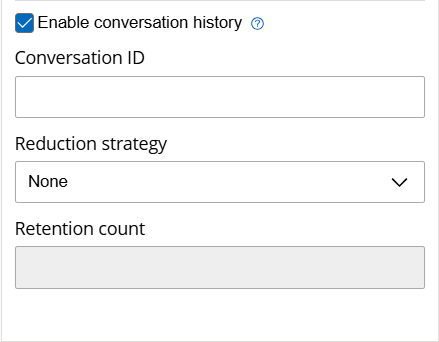
To start a new conversation, insert in your own custom name for your conversation in the Conversation ID field.
Note: Use a word or token that relates to the conversation for clarity.
A rule run with this option will output a Conversation ID in addition to a Conversation Response. If the Conversation ID was blank, it will output a random GUID. If a value was passed in, that same value will be passed out.
To continue an existing conversation, use the same Conversation ID from a previous AI Prompt Rule run, sending all previous prompts and responses to get the appropriate context.
Example: I have a workflow which uses an AI Prompt Rule to generate a random number between 1 and 5, and uses conversation history with the ID “Random Number”. Later in the workflow, to get a different random number we call another AI Prompt Rule with the prompt “Get a different random number from the range” and use the conversation history ID “Random Number” again to continue the conversation. We should get a different number between 1 and 5.
Conversation IDs are not shared between process instances. In the example above, if we ran this workflow multiple times, each instance would have a separate conversation with the ID ‘Random Number’. No need to panic if we run six workflows!
Using a Reduction Strategy
Selecting a reduction strategy during the use of an AI prompt rule in a workflow or business process can prevent conversations from sending more information than necessary to the AI, reducing processing time and/or cost when using this feature.
Note: History messages include the combined prompts and response for each request related to the conversation ID.
Reducing previous conversation size
The options available for reducing the conversation history are:
- None: Uses all conversation history messages related to the conversation ID.
- Summarize: Creates a concise summary of previous conversation messages before continuing. This maintains essential context while reducing token usage and improving processing efficiency.
- Truncate: Removes the oldest messages in the conversation once a specified limit is reached. This ensures that only recent exchanges are included in future prompts.
Note: Each complete run of the rule, which includes the complete prompt information as well as the response, counts as a single message when performing truncation. Once truncated, future runs only have access to the remaining messages.
Retention Count: Sets the number of prior messages to send as part of the conversation history. Using a truncate reduction strategy, the rule only sends the selected number of previous messages. Using a summarization reduction strategy, the rule sends the specified number of previous messages plus a summary of all previous messages.
Note: Conversation History is only tracked within an instance of a workflow or business process, and is only kept for 14 days.
Best Practices with the AI Prompt Rule
Use multiple prompts with different roles to guide the response. If you want the AI Prompt Rule to “decide” between options, use a System prompt such as “Respond with either ‘True’ or ‘False’. Do not give any additional context.” This makes the Conversation ID token easy to use in a conditional decision.
Since the AI Prompt Rule always returns a single Conversation ID, you can use a System role prompt that formats the response in a way a workflow can parse into a multivalued token using token tools. For example, to summarize an article into three key points, then loop over those points and insert them as metadata, you could write an AI Prompt Rule such as:
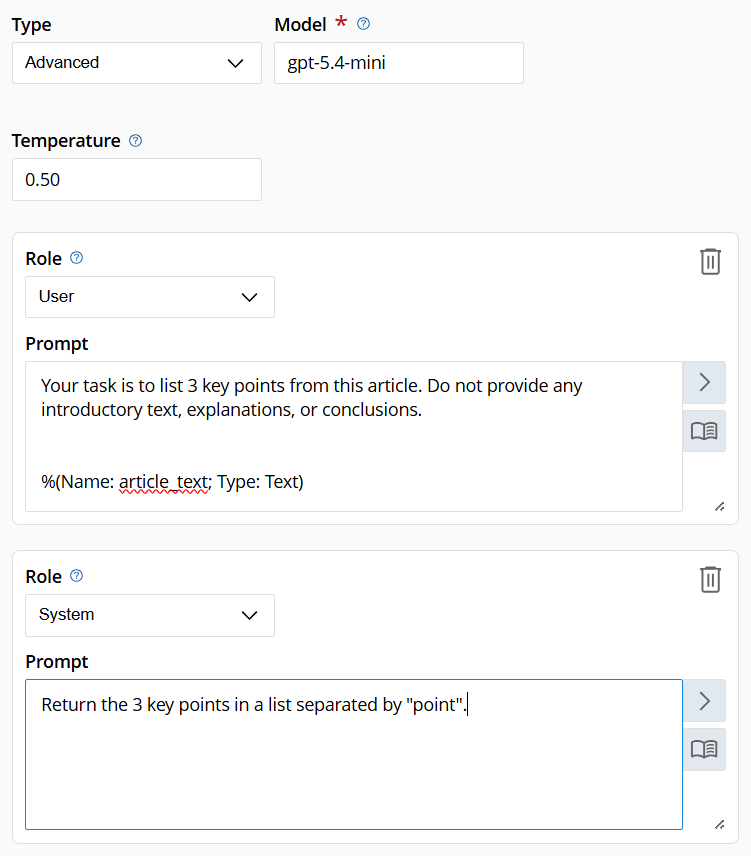
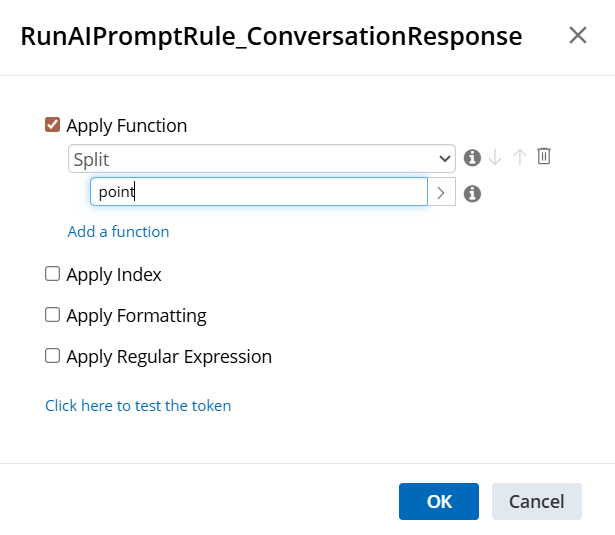
Then, in the workflow, use a split function in the token dialog to create a multi-value token.
Prompt Library Options
Below is a list of the prompts available through the Prompt Library.
| Name of Prompt | Text of Prompt | Expected Information to be Returned |
|---|---|---|
| Improve Your Writing |
Your task is to rewrite this to sound more professional and less verbose. Do not provide any introductory text, explanations, or conclusions. %(Name: text; Type: Text) |
A professional rewrite of the input text with no additional context |
| Understand the main points |
Your task is to list key points from this article. Do not provide any introductory text, explanations, or conclusions. %(Name: article_text; Type: Text) |
A list of the main points of an article |
| Summarize Article |
Tl;dr (Too long; didn't read) %(Name: text_to_summarize; Type: Text) |
A summary of the article |
| Analyze Feedback Sentiment |
Your task is to analyze the sentiment of the following feedback text, learn what users are most concerned or excited about. Do not provide any introductory text, explanations, or conclusions. %(Name: text; Type: Text) |
The main mood, concerns, and exciting points from the text with no additional context. |