Connections
In the Quick Fields Agent Administration Console, you can create connections to one or more machines where the Quick Fields Agent Service is installed. After you create a connection, the connected computer appears in the console’s left pane. You can expand the connection node to manage schedules, adjust settings, and view the history of scheduled runs for that service.
Connecting to the Quick Fields Agent Service
Before you can schedule sessions from the Quick Fields Agent Administration Console, you must create a connection to the Quick Fields Agent Service.
Note: If you have more than one Quick Fields Agent license, you can connect to more than one installation of the Quick Fields Agent Service from one Quick Fields Agent Administration Console window.
To create a connection
- In the left pane, right-click Quick Fields Agent and select Connect To.
-
By default, This computer is selected.
- If you are running the Administration Console from a different computer, or if you have multiple Quick Fields Agent licenses, specify the name and domain of another computer where the Quick Fields Agent Service is installed.
-
Click Connect.
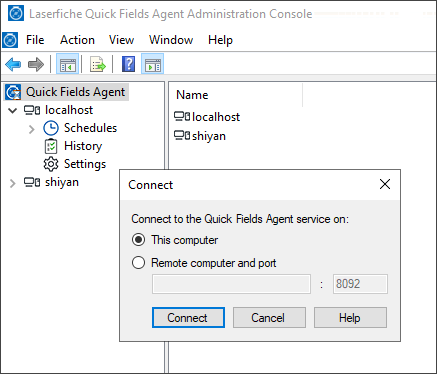
Expand the computer node to view the available options.
Note: If the options do not appear, right-click and select Refresh.
Disconnecting from the Quick Fields Agent Service
You can disconnect the Quick Fields Agent Administration Console from a Quick Fields Agent Service it is currently connected to.
To disconnect from a Quick Fields Agent Service
- In the left pane, right-click the name of a Quick Fields Agent server.
- Select Disconnect from.
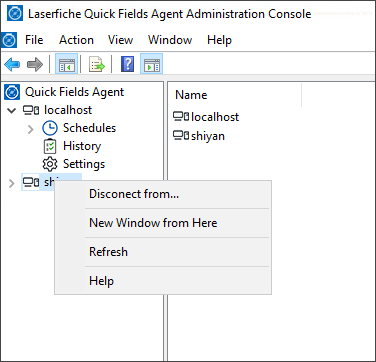
Options available for each connection: